HDMI XR Adapter
HDMI XR Adapter
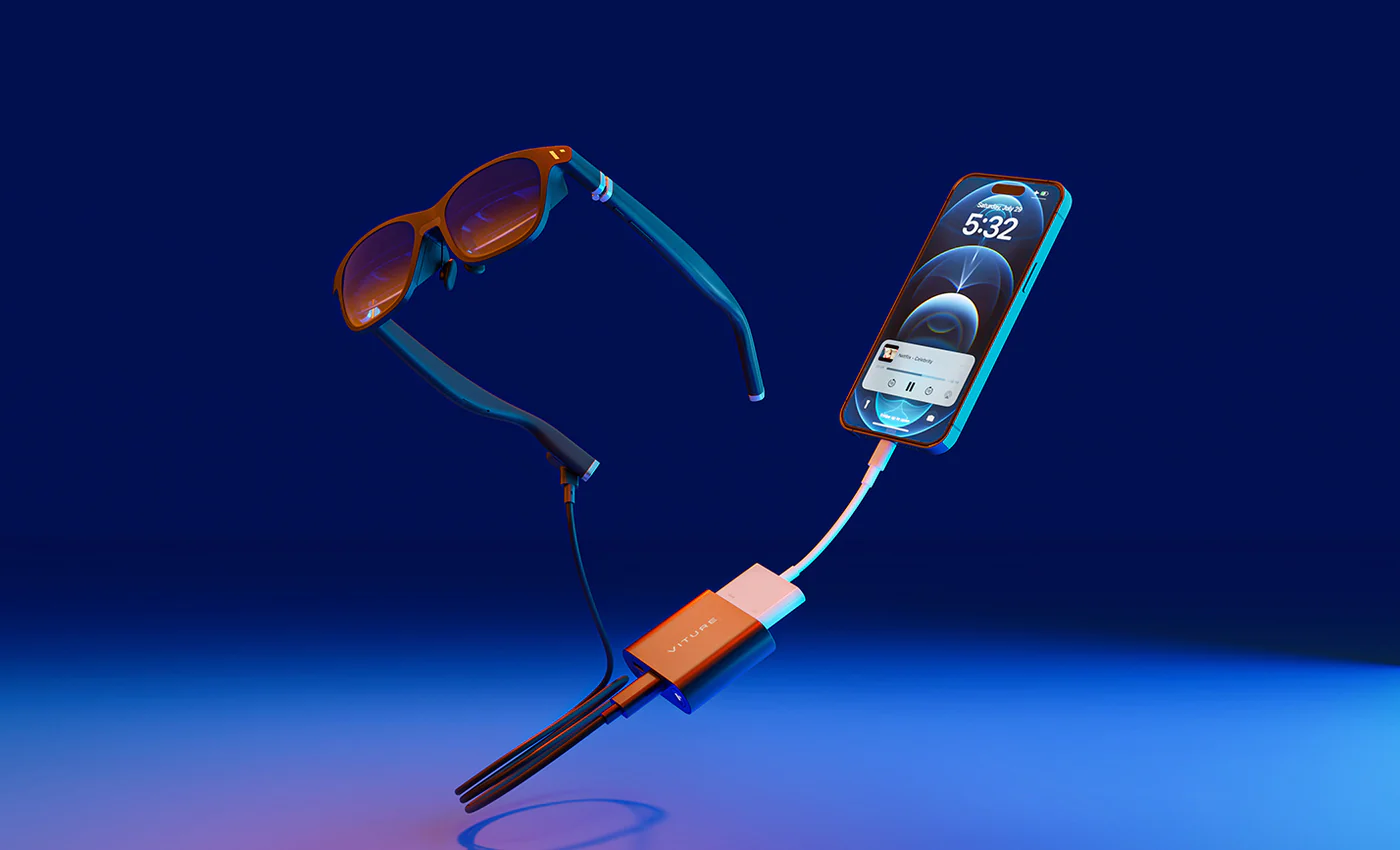
Unlock your iPhone's potential!
With the HDMI XR Adapter you can transform your iPhone 14 or earlier model into a portable XR workstation with multiple virtual screens, built-in VR video support, and a mobile cinema experience on VITURE XR Glasses' giant virtual display.
Important: The HDMI XR Adapter does not support VITURE Beast XR Glasses. For VITURE Luma Ultra XR Glasses, the HDMI XR Adapter offers partial compatibility.
Designed for compatibility with the official Apple Lightning Digital AV Adapter. (The Apple Lightning Digital AV Adapter is available from Apple and must be purchased separately. Third-party adapters may be not compatible with the HDMI XR Adapter.)
This adapter is also great for gamers — a streamlined way to connect to your HDMI-compatible game consoles for a more immersive gaming experience on VITURE XR Glasses.
The XR Glasses are compatible with iPhone 15 and later directly, no adapters needed! However, with our new USB-C XR Charging Adapter for USB-C iPhones, you can enjoy the full XR experience, unlocking enhanced Immersive 3D, 3DoF, 1-Click 3D, and VR features on iPhone 15 and later!
VITURE offers a range of adapter products, to understand the capabilities of your specific adapter, explore the feature comparison of adapters.
Key Features
Discover more at SpaceWalker for mobile
Made with the iPhone in Mind
One of the best uses of the HDMI XR Adapter is its compatibility with the iPhone. You will also need a Lightning Digital AV Adapter to bring your iPhone's screen to VITURE XR Glasses.
Enjoy unrestricted access to all your favorite streaming apps on your iPhone — with a direct wired connection to your iPhone, there's nothing you can't watch.
Compatible with Gaming Consoles
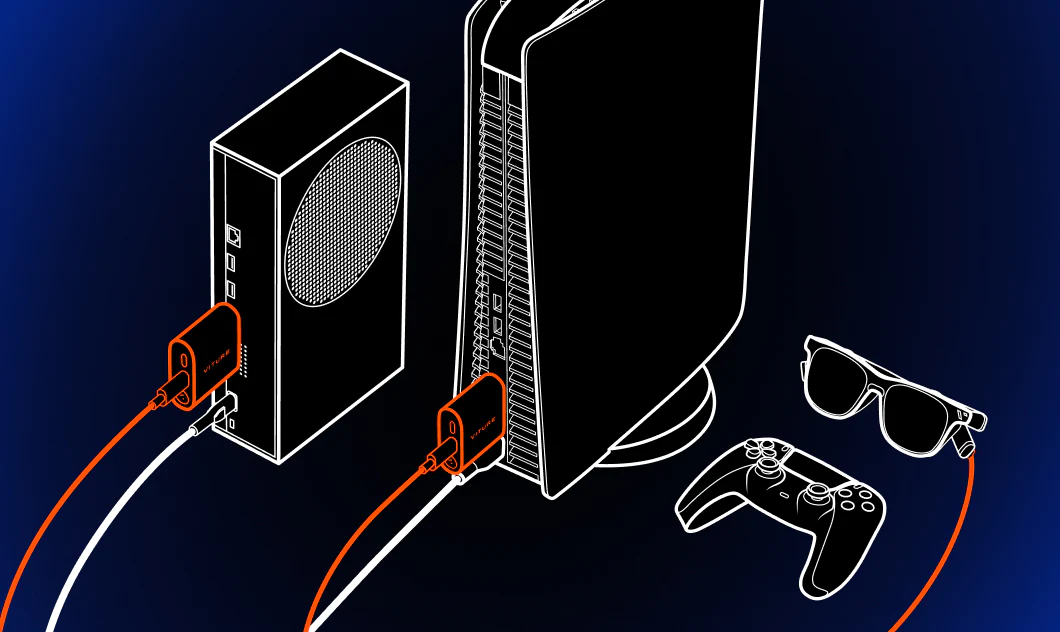
The HDMI XR Adapter is also compatible with other HDMI devices like PlayStation 5, PlayStation 4, Xbox Series X|S, and even PC — enjoy a zero-latency gaming experience in XR!
Charge While You Play
The HDMI XR Adapter has 2.8 hours of battery life. You can charge it while you're using it with a USB-C charger or power bank (like the Mobile Dock) for virtually unlimited play time.
Keep Your iPhone Charged Too!
Enjoy your offline Netflix shows on long-haul flights — keep your iPhone charged as you watch with the included MFi-certified Lightning to Micro USB Adapter.
Fully-private Cinematic Immersion
No more watching on tiny screens, no more people watching over your shoulder — let your device's display go dark as you enjoy your favorite shows and movies on VITURE XR Glasses.
Compatibility
| Device Type | Compatible Models |
|---|---|
| iPhone (requires Lightning Digital AV Adapter) |
iPhone 14 Pro Max, iPhone 14 Pro, iPhone 14 Plus, iPhone 14 iPhone 13 Pro Max, iPhone 13 Pro, iPhone 13 Plus, iPhone 13 mini, iPhone 13 iPhone SE (3rd generation) iPhone 12 Pro Max, iPhone 12 Pro, iPhone 12 mini, iPhone 12 iPhone 11 Pro Max, iPhone 11 Pro, iPhone 11 iPhone SE (2nd generation) iPhone XS Max, iPhone XS, iPhone XR, iPhone X iPhone 8 Plus, iPhone 8 iPhone 7 Plus, iPhone 7 iPhone 6s Plus, iPhone 6s, iPhone 6 Plus, iPhone 6 iPhone SE (1st generation) iPhone 5s, iPhone 5c, iPhone 5 |
| iPad (requires Lightning Digital AV Adapter) |
iPad Pro 12.9-inch (2nd generation), iPad Pro 12.9-inch (1st generation),
iPad Pro 10.5-inch, iPad Pro 9.7-inch iPad Air (3rd generation), iPad Air 2, iPad Air (1st generation) iPad (9th generation), iPad (8th generation), iPad (7th generation), iPad (6th generation), iPad (5th generation) iPad mini (5th generation), iPad mini 4, iPad mini 3, iPad mini 2, iPad mini (1st generation) |
| All HDMI-compatible devices |
PlayStation 5, PlayStation 4 Xbox Series X, Xbox Series S, Xbox One Laptop with HDMI port etc. |
Note: The video output USB-C port is only compatible with VITURE XR Glasses. Other external displays are not supported.
Compatibility For VITURE Luma Ultra XR Glasses
Please Note For VITURE Luma Ultra Users, this adapter offers partial compatibility. Please review the feature breakdown below to set proper expectations.
Supports: Screen Mirroring, Charge while playing
Not Yet Supported: Head Tracking, 360° / 180° VR Video, Pin Mode (3DoF), Adjusting the XR Glasses' brightness & volume
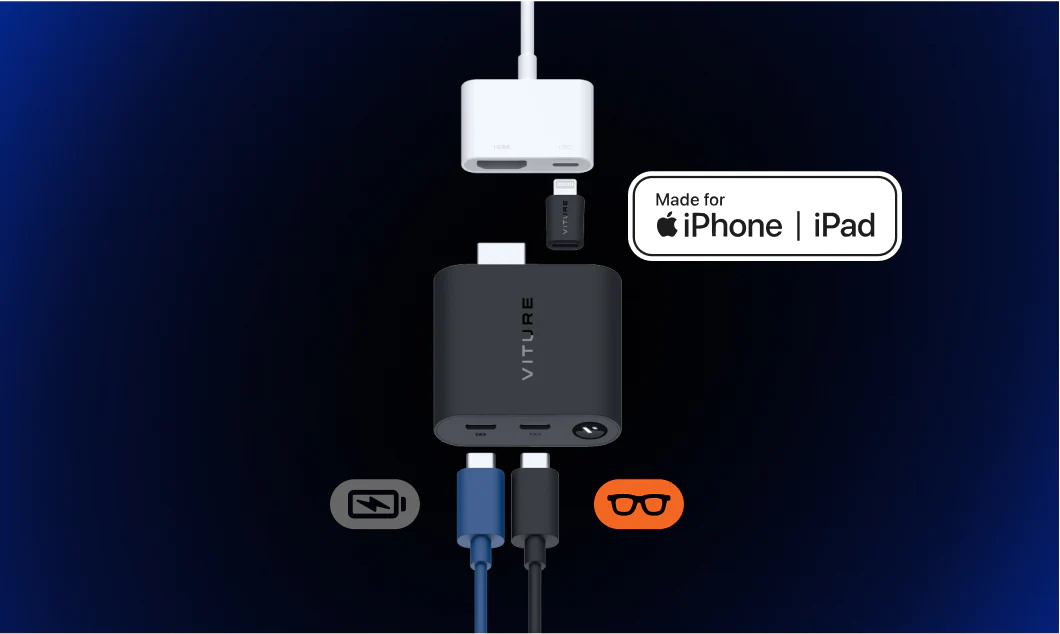
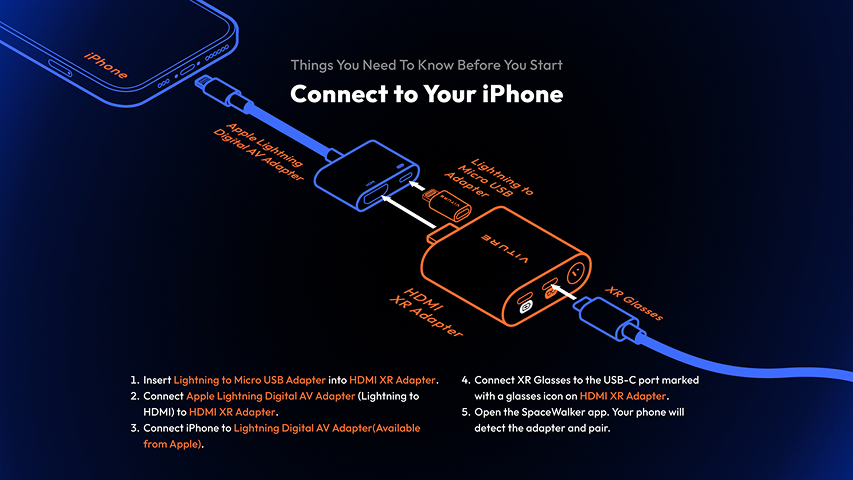
Connect to Your iPhone
- Plug your iPhone into the Lightning Digital AV Adapter.
- Connect the HDMI XR Adapter to the Lightning Digital AV Adapter via HDMI.
- Plug the XR Glasses into the USB-C port marked with a glasses icon on the HDMI XR Adapter.
Your iPhone's screen will be mirrored on the XR Glasses. A direct connection to the XR Glasses means you can access Netflix, Disney+, Hulu and more without DRM and HDCP restrictions.
To access multiple virtual screens and VR video playback, just open the SpaceWalker app. The HDMI XR Adapter will detect and pair with your iPhone automatically.
Download the SpaceWalker app on the App Store.
Discover more at SpaceWalker for mobile
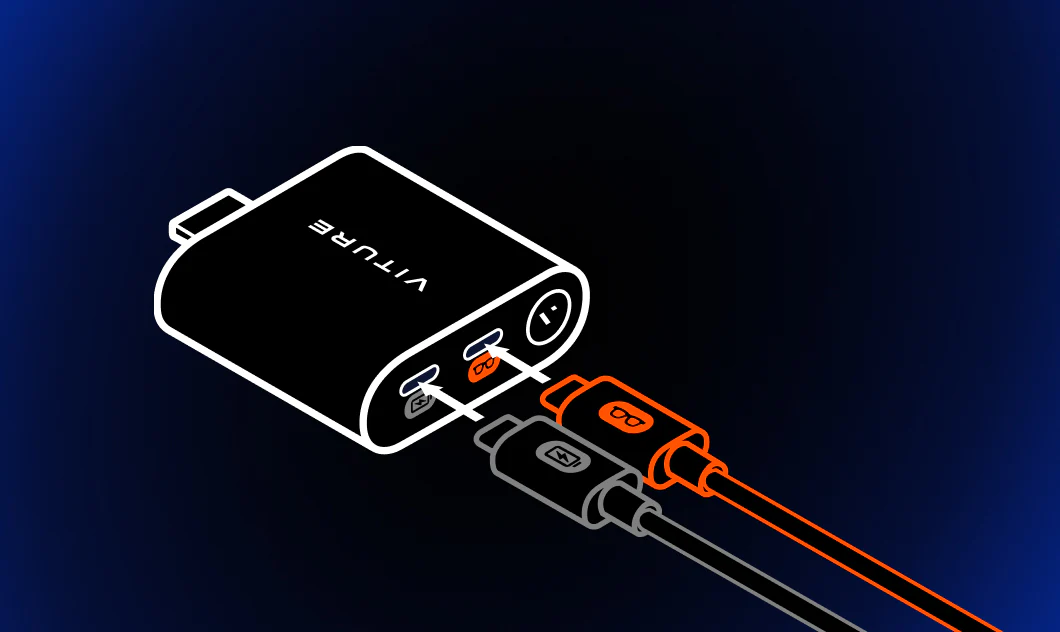
If you would like to charge your iPhone while you play, insert Lightning to Micro USB Adapter into the HDMI XR Adapter, then connect the charging cable to the USB-C port marked with a power icon on the HDMI XR Adapter.
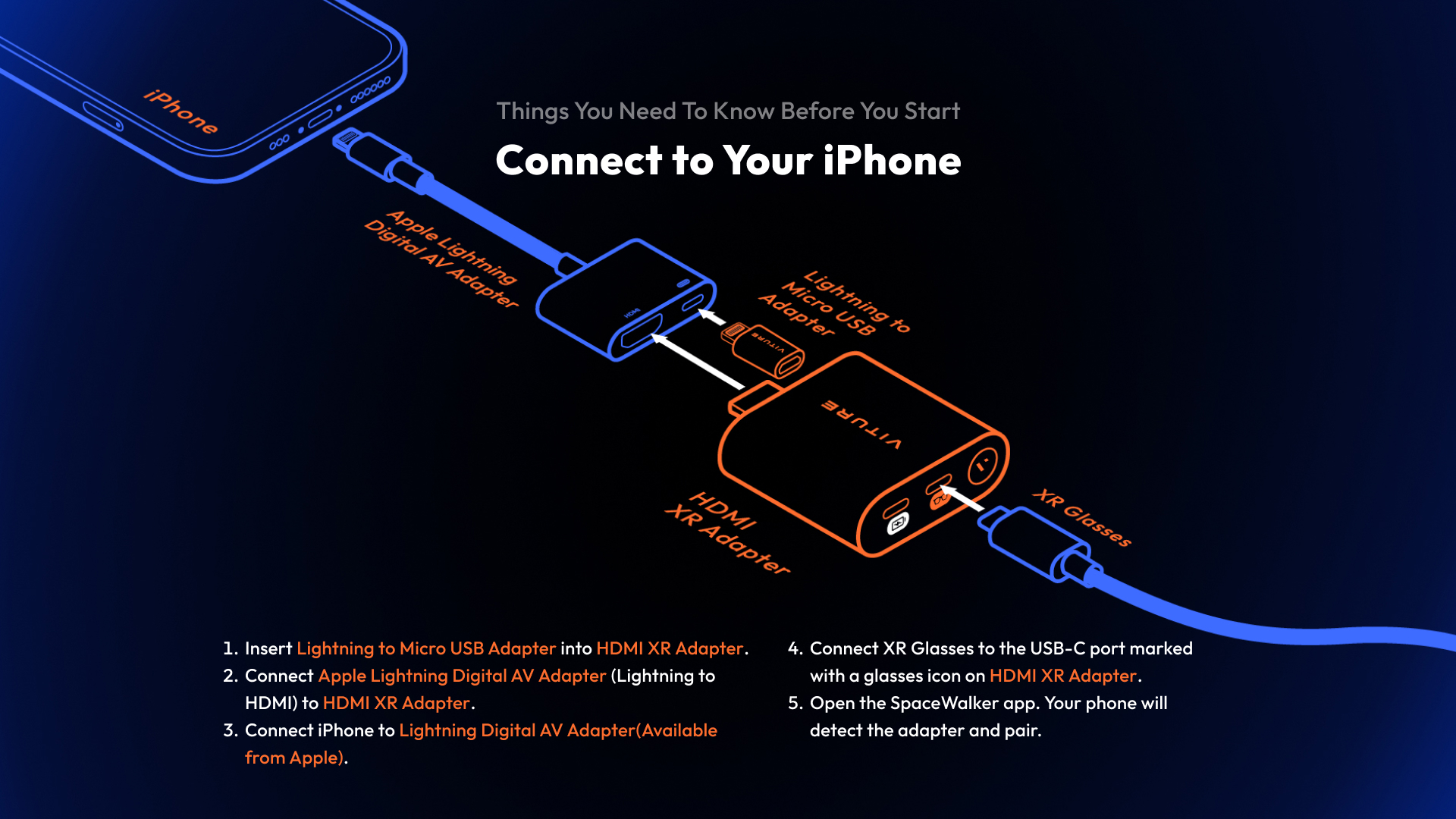
To charge your iPhone while using the adapter:
- Plug the Lightning to Micro USB Adapter into the HDMI XR Adapter.
- Connect a charging cable to the USB-C port marked with a power icon.
Connect Other HDMI Devices
- Plug the HDMI XR Adapter into the HDMI port of your device (console, laptop, etc.).
- Connect the XR Glasses to the USB-C port marked with a glasses icon.
Power the HDMI XR Adapter
To turn the HDMI XR Adapter on, do any of the following:
- Connect to a device and the XR Glasses.
- Connect the charging cable to the USB-C port marked with a power icon.
- Press and hold the button for 2 seconds.
The HDMI XR Adapter turns off when not in use for 3 minutes.
You can force it to turn off by pressing and holding the button on the HDMI XR Adapter for 8 seconds.
Charge the HDMI XR Adapter
- Use the USB-C port marked with a power icon to charge the adapter.
- Charging is available while in use or when idle.
You can read a probable battery percentage by the LED indicator on the button.
| Color | Battery percentage |
|---|---|
| White | 51–100% |
| Yellow | 21–50% |
| Red | 1–20% |
Charge Both iPhone and HDMI XR Adapter
To charge both your iPhone and the adapter simultaneously:
- Connect the MFi-certified Lightning to Micro USB Adapter to the HDMI XR Adapter.
- Plug a charging cable into the USB-C port with the power icon.
Restart Bluetooth
To restart Bluetooth:
- While powered on, press and hold the button for 5 seconds.
- The indicator will flash blue to show it's in pairing mode.
Update the HDMI XR Adapter
This update is required to resolve the compatibility issue between the VITURE Luma Series XR Glasses (including Luma, Luma Pro, and Luma Ultra) and the HDMI XR Adapter.
Important: For Luma Ultra XR Glasses, the HDMI XR Adapter is partially compatible. For Luma and Luma Pro XR Glasses, the HDMI XR Adapter is fully compatible. See this page for detailed compatibility information.
Please follow the instructions below carefully to complete the update.
Requirements
Before starting, make sure you have the following:
- An iPhone or iPad
- HDMI XR Adapter
Additionally, depending on the update method in Step6, you may also need one of the following:
- If updating via your phone: Depending on whether your iPhone/iPad uses Lightning or USB-C, you will need an Apple Lightning Digital AV Adapter or Apple USB-C Digital AV Adapter.
- If updating via a computer (or PlayStation):A computer (or PlayStation) with an HDMI port and a USB-C charging cable.
Update Steps
Download the Firmware: On your iPhone or iPad, visit this link to download the firmware file. Remember the folder where the file is saved.
Unzip the File: The firmware file is in
.zipformat. Tap the file to unzip it.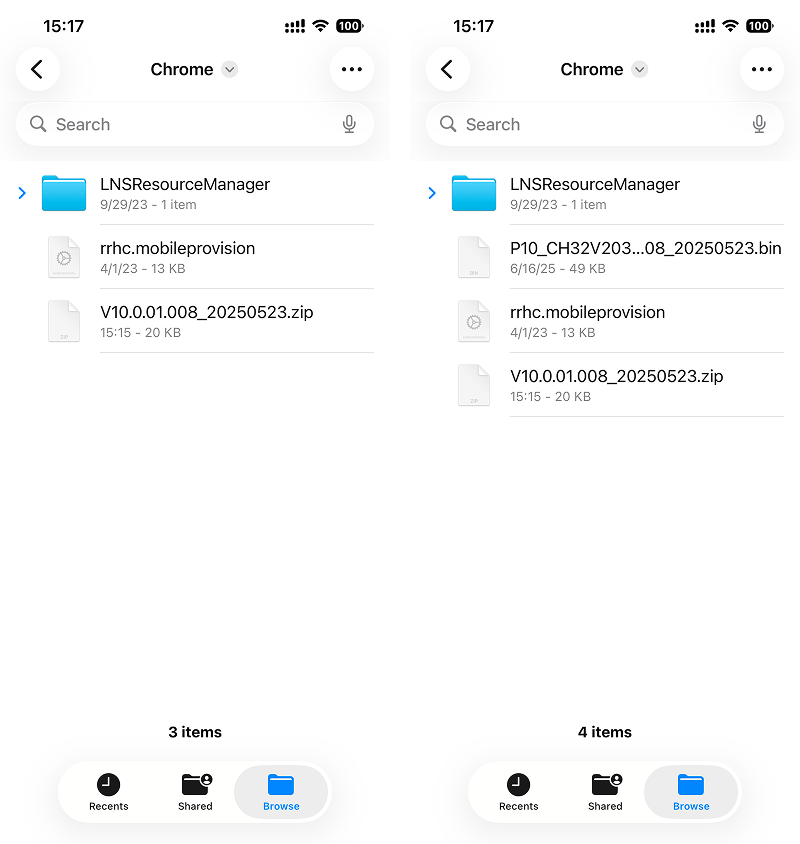
Install TestFlight: Open this link and follow Step 1 to install TestFlight.
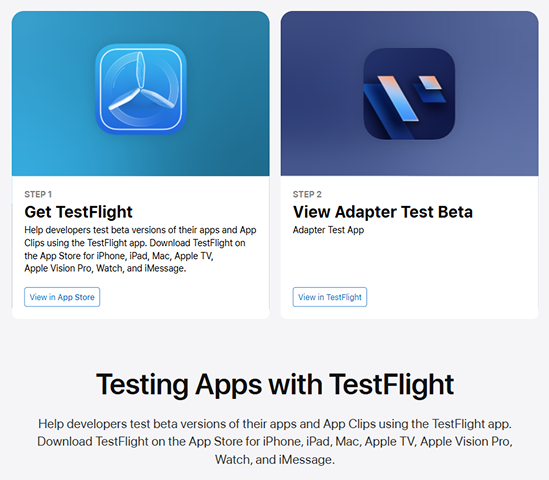
Install the Test App: Follow Step 2 on the same page and tap "View in TestFlight" to install the test app. (If the installation fails, fully close TestFlight and reopen it; the test app should appear for installation.)
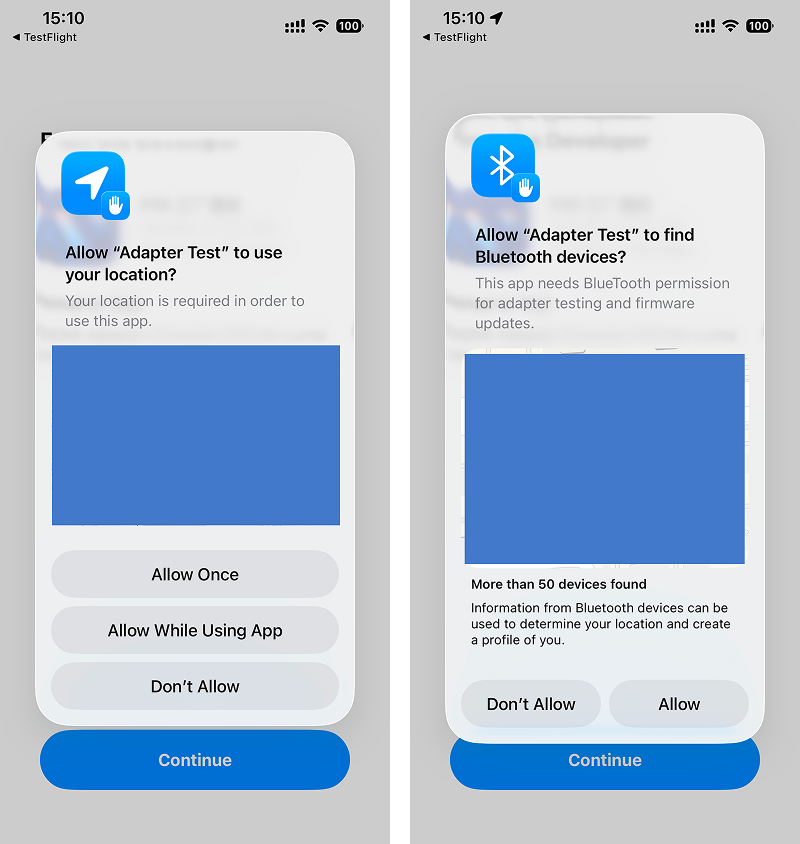
Launch the Test App: Open the app and allow Location and Bluetooth permissions (required for Bluetooth communication). Then tap Start Testing.
Connect the Adapters: Choose one of the following
- 6.1 Connect the HDMI XR Adapter and Lightning Digital AV Adapter to your iPhone or iPad as you normally would. You do not need to connect the XR Glasses at this stage—just ensure the HDMI XR Adapter is powered. If you are using a USB‑C iPhone or iPad, use a USB-C Digital AV Multiport Adapter to connect to the HDMI XR Adapter.
- 6.2 Connect the HDMI XR Adapter to your computer or PlayStation, and power the adapter using its USB-C charging port.
- 6.1 Connect the HDMI XR Adapter and Lightning Digital AV Adapter to your iPhone or iPad as you normally would. You do not need to connect the XR Glasses at this stage—just ensure the HDMI XR Adapter is powered. If you are using a USB‑C iPhone or iPad, use a USB-C Digital AV Multiport Adapter to connect to the HDMI XR Adapter.
Start the Update: In the app, tap Start Testing. The adapter details should appear. If they do not, disconnect and reconnect the adapters, then try again.
Select and Install Firmware: Tap "OTA" in the top-right corner and select MCU. When prompted, choose the unzipped firmware file you downloaded earlier.
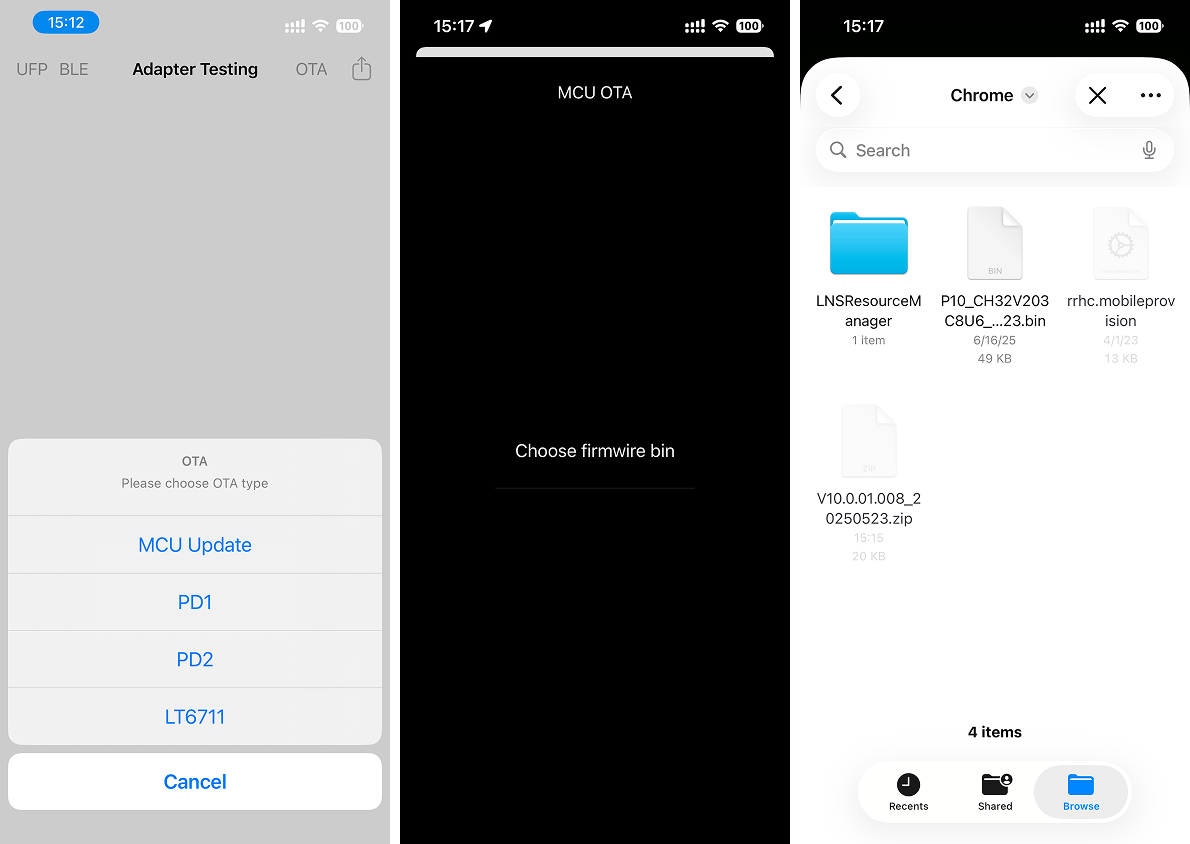 (If you see a prompt asking for a redemption code, simply ignore or cancel it. No code is required to complete the update.)
Wait for Completion: The update will begin. Do not disconnect any devices during this process. When the update finishes, a confirmation dialog will appear.
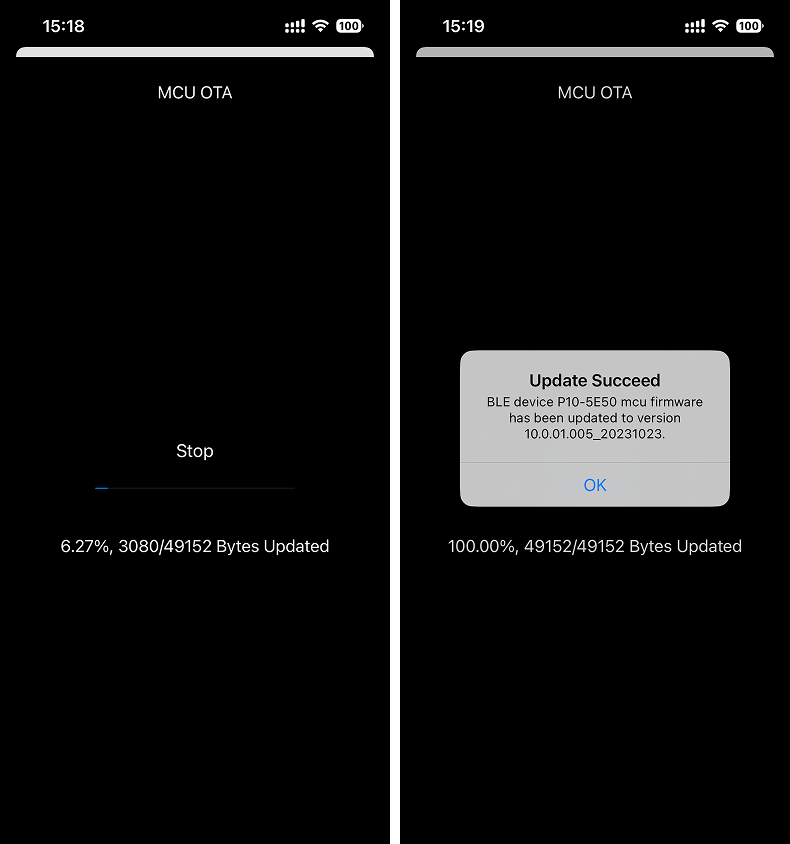
Important Notes
- Do not disconnect any adapters or close the app while the update is in progress.
- If the update fails, repeat the steps from Step 6.
推薦文章
Tech Specs
| Item | Specification |
|---|---|
| Color | Black |
| Dimensions | 58.7 × 54.0 × 18.5 (mm) |
| Weight | 58.5 g |
| Bluetooth | Bluetooth 5.0 |
| HDMI | HDMI 1.4b |
| USB-C1 Input (Charging) | 5V~2.4A, 5V~1.5A, 5V~0.5A |
| USB-C2 Output (VITURE XR Glasses) | 5V~0.6A, Supports DP, HDCP 1.3 |
| Micro USB Output | 5V~1A |
| Capacity | 1,770 mAh |
| Battery Life | 2.8 hours |
Adapter Feature Comparison
VITURE offers a range of adapter products. To understand the capabilities of your specific adapter, please refer to this table below.
You are currently in the USB-C iPhone Pack (XR Glasses & USB-C XR Charging Adapter) section.
|
USB-C iPhone Pack (XR Glasses & USB-C XR Charging Adapter) |
Lightning iPhone Pack (XR Glasses & HDMI XR Adapter) |
XR Glasses & USB-C to Glasses and Charging Adapter | XR Glasses | |
|---|---|---|---|---|
| Compatibility |
All devices with DisplayPort over USB-C. - iPhone with USB-C - iPad with USB-C - etc. Note: iPhone 16e is not compatible |
- iPhone 14 and earlier models (requires Apple's Lightning AV Digital Adapter) - All HDMI-compatible devices (PS5, Xbox Series X, Xbox Series S, etc.) |
All devices with DisplayPort over USB-C. - iPhone with USB-C - iPad with USB-C - etc. Note: iPhone 16e is not compatible |
All devices with DisplayPort over USB-C. - iPhone with USB-C - iPad with USB-C - etc. Note: iPhone 16e is not compatible |
| Screen Mirroring[1] | ✓ | ✓ | ✓ | ✓ |
| Charge while playing | ✓ | ✓ | ✓ | × |
SpaceWalker Feature Comparison
|
USB-C iPhone Pack (XR Glasses & USB-C XR Charging Adapter) |
Lightning iPhone Pack (XR Glasses & HDMI XR Adapter) |
XR Glasses & USB-C to Glasses and Charging Adapter | XR Glasses | |
|---|---|---|---|---|
| Immersive 3D | ✓ | × | ✓ | ✓ |
| Multi-screen Functionality | ✓ Head tracking Trackpad |
✓ Head tracking Trackpad |
✓ Trackpad |
✓ Trackpad |
| Spatial video | ✓ | × | ✓ | ✓ |
| 360°/180° VR video | ✓ | ✓ | × | × |
| 3D VR video[2] | ✓ | × | × | × |
| 1-Click 3D[3] | ✓ | × | × | × |
| Full SBS 3D video[4] | ✓ | × | ✓ | ✓ |
| Auto switch to 3D Mode[5] | ✓ | × | × | × |
| Pin Mode (3DoF)[6] | ✓ | ✓ | × | × |
| Photo Gallery | ✓ Head motion Trackpad |
✓ Head motion Trackpad |
✓ Trackpad |
✓ Trackpad |
| Ambient Mode[7] | ✓ | ✓ | ✓ | ✓ |
| Adjust the XR Glasses' brightness & volume[8] | ✓ | ✓ | × | × |
- Screen mirroring may not function in specific iPhone apps due to their terms of service.
- 3D VR videos now encompass both 3D 360 top/bottom and 3D 180 left/right video formats.
- 1-Click 3D is a feature within Video Detector. SpaceWalker detects videos on web pages and provides an 'Open in Player' button. Click the 'Enable 3D Mode' button, and transfer the online 3D video to SpaceWalker's internal player for playback.
- Full SBS (side-by-side) 3D video offers a resolution of 3840×1080.
- SpaceWalker detects local full SBS 3D video playback and switches the XR Glasses to 3D Mode. Learn more at Media Player.
- Pin Mode is available in full screen on SpaceWalker when using the HDMI XR Adapter or USB-C XR Charging Adapter.
- Ambient Mode is available in full screen on SpaceWalker. Explore more at Ambient Mode.
- To adjust XR Glasses' brightness and volume, ensure your XR Glasses are updated to the latest firmware version. Visit this page for XR Glasses updates.
Please note that SpaceWalker is not designed to be an app launcher. All pages, apart from the mini apps, are web pages. As a result, running apps installed on your phone within SpaceWalker is not supported.