USB-C XR Charging Adapter
USB-C XR Charging Adapter
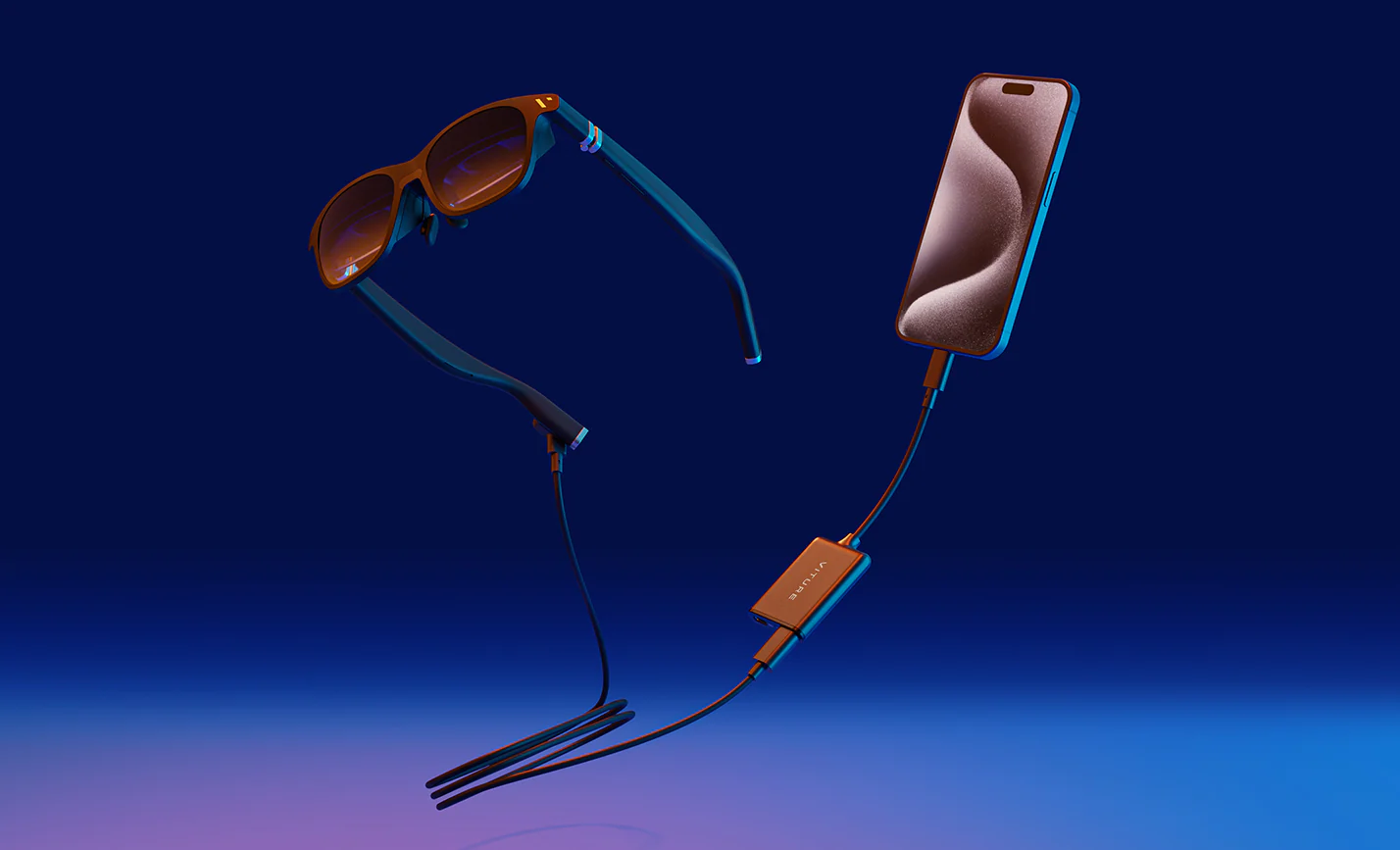
Unlock your iPhone's XR potential! iPhone 15 and later models can connect directly to VITURE XR Glasses for standard SpaceWalker features. But with the USB-C XR Charging Adapter, you unlock multiple virtual screens, Immersive 3D, Spatial Video support, and VR video playback—all while keeping your phone charged!
With the USB-C XR Charging Adapter, you get enhanced 3DoF tracking, VR capabilities, and multiscreen support on iPhones with a USB-C port.
Important: iPhone 16e & iPhone Air is not compatible with VITURE XR Glasses. For VITURE Luma Ultra XR Glasses, the USB-C XR Charging Adapter offers partial compatibility.
If you are using iPhone 14 or earlier models, with our HDMI XR Adapter for Lightning iPhones, you can unlock the multi-screen functionality, Photo Gallery and VR video support within the SpaceWalker app.
VITURE offers a range of adapter products, to understand the capabilities of your specific adapter, explore the feature comparison of adapters.
Key Featrues
Unique and Advanced Features within SpaceWalker
The USB-C XR Charging Adapter enhances SpaceWalker's functionality, enabling multi-screen capability, Pin Mode, and 1-Click 3D within the SpaceWalker app.
- Mutli-screen functionality: Open multiple screens within SpaceWalker to view different documents simultaneously by moving your head left and right.
- Pin Mode: Pin the screen in its current spatial position.
- Immersive 3D: First real-time 2D-to-3D conversion on XR Glasses, powered by cutting-edge AI.
- 1-Click Spatial Video: Detects Apple's the spatial videos when playing and automatically switches the XR Glasses to 3D Mode.
- 1-Click 3D: Automatically switches the XR Glasses to 3D Mode when playing full 3D SBS (3840×1080) videos. It also enables 3D Mode automatically using web video detection for online videos.
- VR Video Support: Supports single-screen and 3D 360°/180° VR video playback.
Discover more at SpaceWalker for mobile
Stay Charged While You Watch
Never let a dead battery stand in the way of the next episode or the satisfying finale of the latest blockbuster: plug in while you watch and keep your battery at 100%!
Compatibility
The USB-C XR Charging Adapter is compatible with all devices supporting DisplayPort over USB-C (also known as DisplayPort Alternative Mode or DP Alt Mode).
Find more compatible devices at: Compatibility - VITURE
Beyond charging while in use, advanced features are exclusively available via the SpaceWalker app on iPhone 15 and later.
The USB-C port for video and audio output is compatible only with VITURE XR Glasses.
Compatibility For The Beast XR Glasses
Please Note For The Beast Users, this adapter offers partial compatibility. Please review the feature breakdown below to set proper expectations.
Supports: Screen Mirroring (Default Display Mode & 60Hz), Charge while playing
Not Supported: The Beast Glasses: 3D Mode, UltraWide Mode, 120Hz, 1200p; Enhanced adapter-based XR features: 360° / 180° VR Video, 3D VR video, 1-Click 3D, Auto switch to 3D Mode, Pin Mode (3DoF), Adjusting the XR Glasses' brightness & volume
Compatibility For VITURE Pro 2 & Luma Ultra XR Glasses
Please Note For VITURE Pro 2 & Luma Ultra Users, this adapter offers partial compatibility. Please review the feature breakdown below to set proper expectations.
Supports: Screen Mirroring, Charge while playing
Not Supported: Head Tracking, 360° / 180° VR Video, 3D VR video, 1-Click 3D, Auto switch to 3D Mode, Pin Mode (3DoF), Adjusting the XR Glasses' brightness & volume
Connect to a Compatible Device
- Connect the USB-C connector to the USB-C port on the compatible device.
- Connect VITURE XR Glasses to the USB-C port marked with a glasses icon on the USB-C XR Charging Adapter.
Pair / Unpair
Pair with SpaceWalker App
- Connect the USB-C connector to your iPhone 15 or later.
- Connect VITURE XR Glasses to the USB-C port marked with a glasses icon on the USB-C XR Charging Adapter.
- Open SpaceWalker on your phone, wait until the notification “Connected” pops up.
Please note that SpaceWalker can only pair with an adapter simultaneously. To pair with another adapter, you need to unplug and unpair the current adapter, then plug in another adapter.
Discover more at SpaceWalker for mobile
Unpair from SpaceWalker App
- Tap the icon on the upper left of the phone’s screen to enter the on-screen menu.
- Tap “Forget” on “My Adapter” to unpair the current adapter.
To pair with the adapter again, simply connect the adapter and the XR Glasses to your iPhone.
If SpaceWalker does not find your adapter in use, try disconnecting and re-connect the adapter. If it still does not work, check “My Adapter” in SpaceWalker and tap “Forget”, then re-connect the adapter.
Charge while Playing
To charge your phone while using the USB-C XR Charging Adapter, connect the charging cable to the USB-C port marked with a power icon on the USB-C XR Charging Adapter.
Update the USB-C XR Charging Adapter
- Connect the USB-C XR Charging Adapter and XR Glasses to your iPhone, then open SpaceWalker App.
- Once connected, the app will automatically detect the firmware version of your adapter. If an update is available, an update prompt will appear.
Please note: during the update, disconnect the XR Glasses from the adapter and update the adapter only. - Tap Confirm to start the upgrade. The screen will display the update progress. The entire process takes approximately 1–2 minutes. Keep the connection stable and leave the app open on the upgrade page.
- After the upgrade is complete, follow the on-screen instructions and unplug the adapter to finish the firmware update.
Tech Specs
| Item | Specification |
|---|---|
| Color | Black |
| Dimensions | 160.0 × 35.0 × 10 (mm) |
| Weight | 21.8 g |
| Bluetooth | Bluetooth 5.2 (BLE 2 Mbps Rates) |
| Connector | USB-C |
| USB-C1 Output (Charging) | 45W (5V~3A, 9V~2A, 12V~3A, 15V~3A) |
| USB-C2 Output (XR Glasses) | 5V~1A, Supports DP, HDCP 1.3 |
| USB-C2 Video Output | 1920×1200 @ 60Hz, 1920×1080 @ 60Hz, 3840×1080 @ 60Hz |
| USB-C3 Input (Charging) | 45W (5V~3A, 9V~2A, 12V~3A, 15V~3A) |
| Data Transfer Rate | USB 3.2 Gen 2 (10 Gbps) |
Adapter Feature Comparison
VITURE offers a range of adapter products. To understand the capabilities of your specific adapter, please refer to this table below.
You are currently in the USB-C iPhone Pack (XR Glasses & USB-C XR Charging Adapter) section.
|
USB-C iPhone Pack (XR Glasses & USB-C XR Charging Adapter) |
Lightning iPhone Pack (XR Glasses & HDMI XR Adapter) |
XR Glasses & USB-C to Glasses and Charging Adapter | XR Glasses | |
|---|---|---|---|---|
| Compatibility |
All devices with DisplayPort over USB-C. - iPhone with USB-C - iPad with USB-C - etc. Note: iPhone 16e and Air are not compatible. |
- iPhone 14 and earlier models (requires Apple's Lightning AV Digital Adapter) - All HDMI-compatible devices (PS5, Xbox Series X, Xbox Series S, etc.) |
All devices with DisplayPort over USB-C. - iPhone with USB-C - iPad with USB-C - etc. Note: iPhone 16e and Air are not compatible. |
All devices with DisplayPort over USB-C. - iPhone with USB-C - iPad with USB-C - etc. Note: iPhone 16e and Air are not compatible. |
| Screen Mirroring[1] | ✓ | ✓ | ✓ | ✓ |
| Charge while playing | ✓ | ✓ | ✓ | × |
SpaceWalker Feature Comparison
|
USB-C iPhone Pack (XR Glasses & USB-C XR Charging Adapter) |
Lightning iPhone Pack (XR Glasses & HDMI XR Adapter) |
XR Glasses & USB-C to Glasses and Charging Adapter | XR Glasses | |
|---|---|---|---|---|
| Immersive 3D | ✓ | × | ✓ | ✓ |
| Multi-screen Functionality | ✓ Head tracking Trackpad |
✓ Head tracking Trackpad |
✓ Trackpad |
✓ Trackpad |
| Spatial video | ✓ | × | ✓ | ✓ |
| 360°/180° VR video | ✓ | ✓ | × | × |
| 3D VR video[2] | ✓ | × | × | × |
| 1-Click 3D[3] | ✓ | × | × | × |
| Full SBS 3D video[4] | ✓ | × | ✓ | ✓ |
| Auto switch to 3D Mode[5] | ✓ | × | × | × |
| Pin Mode (3DoF)[6] | ✓ | ✓ | × | × |
| Photo Gallery | ✓ Head motion Trackpad |
✓ Head motion Trackpad |
✓ Trackpad |
✓ Trackpad |
| Ambient Mode[7] | ✓ | ✓ | ✓ | ✓ |
| Adjust the XR Glasses' brightness & volume[8] | ✓ | ✓ | × | × |
- Screen mirroring may not function in specific iPhone apps due to their terms of service.
- 3D VR videos now encompass both 3D 360 top/bottom and 3D 180 left/right video formats.
- 1-Click 3D is a feature within Video Detector. SpaceWalker detects videos on web pages and provides an 'Open in Player' button. Click the 'Enable 3D Mode' button, and transfer the online 3D video to SpaceWalker's internal player for playback.
- Full SBS (side-by-side) 3D video offers a resolution of 3840×1080.
- SpaceWalker detects local full SBS 3D video playback and switches the XR Glasses to 3D Mode. Learn more at Media Player.
- Pin Mode is available in full screen on SpaceWalker when using the HDMI XR Adapter or USB-C XR Charging Adapter.
- Ambient Mode is available in full screen on SpaceWalker. Explore more at Ambient Mode.
- To adjust XR Glasses' brightness and volume, ensure your XR Glasses are updated to the latest firmware version. Visit this page for XR Glasses updates.
Please note that SpaceWalker is not designed to be an app launcher. All pages, apart from the mini apps, are web pages. As a result, running apps installed on your phone within SpaceWalker is not supported.