SpaceWalker Mobile
Spatial Viewing, Powered by Your Phone
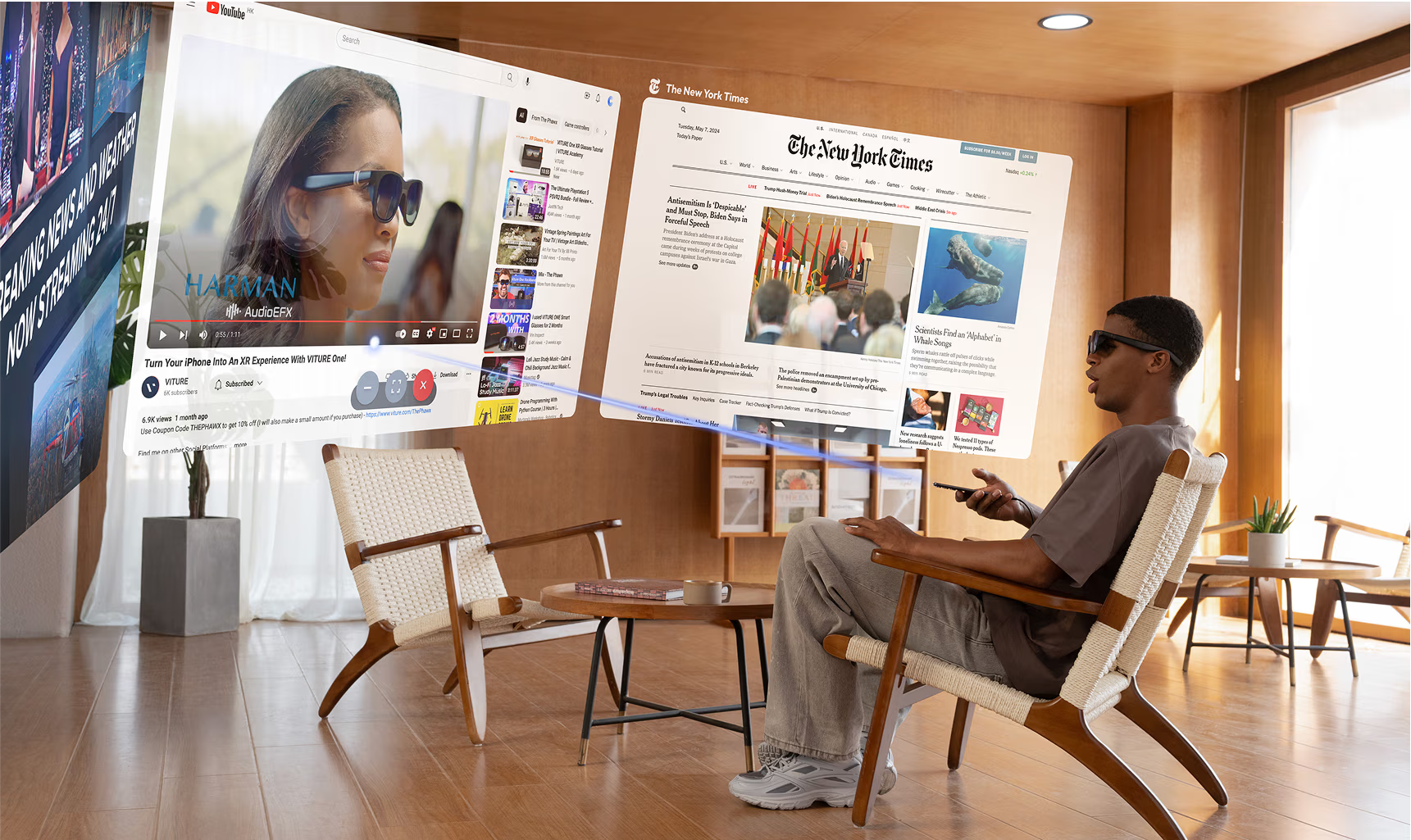
SpaceWalker Mobile is VITURE’s official mobile XR application, purpose-built for VITURE XR Glasses to transform compatible Android phones and iPhones into powerful mobile XR hubs. More than a simple companion app, it serves as a comprehensive XR control center that brings together multi-screen productivity, immersive entertainment, and AI-powered visual enhancement. With SpaceWalker Mobile, users can browse the web, stream online content, play local media, read documents, view photo libraries, and even experience ordinary 2D content reimagined as vivid 3D visuals—all directly through their XR Glasses.
As a core component of the VITURE XR ecosystem, SpaceWalker Mobile enables a flexible and immersive way to work and play with XR Glasses. It brings familiar mobile content into a spatial viewing environment, allowing users to comfortably browse, watch, read, and interact with apps in XR. Display modes such as Pin Mode and Ambient Mode let virtual screens stay anchored in space or gently follow the user’s view, adapting naturally to different usage scenarios—from focused work to relaxed entertainment.
SpaceWalker Mobile also features Immersive 3D, an AI-powered capability that analyzes depth and spatial cues in real time to transform standard photos and videos into lifelike 3D experiences—without any pre-processing. This unlocks a new level of immersion for everyday content, making memories, movies, and media feel more present and engaging when viewed through XR Glasses.
With its lightweight mobile design and deeply integrated XR features, SpaceWalker Mobile acts as a key gateway between mobile computing and spatial computing—bringing immersive XR experiences within reach, anytime and anywhere.
Key Features
- Spatial Screen: Fix, follow, or float your screen naturally in space with smooth head-tracked movement.
- Multi-Screen: Work or watch across up to three virtual screens at once in a wide, immersive XR layout.
- Phone Controller: Use your phone as a laser pointer, trackpad, or remote to control everything effortlessly.
- XR Toolbar: Instantly switch modes, resize screens, or manage windows with a single unified toolbar.
- Web Browsing: Browse the web in XR and pop videos out of pages into a distraction-free viewing experience
- Media Playback: Enjoy 2D, 3D, VR, and spatial videos with full control over view, scale, and playback.
- Immersive 3D: Turn everyday photos and videos into vivid 3D experiences in real time with AI.
Work, Play, and Everything Between. Read documents, view photos, and stream games—all inside one seamless XR environment.
Download
SpaceWalker for iOS
Download the SpaceWalker app on the App Store.
Click here to view the SpaceWalker for iOS release notes and full update history.
SpaceWalker for Android
Download SpaceWalker on Google Play Store.
Download SpaceWalker on VITURE Download Center
Click here to view the SpaceWalker for Android release notes and full update history.
Home Screen
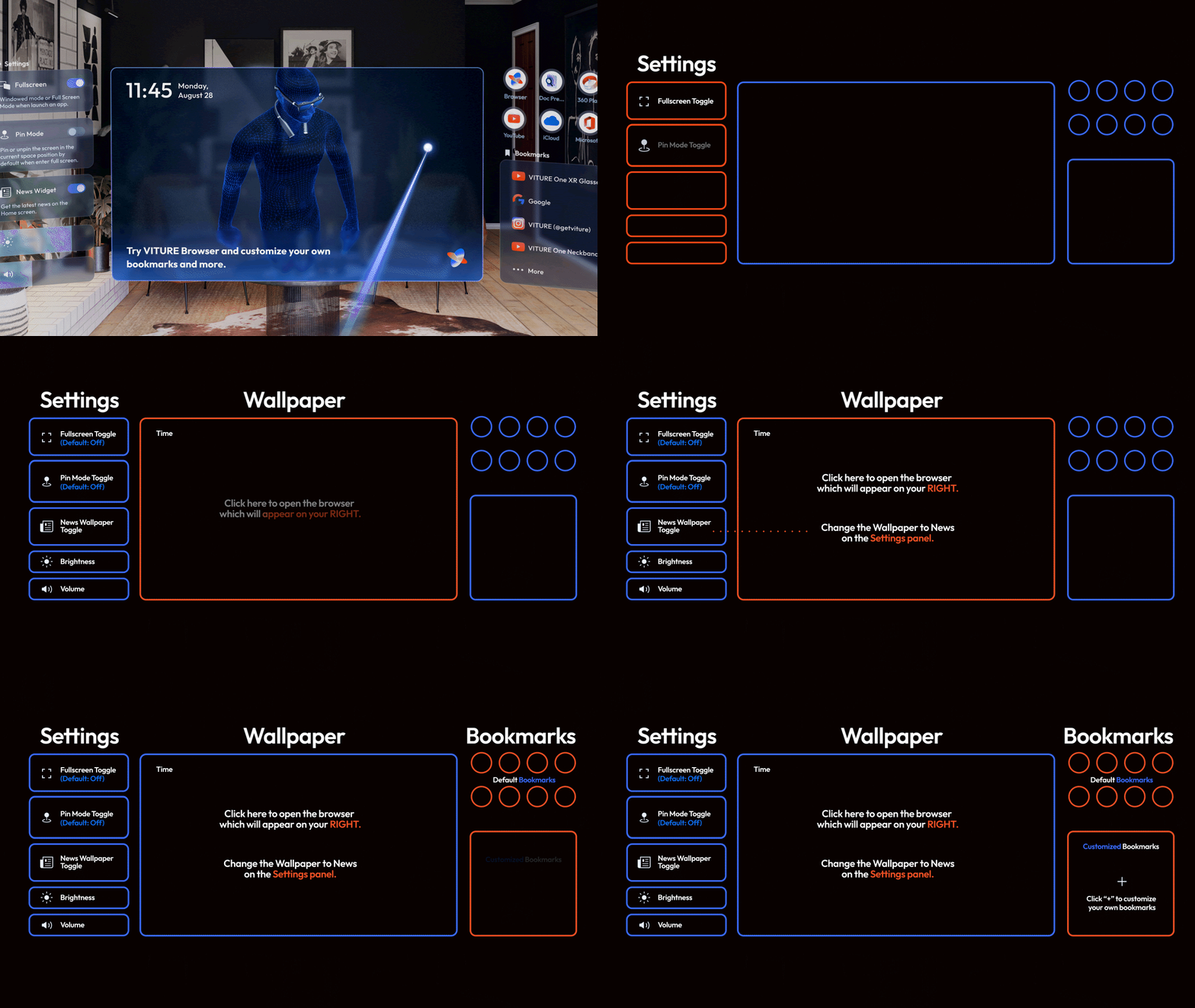
You will start on the SpaceWalker Home screen.
The Home screen includes Settings, Wallpaper, and Bookmarks.
Settings
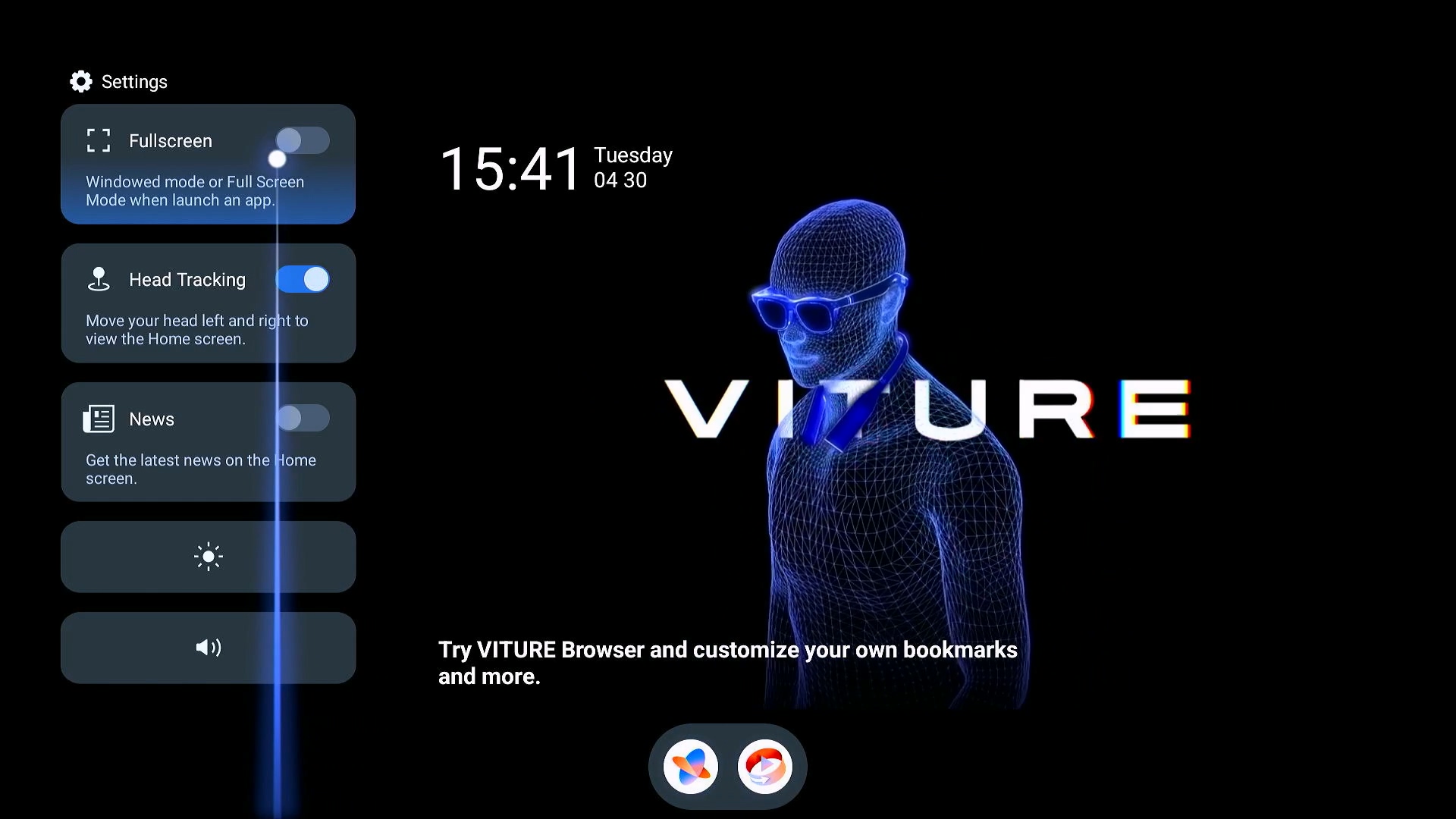
Personalize the SpaceWalker on the Home screen.
- Fullscreen: Enter fullscreen as the default when opening a new screen.
- Head Tracking: Navigate with head motions.
- News: Show today's top news on the Home screen.
- Brightness/Volume: Hover the cursor over the slider, then click on either side to respectively increase or decrease the brightness/volume of the XR Glasses.
These settings change the brightness and volume on the XR Glasses and won't affect your phone screen's brightness.
Head Tracking and Brightness/Volume adjustment are not available when directly connecting the XR Glasses to the iphone.
Bookmarks on the Home screen
You can easily visit some popular websites on the Home screen.
These streaming services are web-based rather than running as apps installed on your phone. The shortcuts provide access to streaming services that have been adapted and verified by the VITURE team. Some streaming services, such as Netflix, cannot be accessed through a web browser, which means you cannot use them through SpaceWalker. We are committed to adapting and offering more streaming services in the future.
Don't forget to add your favorite bookmarks to the Home screen in the Browser. Your latest favorites will show on the Home screen.
Navigation & Controls
SpaceWalker mobile supports three navigation control modes: Laser Pointer and Trackpad. You can switch navigation modes by tapping the button located on the top right corner, then selecting the navigation method from the drop-down menu.
The switch mode feature is supported starting from SpaceWalker Android v1.4.0 and iOS v1.6.0.
Laser Pointer Controls
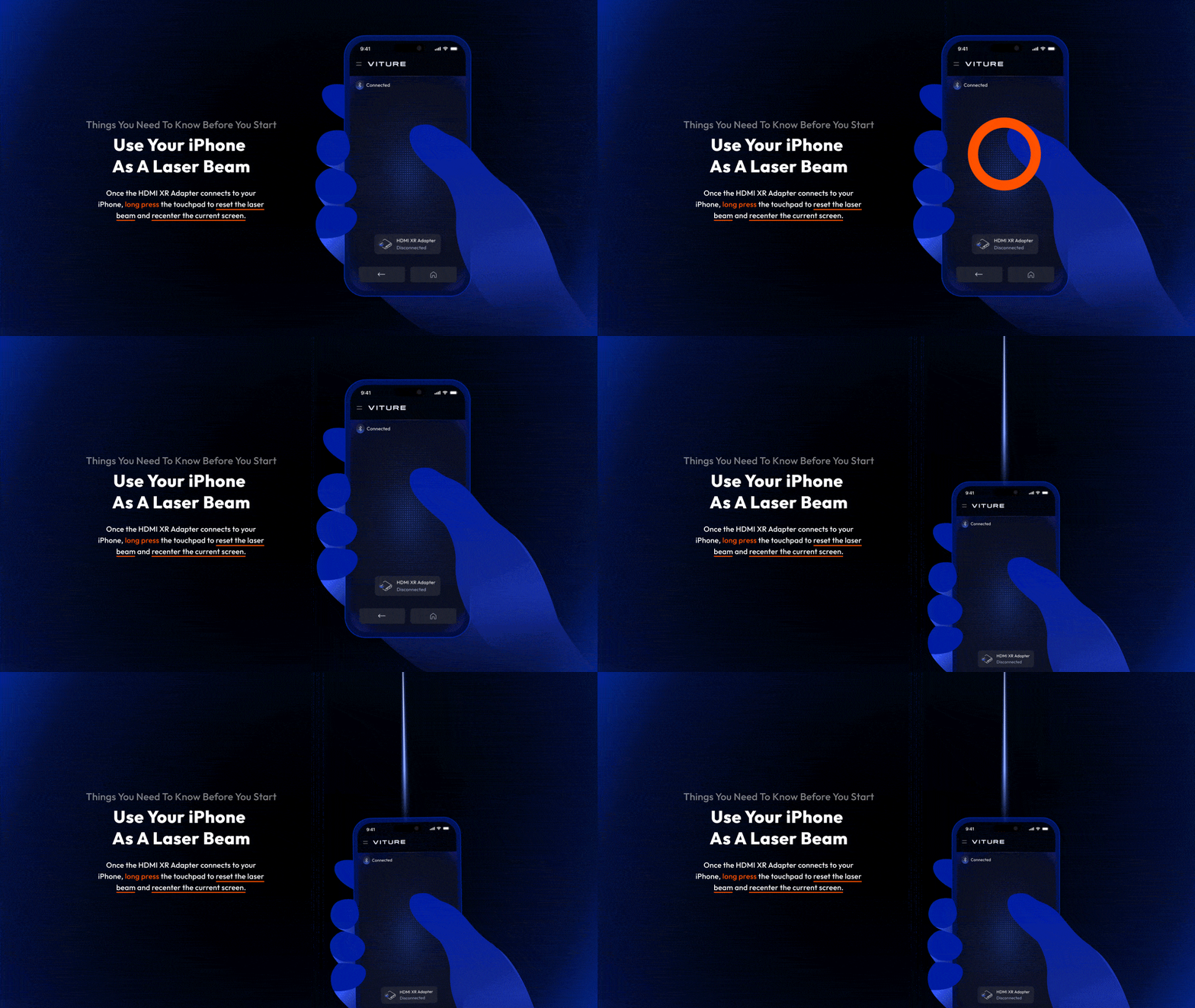
Use your phone as an air mouse and tap the touchpad on the phone's screen to make selections.
| Action | How to |
|---|---|
| Move the cursor on XR Glasses | Move your phone as an air mouse. |
| Select/OK | Tap the screen. |
| Scroll up/down | Slide one finger up or down on the screen. |
| Scroll left/right | Slide one finger left or right on the screen. |
| Re-center the screen | Tap the Recenter button, or press and hold one finger on the screen. |
| Back to the previous screen | Tap on the Back button (bottom left). |
| Return to the Home screen | Tap on the Home button (bottom right). |
Trackpad
Use Trackpad to navigate with touch gestures like scrolling and tapping. We suggest using Trackpad with your iPhone on a stable surface. Alternatively, you can hold your iPhone with one hand and navigate with the other hand.
| Action | How to |
|---|---|
| Move the cursor on XR Glasses | Slide one finger on the screen. |
| Select/OK | Tap the screen. |
| Scroll up/down | Slide two finger up or down on the screen. |
| Scroll left/right | Slide two finger left or right on the screen. |
| Re-center the screen | Tap the Recenter button, or press and hold one finger on the screen. |
| Back to the previous screen | Tap on the Back button (bottom left). |
| Return to the Home screen | Tap on the Home button (bottom right). |
Heading tracking
Heading Tracking: Move your head left and right to view all screens.
With Head Tracking enabled, you can also use one-finger scrolling for smoother navigation.
Head Tracking is disabled when the XR Glasses are connected directly to an iPhone.
Multi-Screen
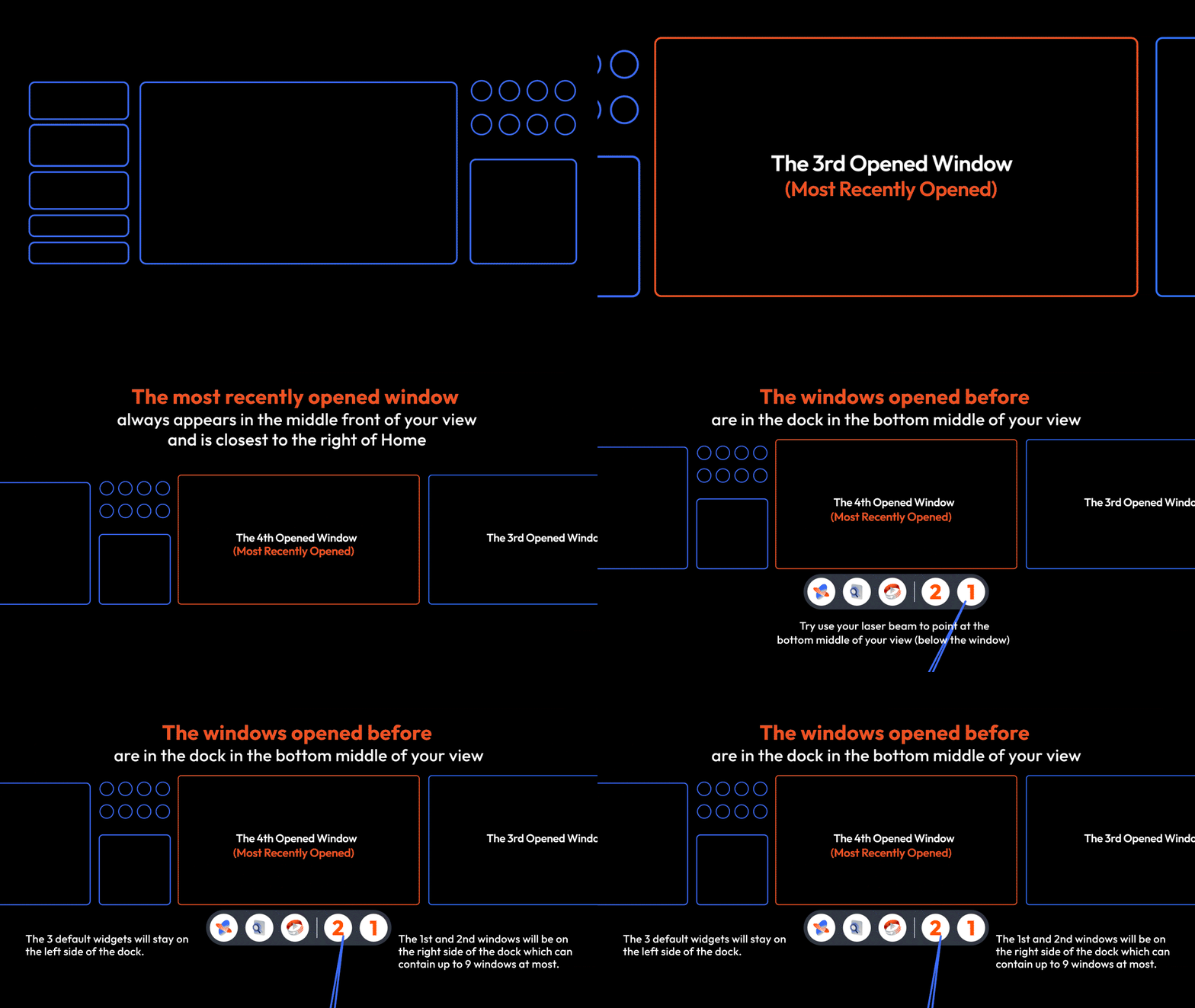
SpaceWalker enables multi-screen functionality by default. Open a new screen by clicking any icon to enter a web page or launch a mini app, and a new screen will be opened on the right side of the Home screen. You can view the Home screen again by moving your head to the left.
The most recently opened screen always appears in the middle of your view.
The Home screen can display 3 windows at the same time. If you open more than three windows, the windows open before returning to the dock, centered in the middle/bottom of your view.
Dock & Toolbar
The Dock
Move the pointer to the bottom of the screen to interact with the Dock.
Minimized screens and mini apps appear on the Dock. Hover to see a preview message, select the screen you want to open, or open a mini app.
Toolbar
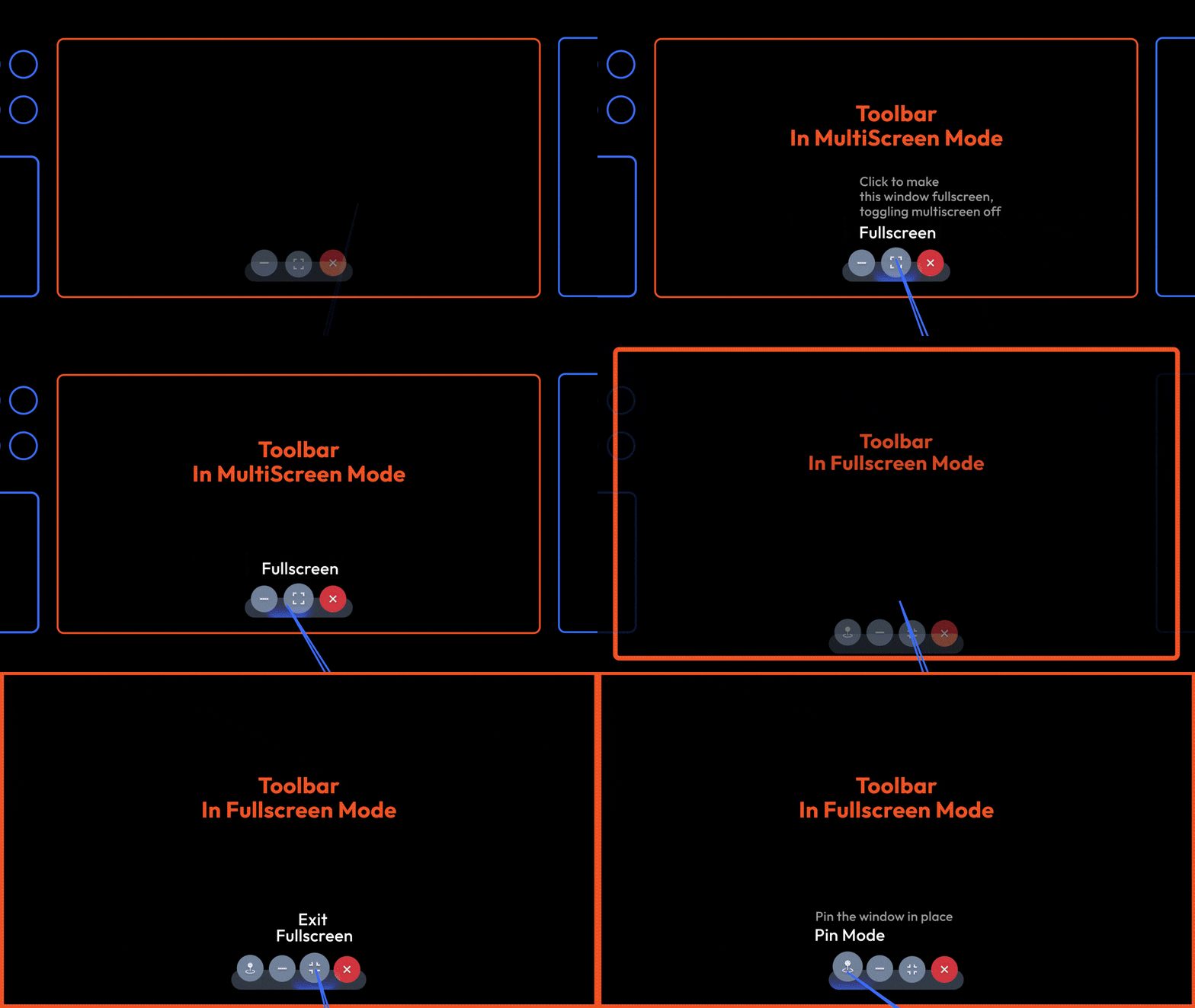
The toolbar is on the middle bottom of the screen.
- Pin Mode (3DoF): Pin Mode locks the screen in a fixed position, providing a stable 3DoF (three degrees of freedom) viewing experience.
- Minimize: Move the active screen to the Dock.
- Ambient Mode: Ambient Mode minimizes the virtual screen to the corner of your vision so that you can watch your favorite series as you're walking or moving around the room. Ambient Mode is available when in fullscreen or a video is playing on the current screen.
- Fullscreen/Windowed: Switch between fullscreen and multi-screen.
- Close: Close the screen.
Pin Mode
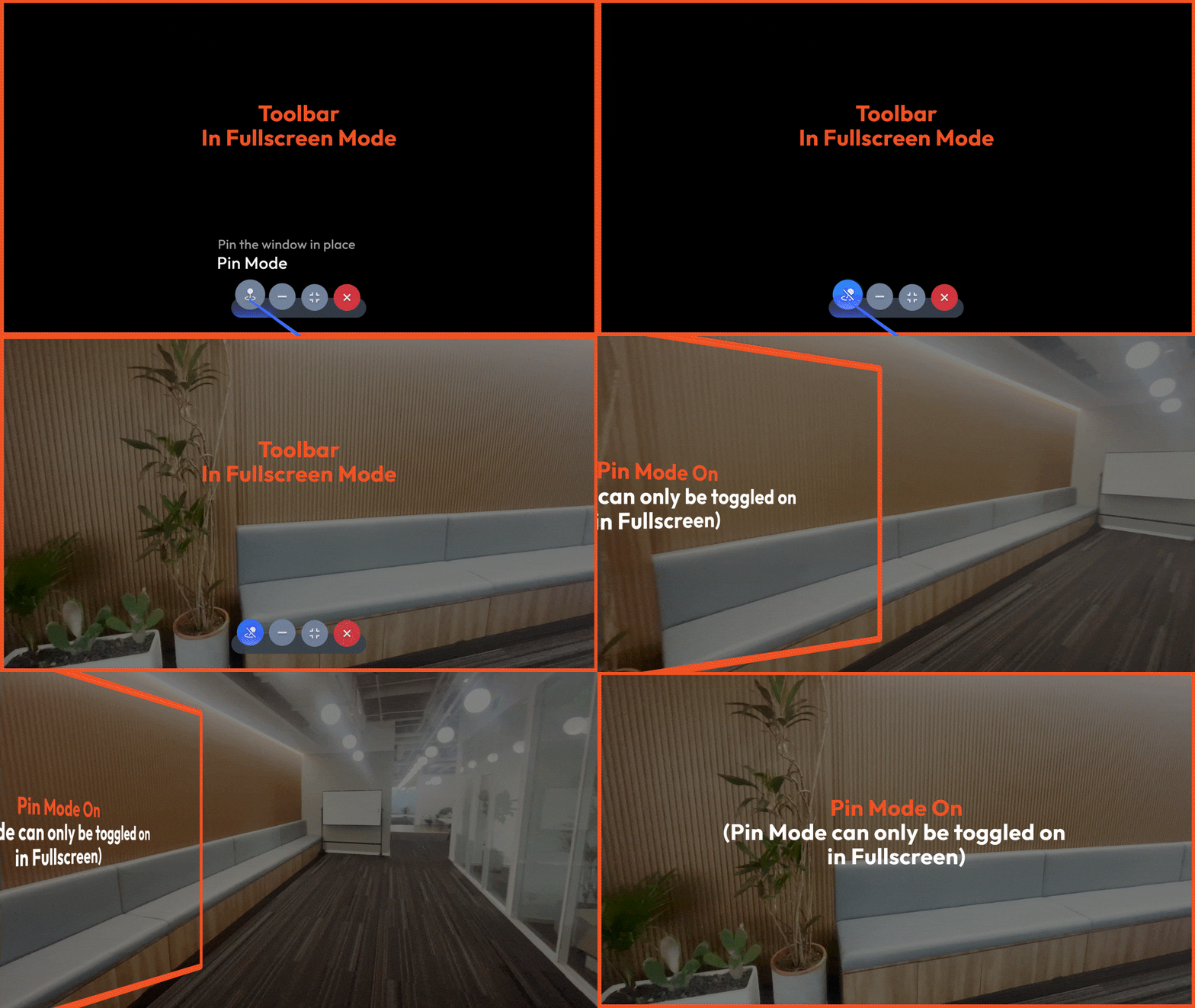
Pin Mode enables head tracking for your XR Glasses in fullscreen mode with Pin Mode. The window you're currently viewing will stay fixed in space, following your head movements as you turn.
Requires either a USB-C XR Charging Adapter (for USB-C iPhones, except iPhone 16e) or an HDMI XR Adapter (for Lightning iPhones). This feature is not available when XR Glasses are connected directly to an iPhone without an adapter.
Ambient Mode
Ambient Mode is also exclusively available in fullscreen, and is not available during playback of 3D, spatial, or VR videos.
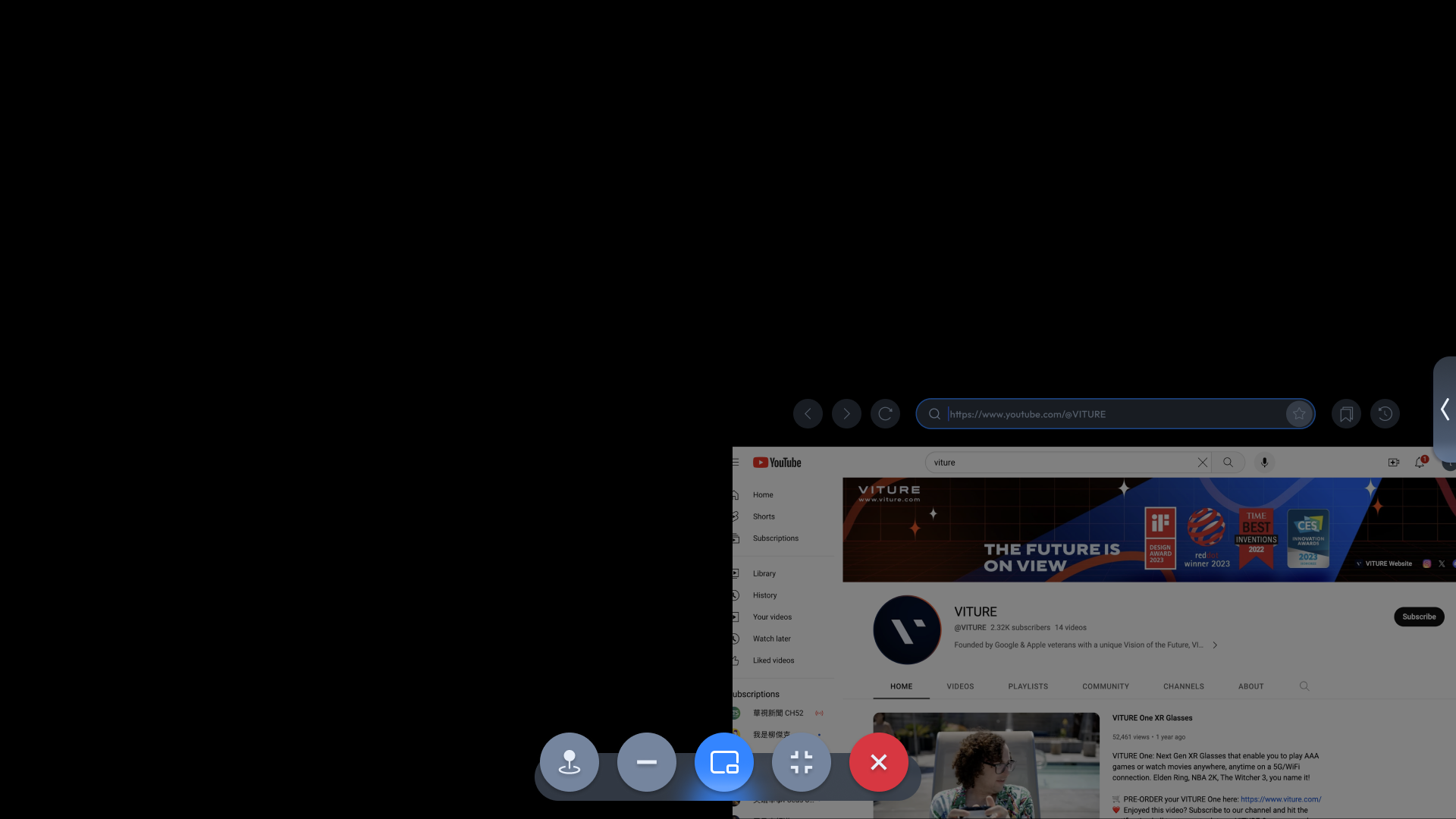
You can also directly enable Ambient Mode when Video Detector finds a video streaming in the current screen. For more information on the video detector, see the Video Detector section.
Please note that Ambient Mode and Pin Mode cannot be enabled simultaneously. Enabling Ambient Mode will automatically disable Pin Mode, and vice versa.
When Ambient Mode is initially enabled, it will default to a placement at the bottom right corner, occupying 50% of the screen size.
To customize your preferences, access the settings panel located on the right side of the screen, which will expand upon the first activation of Ambient Mode.
You can select the screen placement by clicking on the following options:
- Bottom Right
- Bottom Left
- Top Right
- Top Left
- Center
Adjust the screen size by clicking the left and right sides of the scale bar. The available screen scale ranges between 30% and 60%.
The center position scale in Ambient Mode from 70% to 100%, making it easier for users who have difficulty seeing the borders clearly.
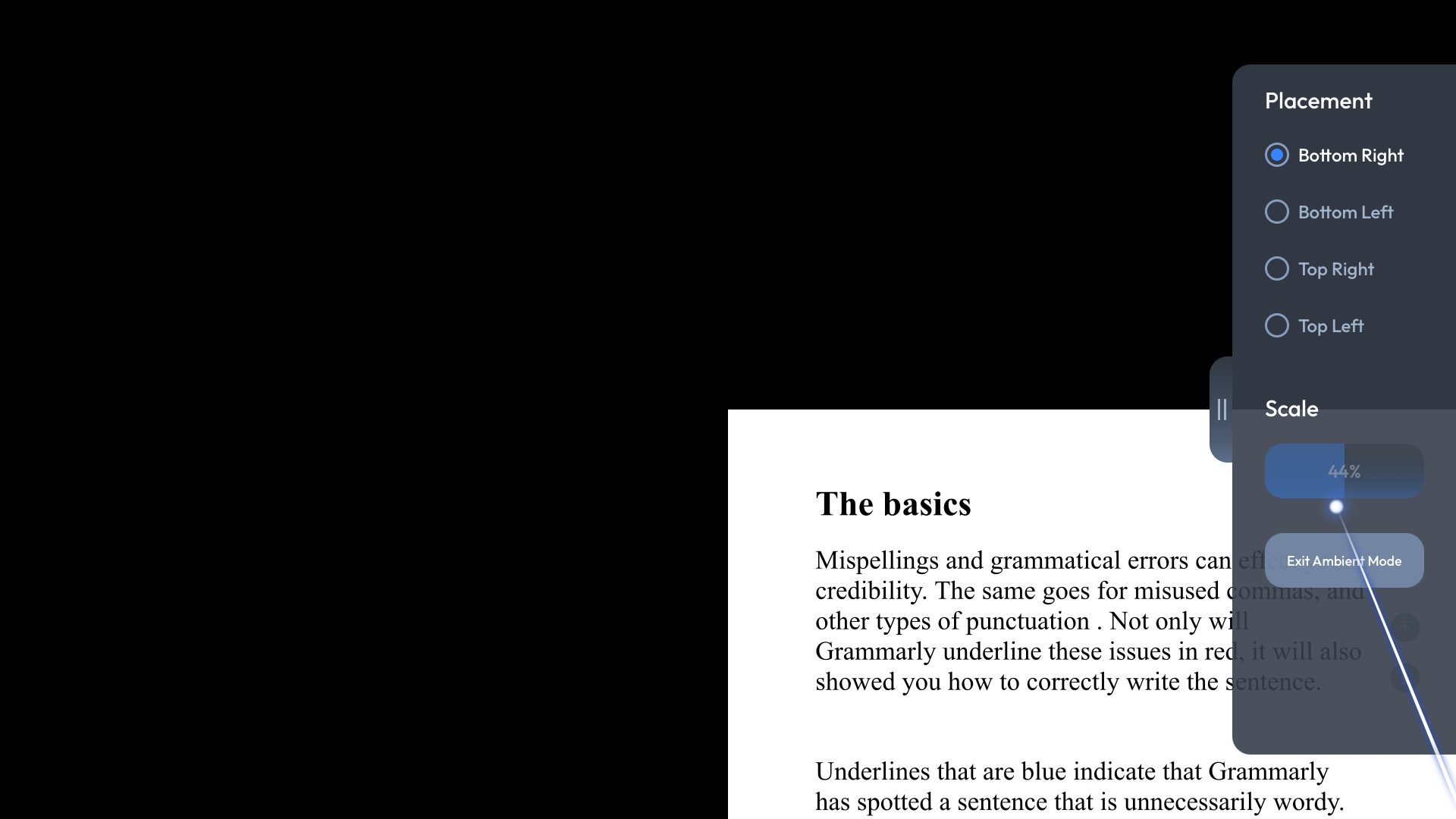
Exit Ambient Mode by clicking "Exit Ambient Mode" button or tap the Home button on the phone.
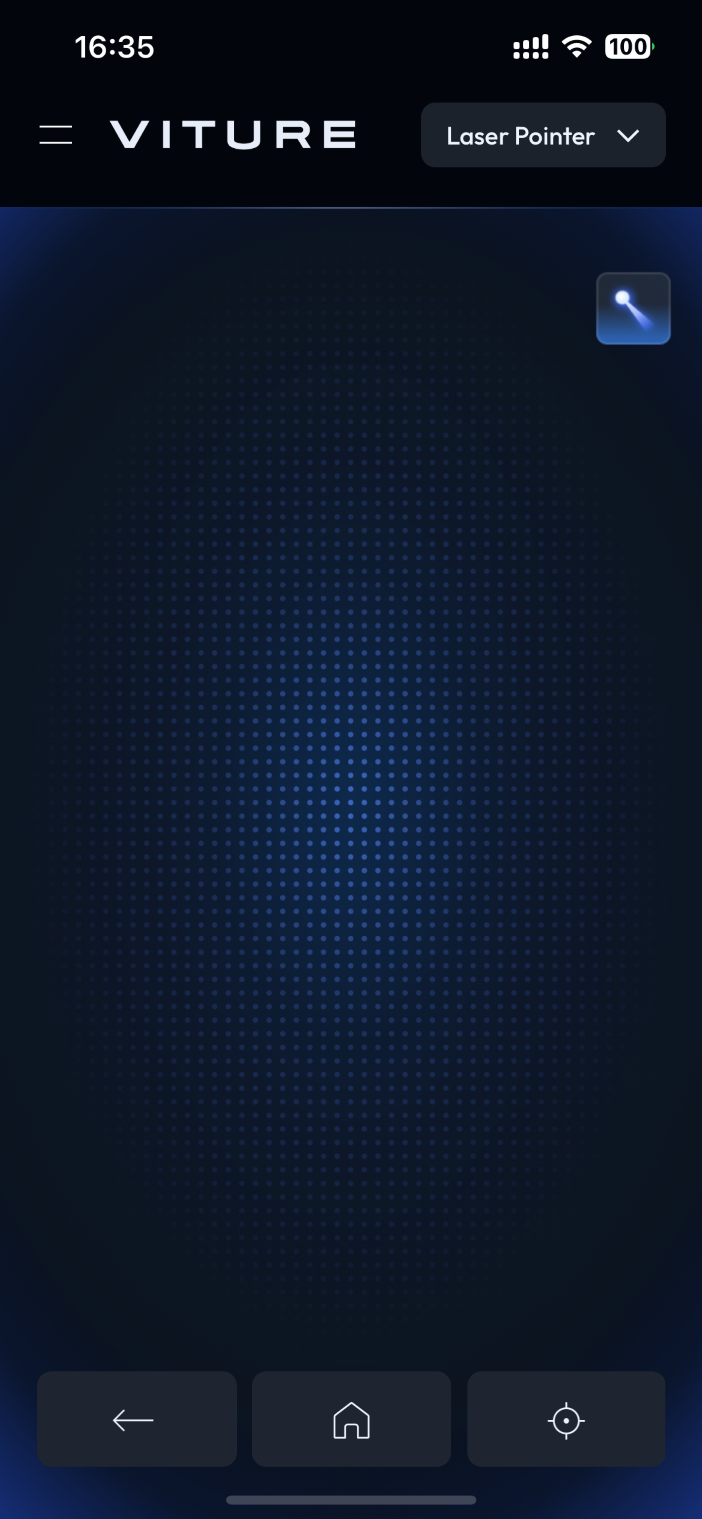
In Ambient Mode, tap the "laser" button in the top right corner of your phone to hide the laser pointer.
SpaceWalker saves your preferences in Ambient Mode. To access preferences, simply click the arrow on the right side of the screen when Ambient Mode is enabled.
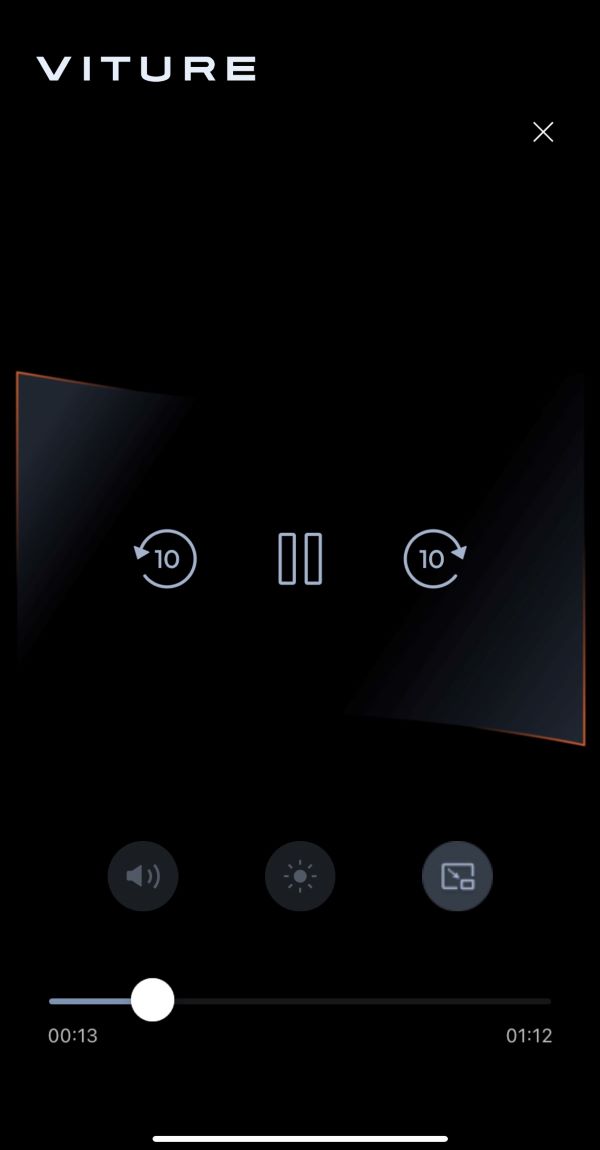
When viewing a video in full screen, you can toggle to Ambient Mode on the phone's screen.
推薦文章
Media Player
The Media Player supports a wide range of formats:
- 2D videos
- 3D videos (Side-by-Side and Top-Bottom)
- Spatial videos captured by iPhone 15 Pro and later
- VR videos (360°, 180°, and 3D Left/Right)
2D/3D
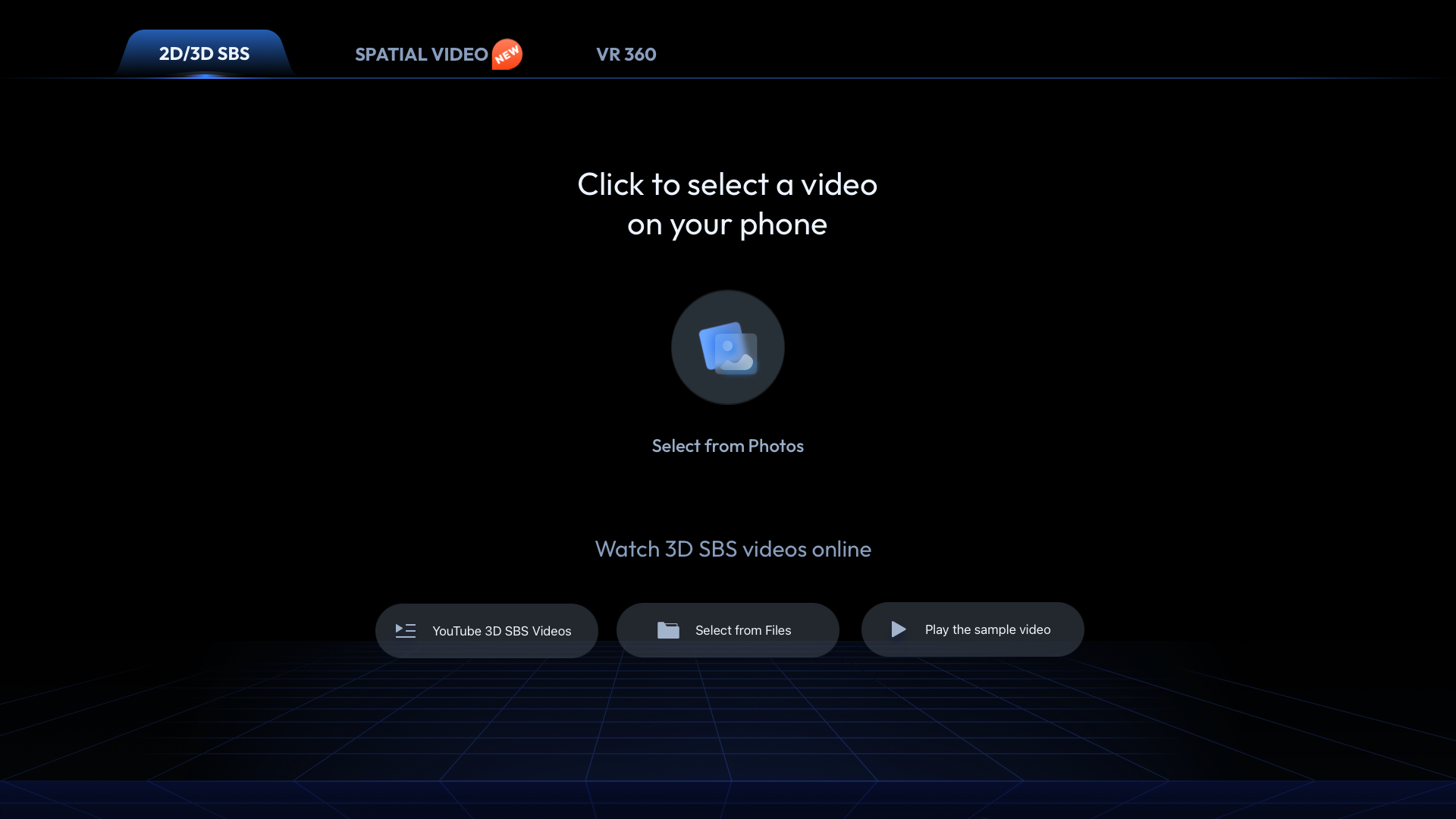
In the '2D/3D' tab, select video files from your phone using Photos or Files for playback.
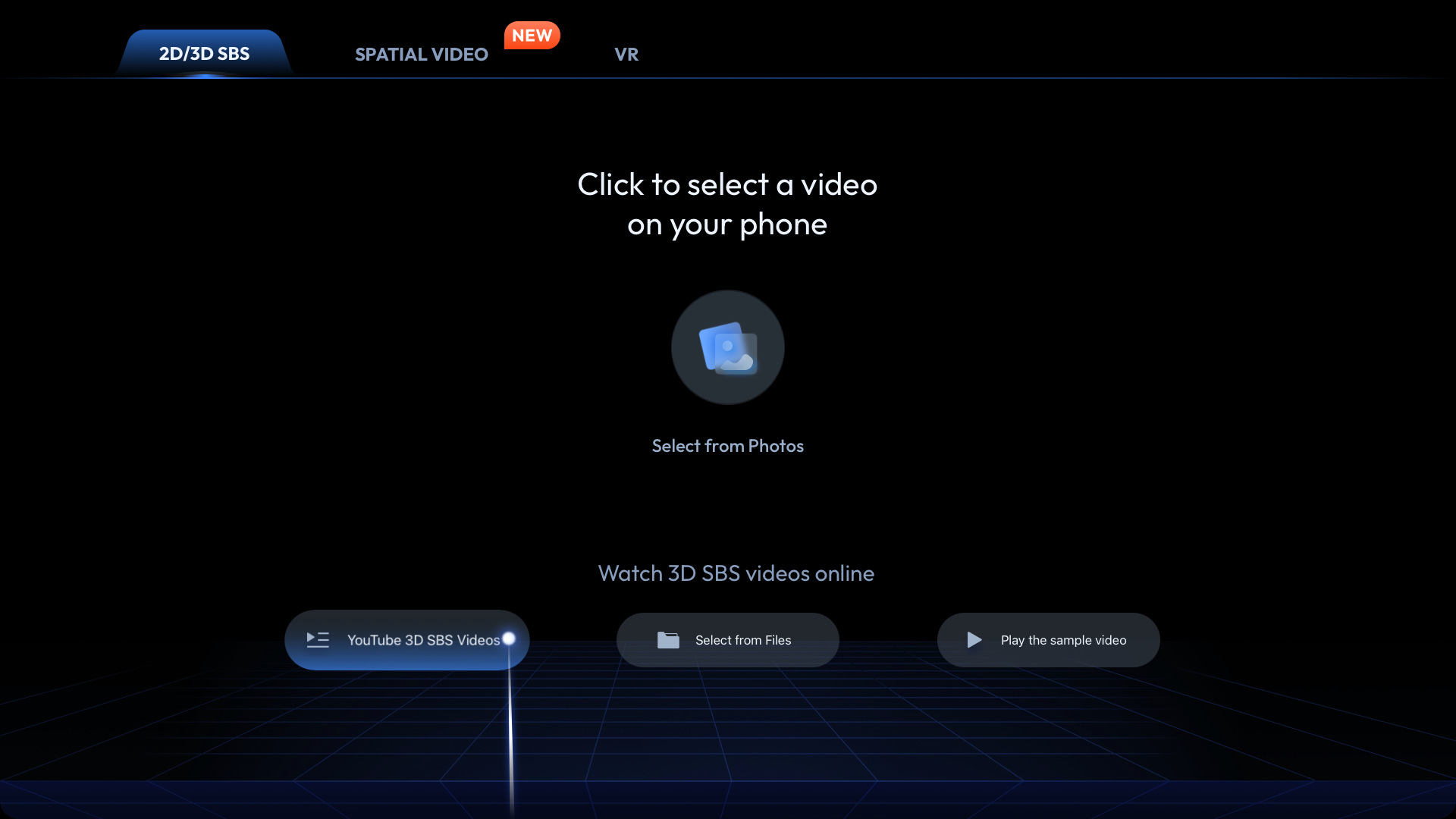
When playing 2D videos, the Media Player will not automatically enter full screen but will play according to the curent screen's status.
If you choose to play a 2D video in full-screen, you can enable or disable Ambient Mode on the phone playback controls.
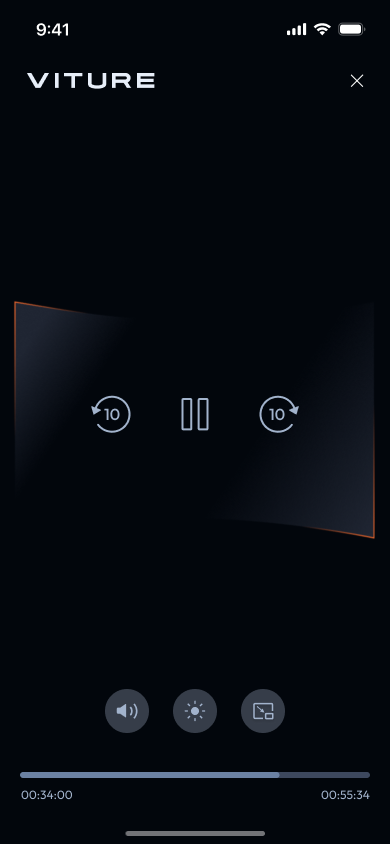
Click 'YouTube 3D SBS Videos' to watch Full SBS (3840×1080) videos on YouTube, or click the 'Play the sample video' button to experience the 3D sample video.
When SpaceWalker detects a full SBS (3840 × 1080) video, the Media Player automatically enters full screen and playback controls are displayed on the phone screen.
If you connect the USB-C XR Charging Adapter, the XR Glasses will also switch to 3D Mode automatically. However, if you directly connect the XR Glasses to the iPhone 15 and later, or SpaceWalker does not detect a Full SBS video, you will need to manually activate the 3D Mode on the XR Glasses.
Video Detector
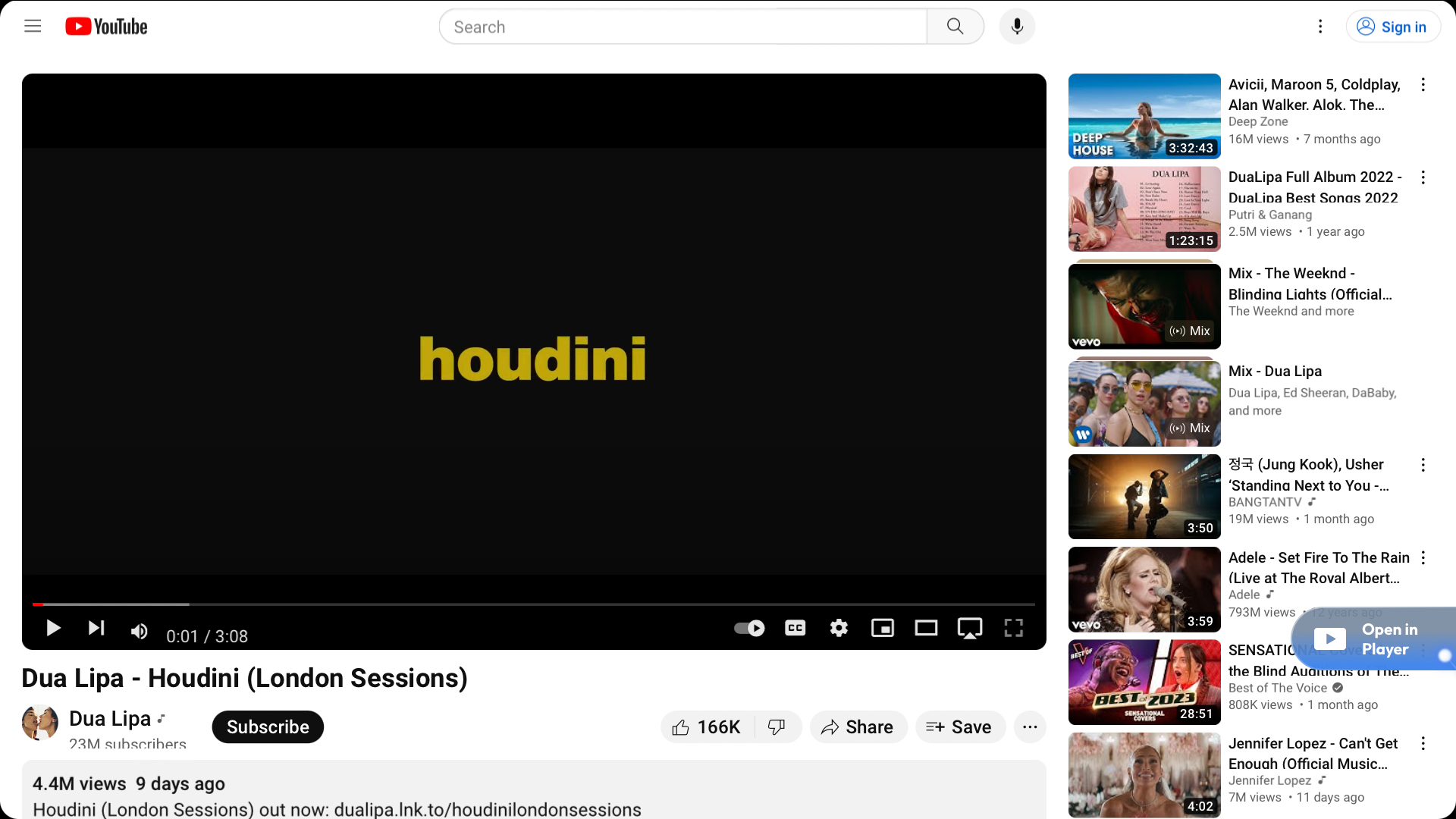
Video Detector is a feature introduced in SpaceWalker v1.2.0. When using SpaceWalker, the application automatically detects videos playing on web pages, displaying a button labeled "Open in Player".
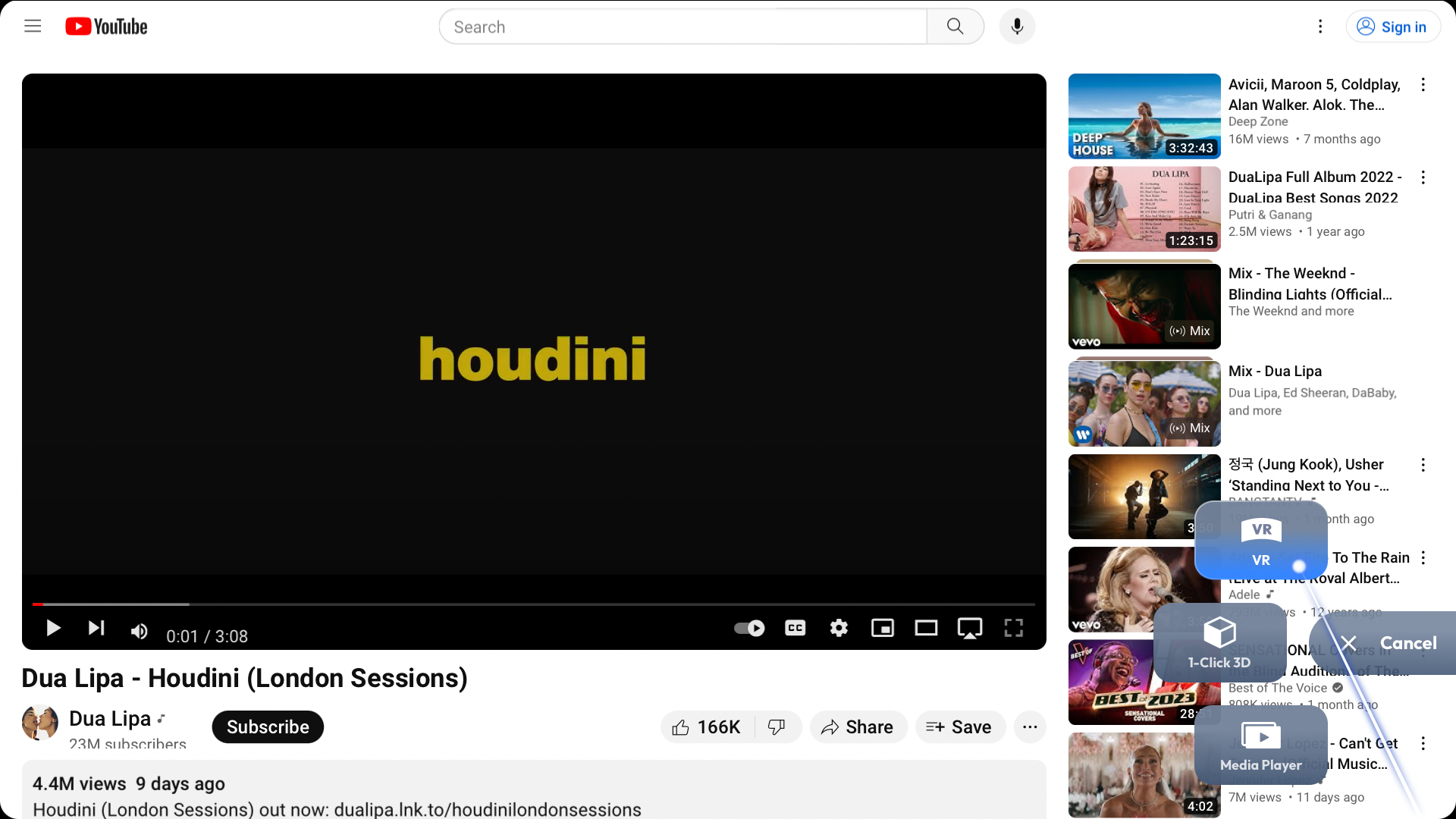
You have the option to choose the video format, and upon clicking the button (Immersive 3D, VR, 1-Click 3D, Media Player) and transfer the currently playing video to SpaceWalker's internal player for playback.
Immersive 3D: Turn online videos into 3D.
Play in 360 VR: Experience a VR video with 3DoF head tracking.
Switch playback modes on your phone. For 3DoF head tracking, it is essential to connect to the USB-C XR Charging Adapter.
- 1-Click 3D: Watch a spatial video or 3D side-by-side (SBS) video.
While streaming platforms have many side-by-side 3D videos, their resolutions may vary. SpaceWalker’s internal player and VITURE XR Glasses support native Full SBS 3D video (3840×1080), ensuring the enjoyment of most SBS 3D videos on the XR Glasses.
When using SpaceWalker on an iPhone with the USB-C XR Charging Adapter, the XR Glasses automatically switch to 3D Mode upon detecting a 3D video. However, when directly connecting the XR Glasses to iPhone 15 and later, you need to manually enable 3D Mode manually on the XR Glasses when watching a SBS 3D video.
- Standard Playback: Play the video directly in SpaceWalker's internal player.
Browser
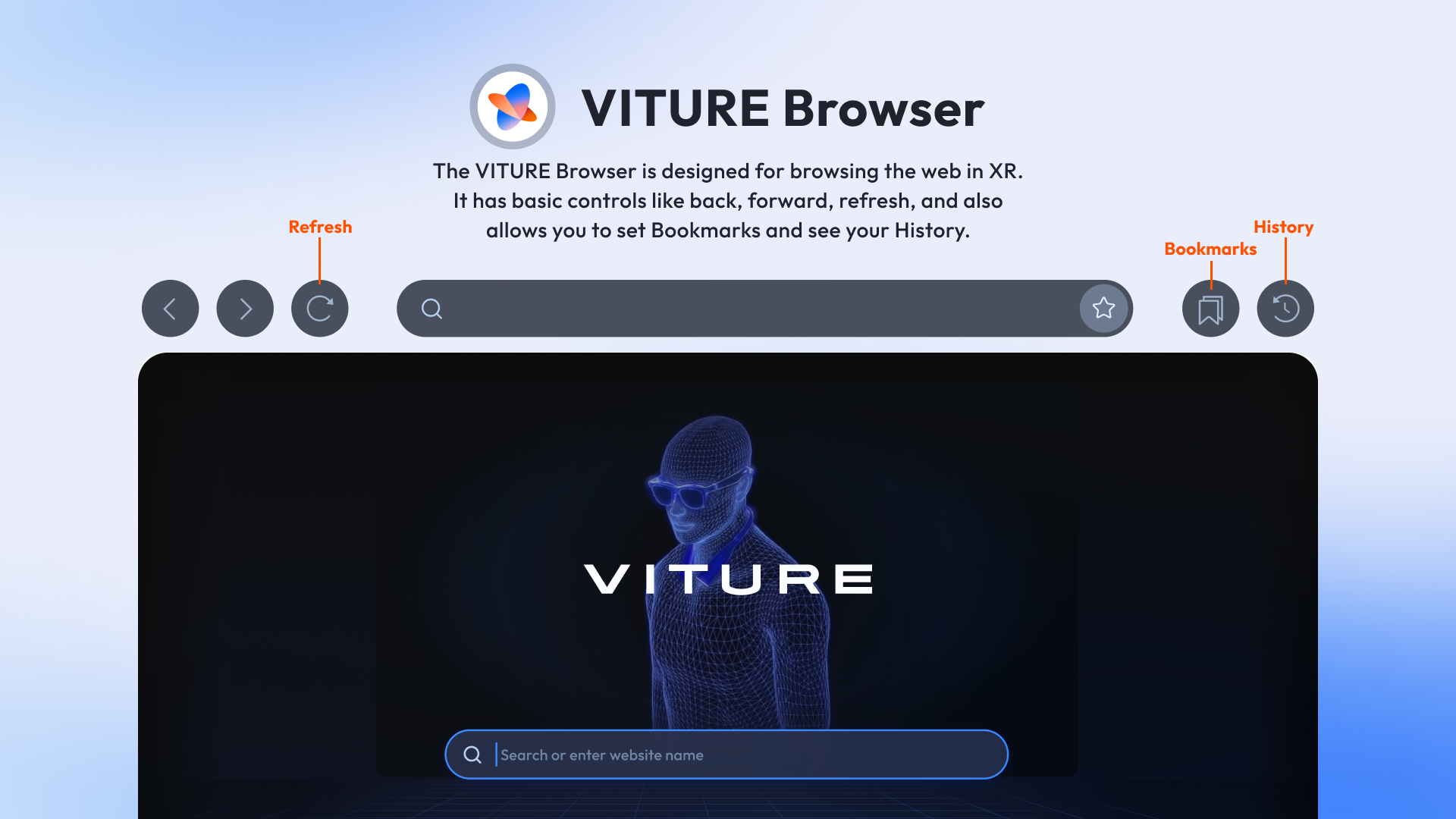
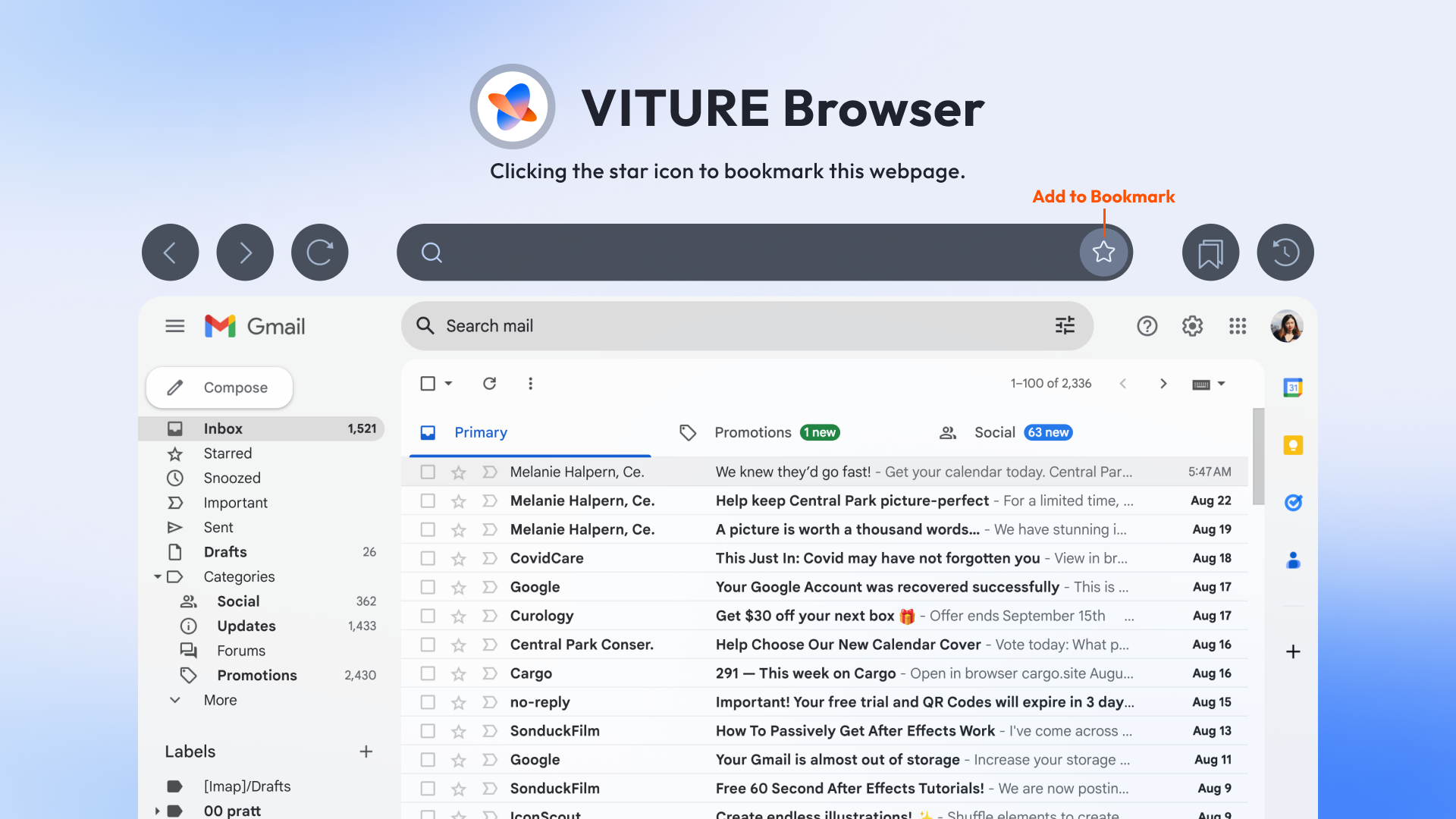
Browser is for web browsing just like any other browser. It has basic controls like back, forward, and refresh. It also allows you to set Bookmarks and view your browsing history.
Click the star icon to bookmark this webpage.
Click the + icon on the Bookmarks page to add favorite bookmarks to the Home screen.
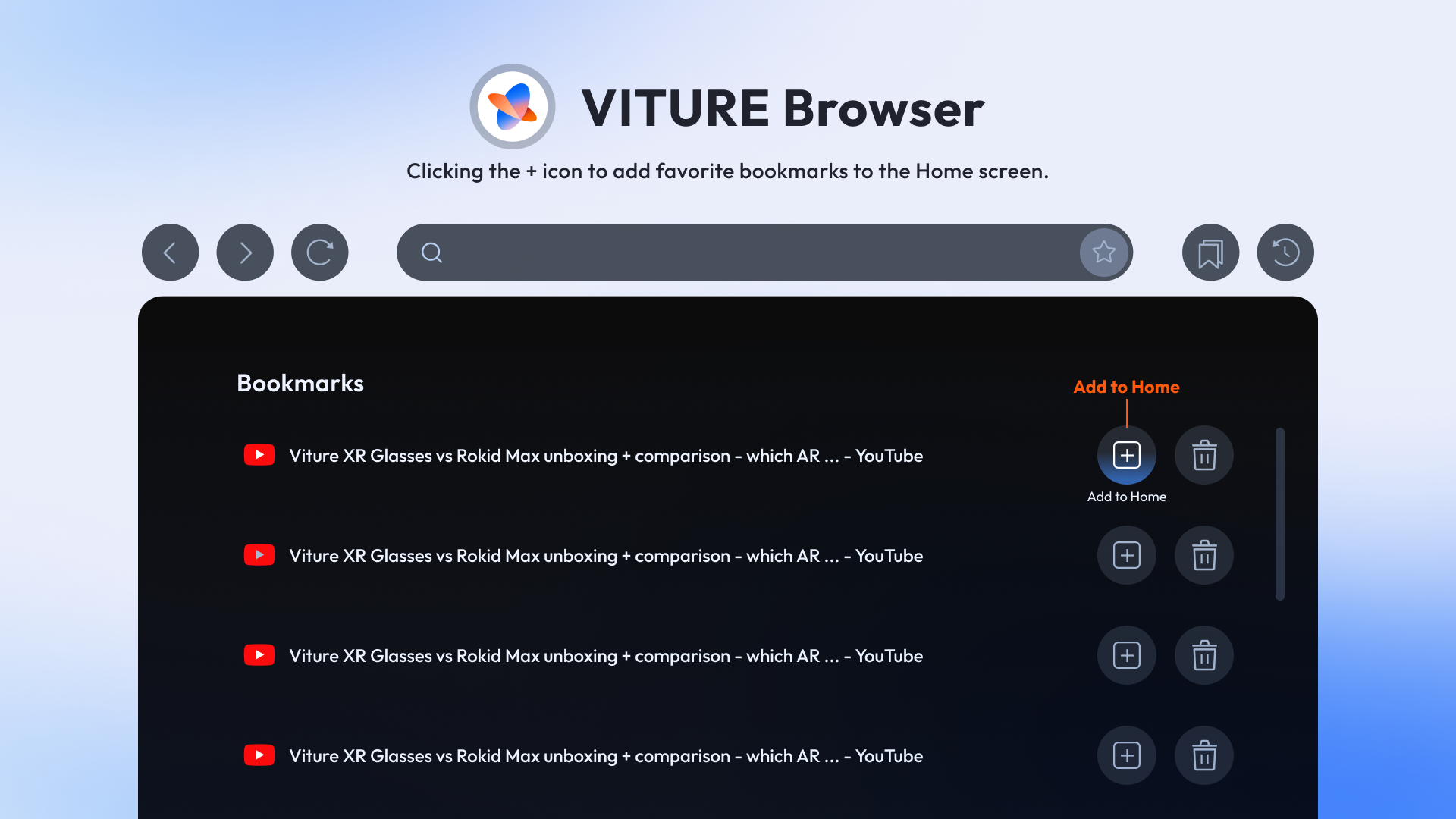
Photo Gallery
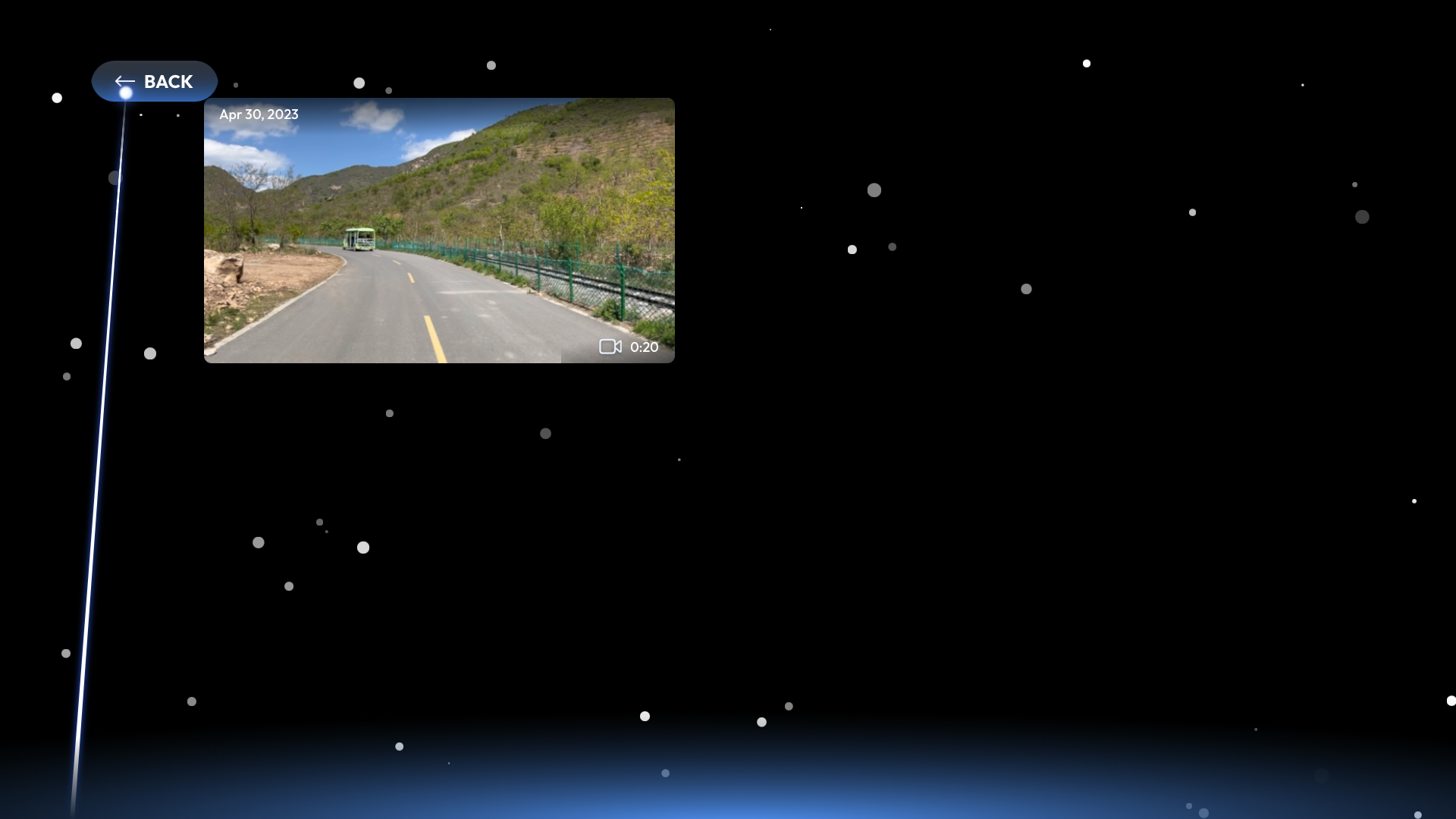
Photo Gallery allows you to explore your photo library in XR. Browse your albums or view media by the media type. Experience a curated collection of precious memories from your photos and stunning spatial videos recently captured on your iPhone 15 Pro and later.
Enter Photo Gallery
To enter the Photo Gallery, position the laser at the bottom of the screen and click on the ‘Photo Gallery’ icon.
Request Access to Photos
Upon opening the Photo Gallery for the first time, SpaceWalker will request permission to access your photos. Granting full access unlocks all features within the Photo Gallery. Limited access allows viewing only accessible photos selected by you.
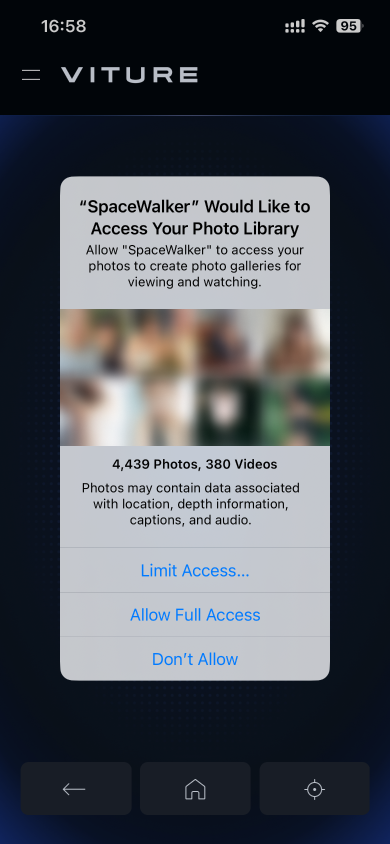
Not granting SpaceWalker access to your photos will restrict access to any Photo Gallery features.
Select Albums
The album selection page organizes albums based on media type, currently supporting:
- Spatial
- Videos
- Live Photos
- Panoramas
- Slo-mo
- Cinematic
- Selfies
- Portrait
- Screenshots
You can access custom albums under the ‘My Albums’ tab.
To view the contents of an album, simply click on it to enter gallery view.
Navigation and Viewing
Once in gallery view, all photos and videos within your albums will be displayed.
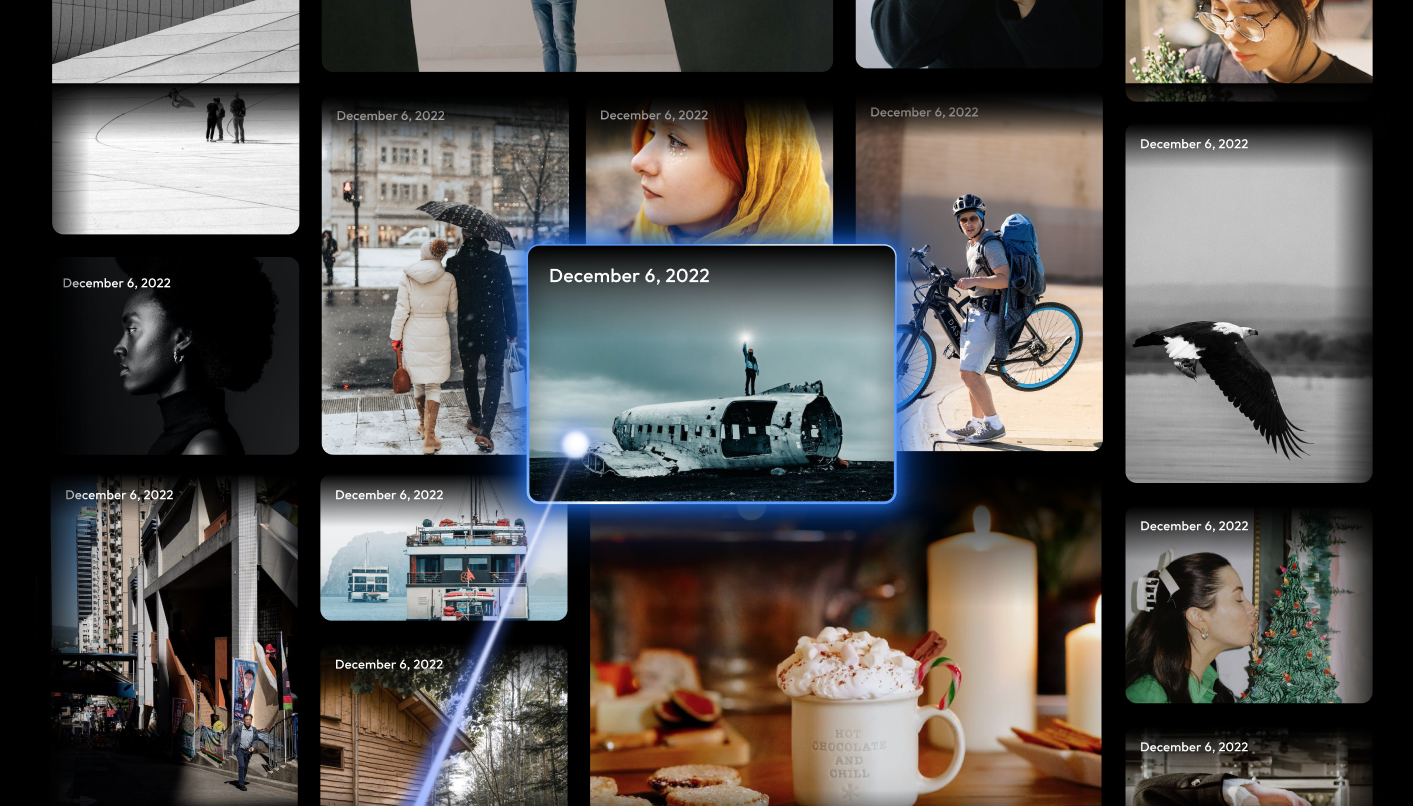
Scroll to load more photos by sliding a finger up or down on your phone's screen.
Navigate between photos by clicking on the icons at the sides of the photo, or sliding left or right on your phone.
When viewing panoramas with the USB-C XR Charging Adapter, adjust your perspective by moving your head or sliding left or right on the phone. For panoramas, navigate between photos by clicking on the icons at the sides of the panorama photo.
For videos, control playback on the XR Glasses' display.
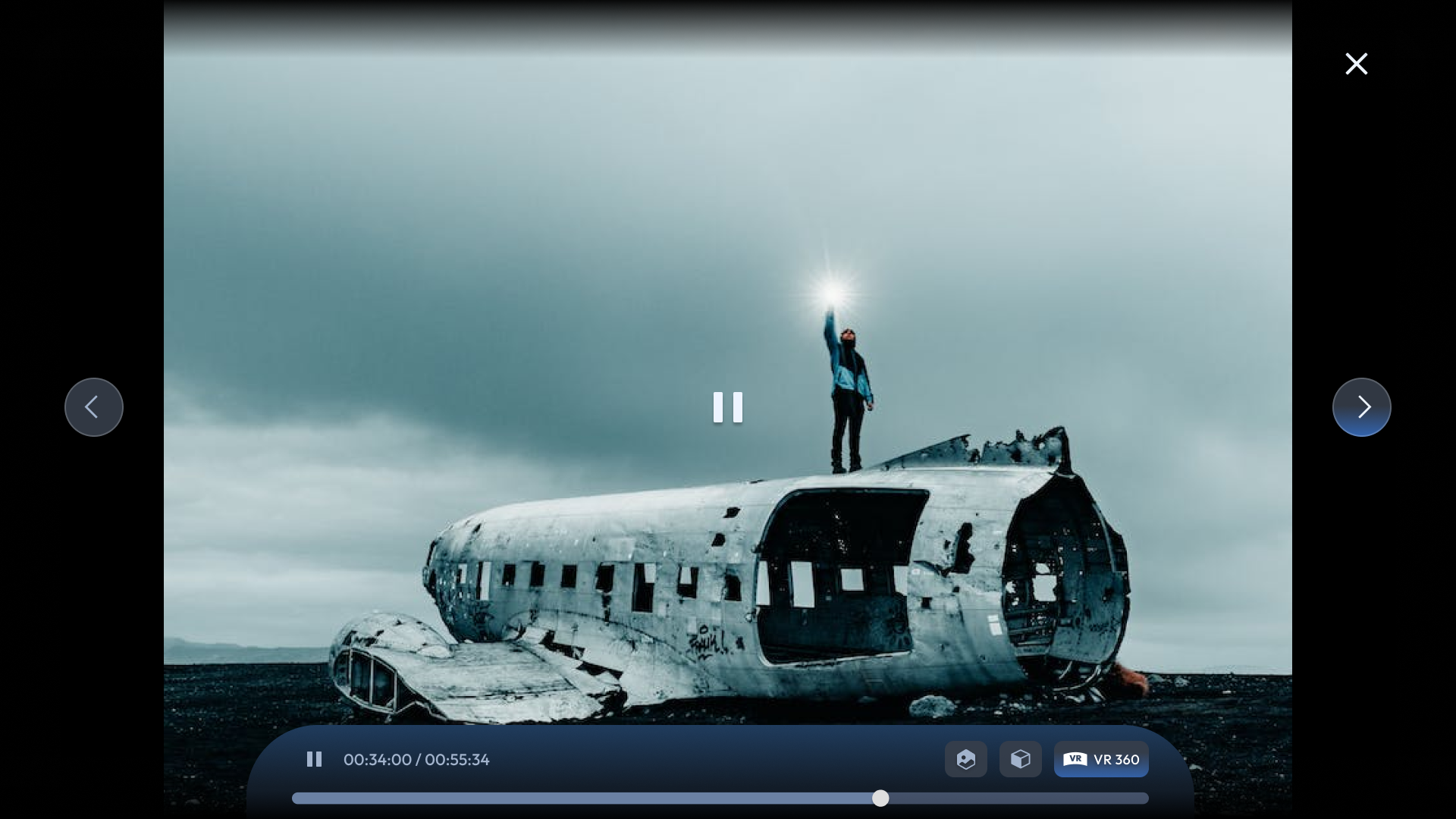
By default, videos in the Photo Gallery play in 2D. To properly view spatial videos, 3D SBS videos, or VR videos, select the corresponding playback mode. SpaceWalker currently supports:
- Immersive 3D: Transform your videos into 3D powered by AI
- Spatial videos
- 3D SBS (Left/Right, 3840×1080)
- 360° VR, 180° VR, 3D Top/Bottom 360 VR, 3D Left/Right 180 VR
Playing a spatial video in Photo Gallery will direct you to the Media Player with a playlist containing all spatial videos in the current album. The playlist loops, allowing you to tap Next or Back on the phone's playback.

Exit Photo Gallery
To exit the gallery and return to the album selection page, click the 'Back' button within the gallery view or tap the 'Back' button on your phone.
Doc Reader
Doc Reader is made for viewing documentation. It supports Pages, Numbers, Keynote, Word, Excel, PowerPoint, and PDF files.
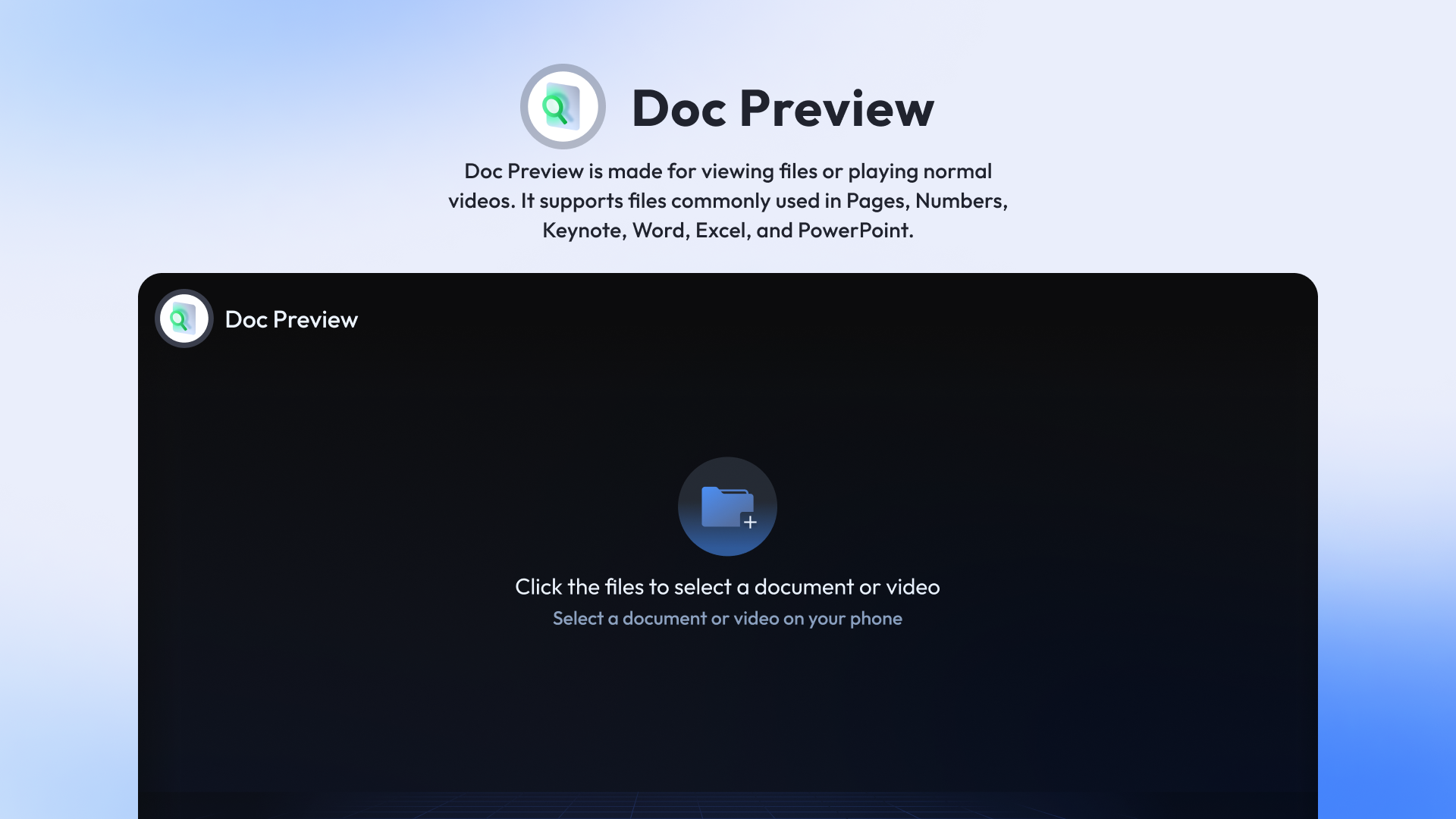
Just like the Media Player, click the folder icon and select a file on the phone. The documentation is read-only and cannot be edited in the SpaceWalker app.
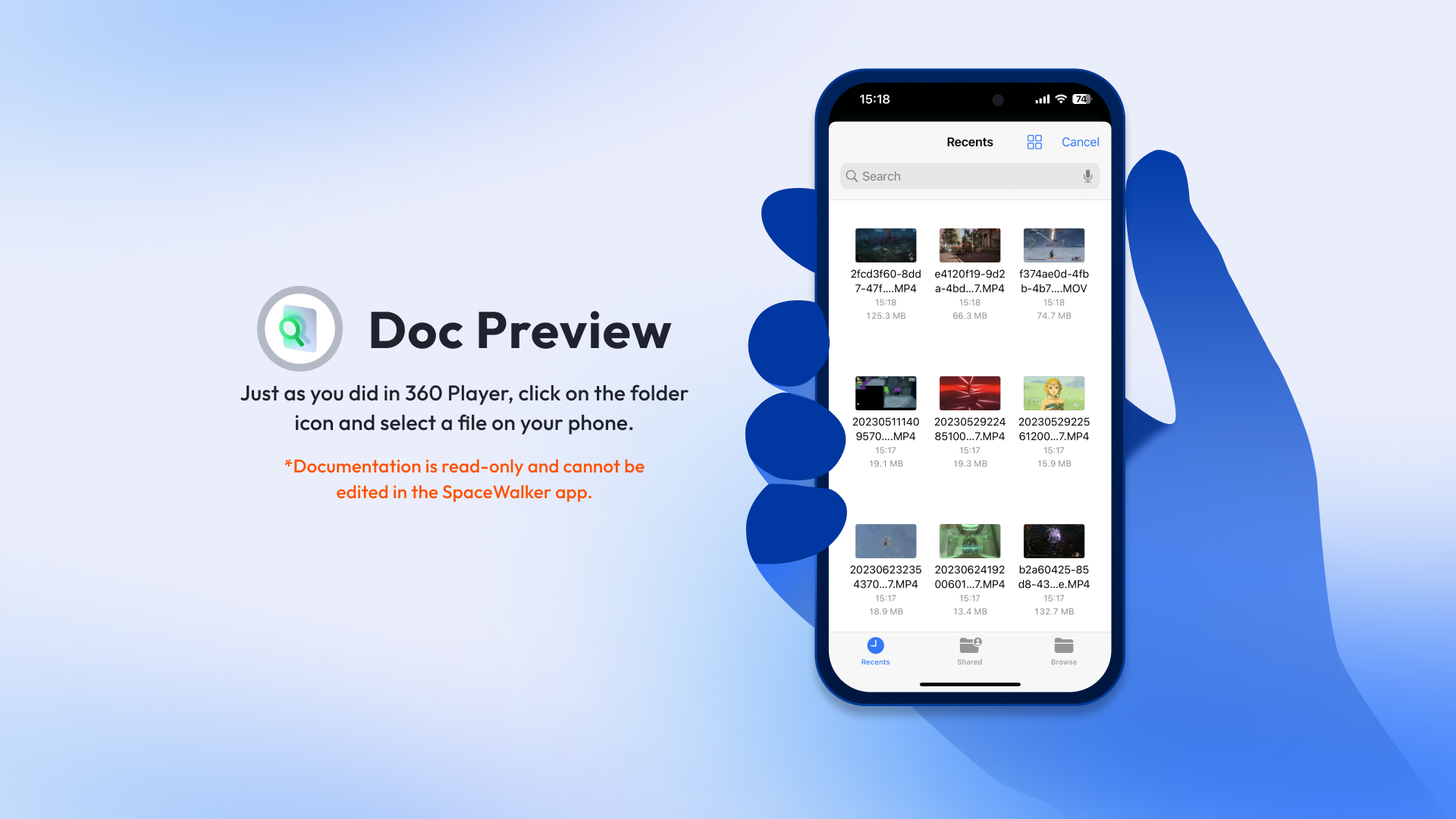
Doc Reader is not supported on SpaceWalker for Android.
Xbox Cloud Gaming
Xbox Cloud Gaming, lets you play Xbox games directly from the cloud without downloading them to your console or iPhone. This opens up a world of gaming possibilities, allowing you to access your favorite titles on the go.
What You'll Need
- Active Xbox Game Pass Subscription: A subscription to Xbox Game Pass (provided by Microsoft) is required to access Xbox Cloud Gaming. Learn more about subscriptions here.
- Strong Wi-Fi Connection: Xbox Cloud Gaming requires a strong and stable internet connection for optimal streaming performance. We highly recommend using a Wi-Fi network, as cellular data usage can be significant and may result in additional charges from your mobile carrier.
- Bluetooth game controller paired with your iPhone
Get Started with Xbox Cloud Gaming
- Launch Xbox Cloud Gaming: Open the Xbox Cloud Gaming icon within the SpaceWalker Dock. SpaceWalker will launch a web page and load the necessary plugins.
- Sign in to Microsoft Account: On the web page, log in to your Microsoft account associated with your active Xbox Game Pass subscription.
- Connect your Controller: Pair a Bluetooth game controller with your iPhone through the system settings.
- Start Playing! Once connected, you'll see the status of your account and controller on your iPhone screen. Browse the available titles and dive into your favorite cloud-streamed games!
Important Notes
Regional Availability: Xbox Cloud Gaming is not available in all regions. Before starting an Xbox Game Pass subscription, we recommend checking if the service is supported in your area by accessing the service within the SpaceWalker app or by visiting the official Xbox Cloud Gaming website here.
Starting with SpaceWalker version 1.8.0, Xbox Cloud Gaming availability will be expanded. If you're in a region where the service isn't currently supported, the app will automatically connect you to the nearest available region.
Extend Your Playtime: Your phone's screen will automatically turn off to conserve battery and prevent accidental touches while using Xbox Cloud Gaming. Simply tap the screen to resume using the on-screen controls (laser pointer or trackpad).
Xbox Cloud Gaming is not supported on SpaceWalker for Android.
Xbox Remote Play
Experience the thrill of Xbox gaming on your VITURE XR Glasses with SpaceWalker's Pro features. Enjoy immersive, fullscreen gameplay without letterboxing, and customize your experience with Pin Mode and Ambient Mode.
Free for VITURE XR Glasses users!
For non-VITURE users, Xbox Remote Play is part of the Pro features in-app purchase. Before buying, try our free trial to ensure compatibility.
Note: Xbox Remote Play requires SpaceWalker version 1.7.1 or later and may have regional limitations due to Xbox Cloud Gaming availability.
Starting with version 1.8.0, Xbox Remote Play availability will be expanded. If you're in a region where the service isn't currently supported, the app will automatically connect you to the nearest available region.
What You'll Need
- Xbox Series X/S console (recommended)
- Microsoft Account
- iPhone and Xbox connected to the same strong 5GHz Wi-Fi network
- Bluetooth game controller paired with your iPhone
Set Up Xbox Remote Play
- Launch Xbox Remote Play: Open the Xbox Remote Play icon within the SpaceWalker Dock. SpaceWalker will launch a web page and load the necessary plugins.
- Sign in to Microsoft Account: On the web page, log in to your Microsoft account. This should be the same account associated with your Xbox console.
- Connect your Controller: Pair a Bluetooth game controller with your iPhone through the system settings.
- Connect and Play!: After completing the steps above, SpaceWalker will automatically scan for your Xbox console and initiate the remote play connection. You'll see the status of your account, controller, and console connection on your iPhone screen while using Xbox Remote Play.
- Reconnecting (Optional): If the connection fails, simply tap the "Connect" button on your phone to try again.
Important Notes
Extend Your Playtime: Your phone's screen will automatically turn off to conserve battery and prevent accidental touches while using Xbox Remote Play. Simply tap the screen to resume using the on-screen controls (laser pointer or trackpad).
Xbox Remote Play is not supported on SpaceWalker for Android.
Remote Stream on Android — Stream Your PC to Your XR Glasses
Remote Stream lets you view and control your Windows PC through your VITURE XR Glasses. Your PC renders the desktop and streams it over your local network to the glasses in real time, while your phone becomes the controller — ideal for PC gaming and desktop work.
Requirements:
- VITURE XR Glasses connected to your phone, with the latest SpaceWalker for Android installed.
- A Windows PC with the latest SpaceWalker for Windows installed and running. Download SpaceWalker for Windows.
- Your phone and PC connected to the same Wi-Fi network.
Set Up Your PC
- Download and install the latest SpaceWalker for Windows.
- Launch it and keep it running.
- Make sure the PC is on the same Wi-Fi network as your phone.
- On first use, allow SpaceWalker through the Windows Firewall if prompted.
Find Your PC
In SpaceWalker for Android, tap Remote Stream in the bottom navigation bar. SpaceWalker automatically scans your local network for PCs running SpaceWalker for Windows.
Each PC card shows the PC name and its status: Online, Offline, or Unpaired.
If your PC isn't discovered automatically:
- Tap + Add PC.
- Enter your PC's IP address in the dialog and confirm.
Tip: To find your PC's IP address, open Command Prompt on your PC, type
ipconfig, and look for the IPv4 address.
Pair with Your PC (First Time Only)
Pairing is required the first time you connect to a new PC:
- Tap an online, unpaired PC card.
- A 4-digit code appears on your phone.
- Enter this code in SpaceWalker for Windows on your PC.
- Once confirmed, the PC status changes to paired — no pairing needed next time.
If the code expires or pairing fails, tap Refresh to get a new code.
If pairing fails, check that:
- The code was entered correctly.
- No game is currently running on the PC (pairing is unavailable during gameplay).
- No other device is pairing with the PC at the same time.
- Your network connection is stable.
Connect
Tap a paired, online PC card and choose:
- Connect: Start streaming the PC desktop.
- Delete PC: Remove the PC and its pairing info.
After tapping Connect, SpaceWalker enters full-screen mode (you'll be prompted first if it isn't), shows "Preparing stream…", and then your PC desktop appears on the glasses — with the control panel at the bottom of your phone screen.
Note: If SpaceWalker for Windows on your PC is outdated, you'll be prompted to update it. Download the latest version from the VITURE website.
Control from Your Phone
Once streaming starts, all controls are on the phone panel:
| Button | Function |
|---|---|
| Laser Pointer | Switch to laser pointer mode |
| Track Pad | Switch to trackpad mode (default) |
| Virtual Gamepad | Switch to virtual gamepad mode |
| Adjust Gamepad | Open gamepad settings (gamepad mode only) |
| 3D | Switch between 2D / 3D display modes |
| Keyboard | Type on your PC using your phone's keyboard |
| Exit | End the streaming session |
Three Control Modes
- Track Pad (default): Slide on your phone screen to move the cursor; tap to left-click — just like a laptop touchpad.
- Laser Pointer: Move your phone to aim the cursor, like pointing with a laser pen.
- Virtual Gamepad: An on-screen gamepad for gaming, with gyro support.
Virtual Gamepad
The virtual gamepad includes a D-Pad, ABXY buttons, L1/R1/L2/R2 shoulder buttons, BACK / GUIDE / START, and L3/R3 (stick press). All buttons can be dragged to reposition.
Track Point (the red dot): At the center of the gamepad is a red dot that works like the pointing stick on a ThinkPad keyboard:
| Action | Effect |
|---|---|
| Drag | Precisely move the mouse cursor |
| Tap | Left-click |
| Double-tap | Double-click |
| Press and hold | Click and hold |
It works simultaneously with the other buttons — control the Track Point with one finger while pressing ABXY with others. Great for fine aiming in games or precise pointing on the desktop.
Adjust Gamepad opens the gamepad settings:
| Setting | Options | Description |
|---|---|---|
| Layout Preset | Standard / Shooter | Button layout style |
| Control Size | Small / Standard / Large | Size of the gamepad controls |
| Stick Sensitivity | 60%–140% (default 100%) | Response speed of the sticks and Track Point |
| Motion Sensor Source | IMU Off / Phone IMU / Glasses IMU / Gamepad IMU | Where gyro data comes from |
Switch Display Modes
Tap 3D on the control panel to open the Immersive 3D options:
- Standard 3D: The default stereoscopic 3D effect.
- Enhanced 3D: Stronger 3D depth.
- 2D View: Regular 2D display.
- Soft Mode: Reduced 3D intensity, for users sensitive to 3D.
A toast shows the current mode when switching ("Display: 2D" or "Display: i3D").
Note: When switching display modes, the glasses may briefly disconnect and reconnect. The picture recovers automatically within a few seconds — this is normal.
Keyboard Input
To type on your PC while streaming:
- Tap Keyboard on the control panel.
- An input box appears on the glasses.
- Type on your phone's keyboard — the text is sent to the PC.
- Close the keyboard when done.
Disconnect
Tap Exit at the bottom of the control panel to end streaming and return to the PC list.
Troubleshooting
Can't find my PC
- Make sure the PC and your phone are on the same Wi-Fi network (not a guest network or a different subnet).
- Confirm SpaceWalker for Windows is running on the PC.
- Try adding the PC manually by its IP address.
- Check that the Windows Firewall isn't blocking SpaceWalker.
Pairing fails
- Double-check the 4-digit code.
- Tap Refresh for a new code and retry.
- Make sure no game is running on the PC.
- If it says pairing is already in progress, wait a moment and retry.
Stream is laggy or choppy
- Use 5GHz Wi-Fi instead of 2.4GHz.
- Lower the streaming resolution or bitrate in SpaceWalker for Windows.
- Make sure the PC's GPU isn't busy with other heavy tasks.
- Try switching the video codec (H.264 / H.265).
"No desktop is available on this host"
- Check that SpaceWalker for Windows has correctly detected the desktop.
- Restart SpaceWalker for Windows.
- Make sure the PC side is on the latest version.
Screen goes blank when switching 3D
This is normal — the glasses briefly reconnect when the display mode changes. The picture recovers in a few seconds.
Stream stops due to a decoder issue
- Switch the video codec (H.264 ↔ H.265).
- Lower the streaming resolution.
- Restart the SpaceWalker app and try again.
Immersive 3D
Immersive 3D is a groundbreaking feature in SpaceWalker Mobile that transforms your photos and videos into stunning 3D experiences in real time.
Using state-of-the-art AI, it instantly converts 2D content into breathtaking 3D visuals. This technology analyzes each frame, identifying depth cues and spatial relationships, resulting in a natural, Immersive 3D effect that maintains exceptional visual quality and minimizes latency.
Watch the video below to see it in action.
Check more details on SpaceWalker for mobile.
Requirements
To enjoy Immersive 3D, you'll need:
Hardware
- VITURE XR Glasses
- iPhone, iPad with USB-C connector
- Android Phone, Pad with USB-C connector
- Look for terms like “DisplayPort over USB-C” or “DP Alt Mode” in your device’s specs.
- Not sure? Check our compatibility list.
- Google Pixel 8/9 series do not support the required resolution.
- We recommend Samsung Galaxy S23 or newer for the best experience. Please note that Immersive 3D is not currently supported on Samsung devices powered by Exynos processors.
Software
- iOS
- SpaceWalker app (v1.9.1 or later)
- iOS 18 or later
- Android
- SpaceWalker app version 1.5.0 or later
- Android 14 or newer
Optional Accessory
- USB-C XR Charging Adapter: Enables automatic 3D mode activation for a smoother experience on iPhone or iPad.
How to Use
Photo Gallery
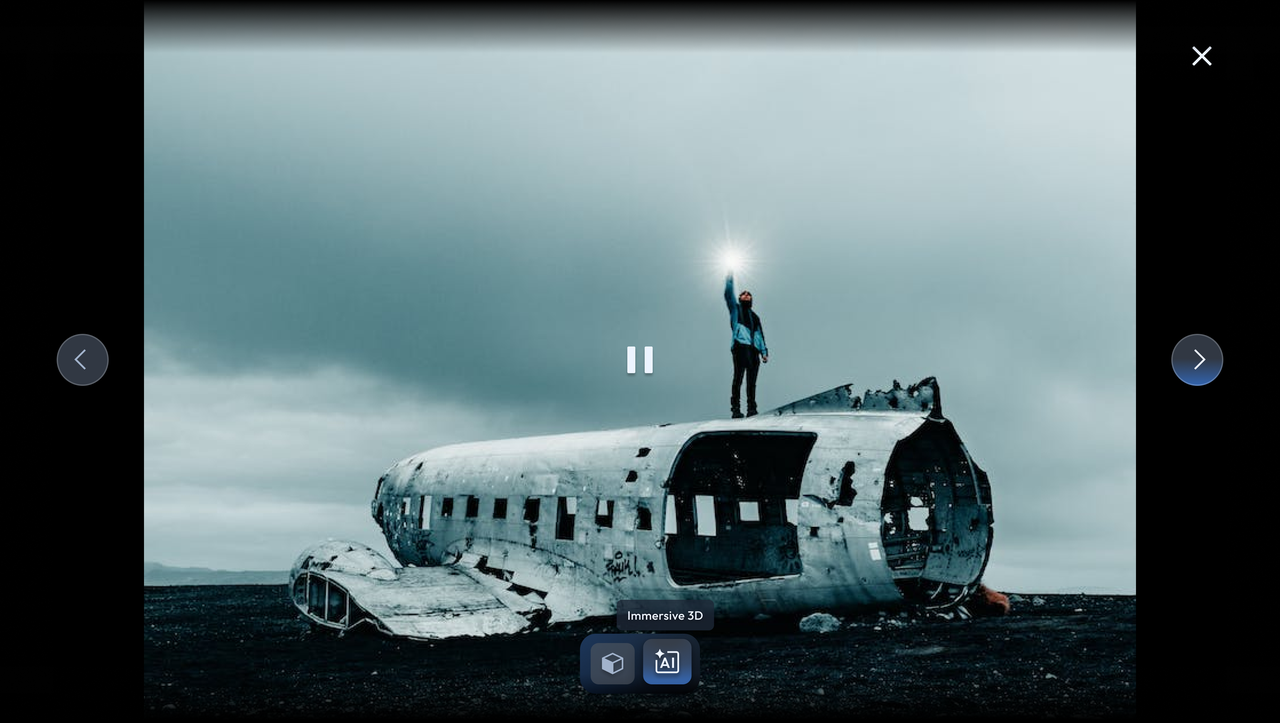
- Open the Photo Gallery in SpaceWalker.
- Select a photo or video.
- Tap the Immersive 3D button (AI icon) to convert it to 3D.
- Enable 3D Mode on your XR Glasses (or use the USB-C XR Charging Adapter for automatic activation).
- Navigate through your media using the left and right arrow buttons.
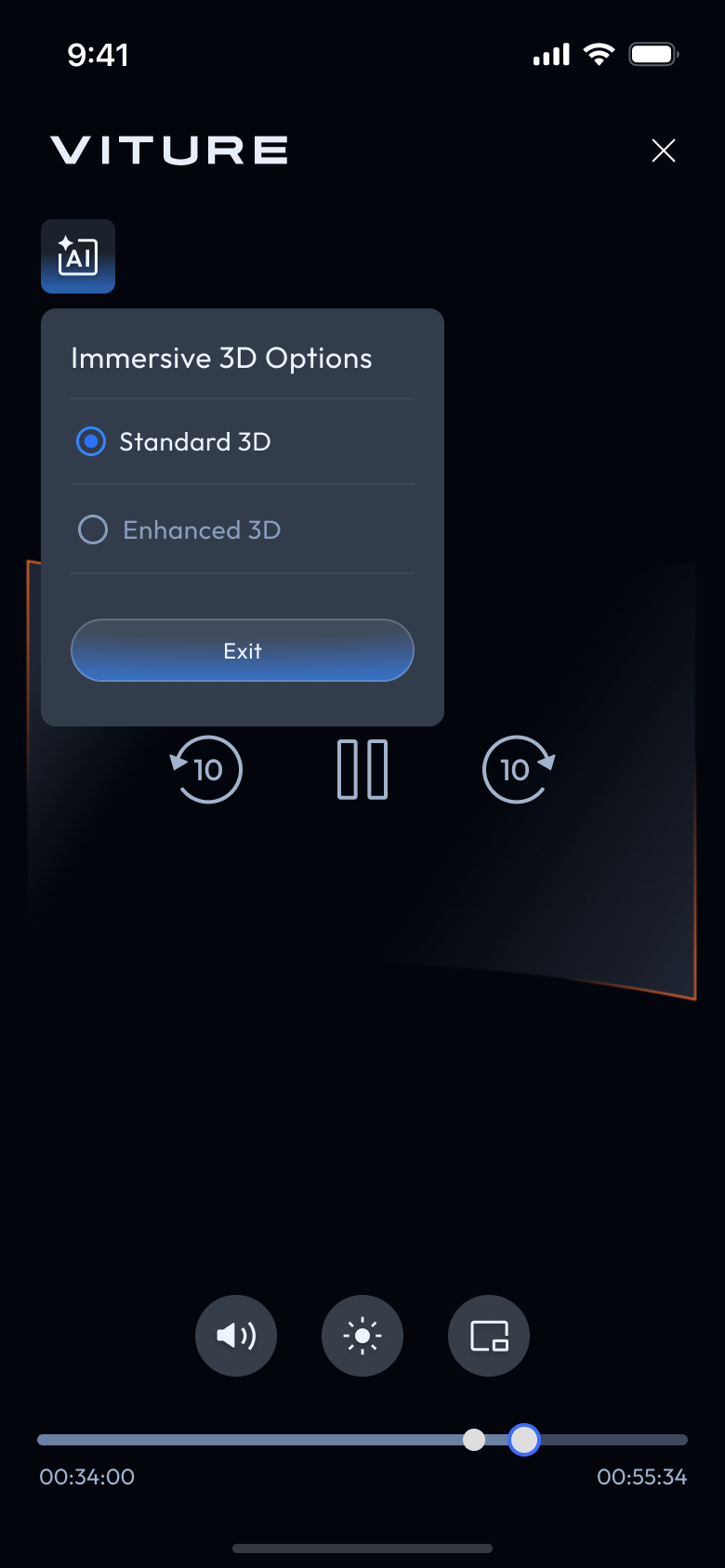
- For videos, control playback via your phone. Choose from three viewing modes:
- Standard: Default mode for a balanced 3D experience.
- Enhanced: Increased depth for a more immersive experience.
Explore our curated YouTube playlist and photo album to experience the full potential of Immersive 3D!
Browser
Note: Immersive 3D in the browser is supported on iOS SpaceWalker starting from version 1.19.18. Android support is coming soon.
Immersive 3D on SpaceWalker for iOS now supports real-time 2D-to-3D conversion for content viewed in the built-in browser, delivering a richer and more immersive 3D viewing experience—even for standard web pages.
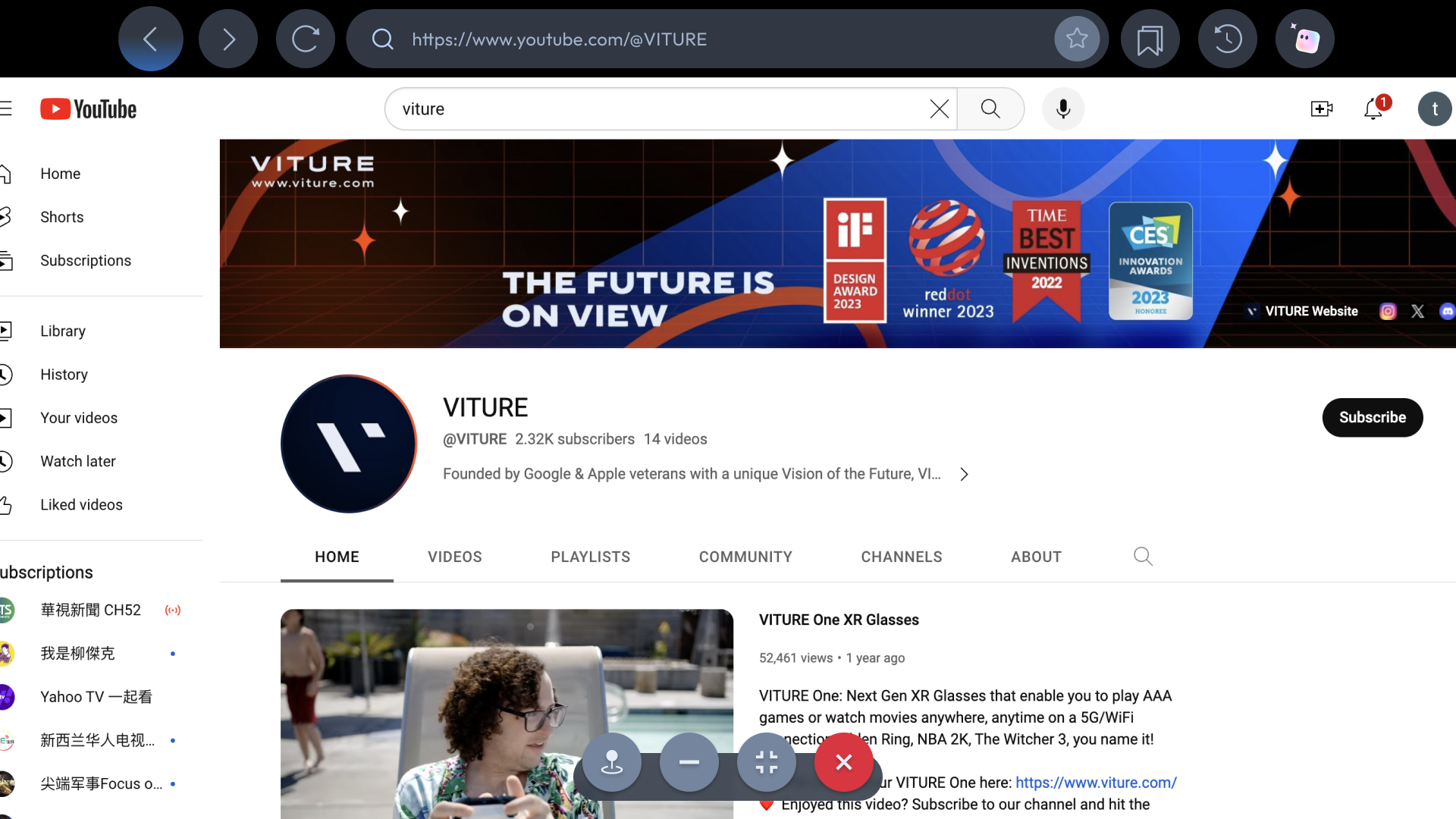
- Open the built-in browser in SpaceWalker and navigate to the webpage you want to view.
- Move the cursor to the top of the browser to reveal the tab bar, then tap the Immersive 3D icon in the top-right corner.
- Check your phone screen. A system permission prompt for Screen Recording will appear—please grant permission.
- Once permission is granted, the webpage will switch to 3D:
- If you are using an adapter, the glasses will automatically switch to 3D mode.
- If the glasses are directly connected to the device, please manually switch the glasses to 3D mode.
- Use touch controls on your phone to browse the webpage and enjoy an immersive 3D experience.
This feature also works with web-based streaming tools, allowing streamed games to be upgraded to an immersive 3D experience.
Note: This feature may be unavailable on some video streaming websites due to DRM restrictions.
Video Detector
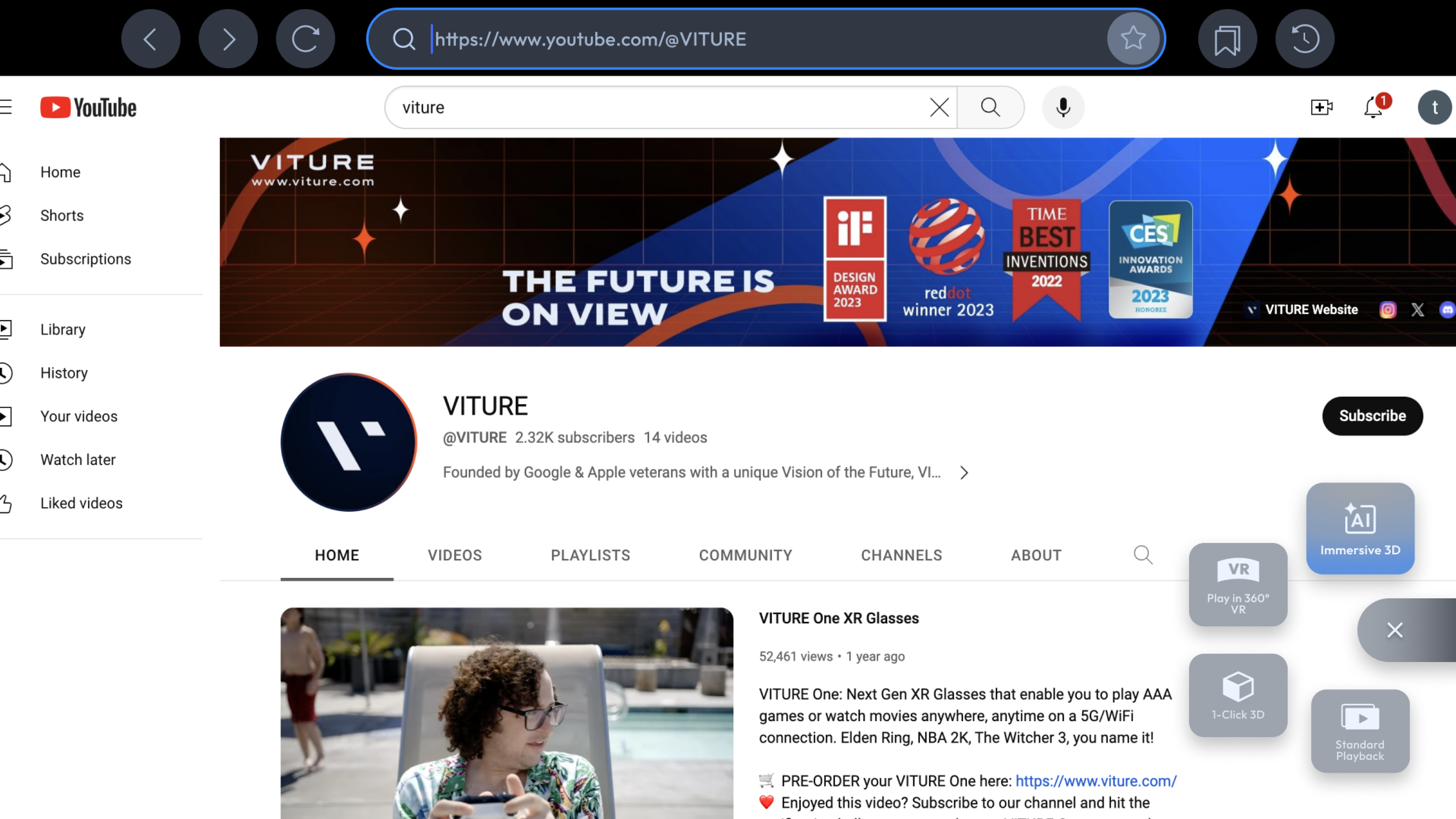
- Open an online video in SpaceWalker's Browser. Supported sites are listed on the app's home screen, marked with the Immersive 3D icon.
- The Video Detector will automatically identify compatible videos (some sites may not be supported).
- Tap the Immersive 3D button to start the 3D playback.
- Enable 3D Mode on your XR Glasses (or use the USB-C XR Charging Adapter for automatic activation).
- Control playback from your phone.
Important Notes
Immersive 3D may significantly increase battery usage. Ensure your iPhone or iPad is sufficiently charged before extended use.
Update XR Glasses
Starting with version 1.4.2, SpaceWalker for Android supports updating XR Glasses firmware. Simply connect your XR Glasses to your Android phone and follow the on-screen instructions to update.
You also can update your XR Glasses' firmware to the latest version: Firmware Update
And calibrate your XR Glasses' IMU after the update: IMU Calibration
Note: This feature is not supported on SpaceWalker for iOS.
Send Feedback
If you encounter an issue while using the SpaceWalker app, please go to Send Feedback and describe the issue. The VITURE team will receive your feedback and fix the issue as soon as possible.
By submitting with diagnostic data, your usage data will submit to our server. These log files don't personally identify you and don't include location information.
Change Display Language
Tap App Language and select the preferred language in the system settings, then go back to the app — your change will take effect.
This feature is available in SpaceWalker v1.1.0 and later.
SpaceWalker for iOS supports:
- English
- Japanese
- Simplified Chinese
- Traditional Chinese
- Thai
The display language defaults to English but will switch to your system language if it's supported.
Check App Version
App Version displays the SpaceWalker app's version name. Visit the App Store to update the app.
For Samsung Users
Samsung's DeX mode natively features desktop extension functionality. You can enable Samsung DeX mode and connect XR glasses to see the extended desktop in the glasses.
If you use SpaceWalker App, please ensure that Samsung DeX is turned off before use.
For One UI 8 system: Here's how to disable DeX Auto running on glasses connection or 3D change:
Method 1
- Connect the glasses to your Samsung device (to enable access to Wired settings).
- Go to Settings > Connected Devices > Samsung DeX > Connected Display > Select "Mirrored" mode (not "Extended" mode) to disable DeX launching.
Method 2
- Connect the glasses to your Samsung device (to enable access to "Wired settings").
- Wireless DeX icon will change to Wired DeX in full Quick settings when glasses display detected (you need to expand the full quick settings panel to view it)
- Press and hold on "Wired DeX" icon for Samsung DeX settings.
- Select the "Connected Display" option.
- Choose "Mirrored" mode to disable DeX launching.