One Neckband
Introduction to VITURE One Neckband
The VITURE One Neckband is designed to be light and easy to wear for hours, providing streaming and remote play apps so that you can easily pick up where you left off in your favorite series or game from your PlayStation or Xbox at home.
When you pair the Neckband with your VITURE XR Glasses, you have everything you need for an all-in-one XR experience.
Get to know the VITURE One Neckband — please watch this video.
VITURE Pro Neckband vs. VITURE One Neckband
The VITURE Pro Neckband outshines the VITURE One Neckband with significantly improved CPU and GPU performance, enhanced memory and storage configurations, a lighter design, and extended battery life. These advancements make the Pro Neckband ideal for demanding tasks such as cloud gaming and extended remote play sessions.
While the VITURE One Neckband still offers a solid experience, the Pro Neckband is the ultimate choice for users seeking top-tier performance and portability.
| Feature | VITURE Pro Neckband | VITURE One Neckband |
|---|---|---|
| Performance | 7x the CPU power and 40x the GPU power | - |
| Weight | 170g | 194g |
| Memory & Storage | 8GB RAM / 128GB or 12GB RAM / 256GB | 2GB RAM / 128GB |
| Battery Life* | 4+ hours for cloud gaming or remote play 4+ hours for video playback | 2 hours for cloud gaming or remote play 3 hours for video playback |
* Battery life depends on the connected glasses and usage scenarios. The stated data is measured when connected to VITURE Pro Glasses.
What's in the Box
- VITURE One Neckband
- USB-C Cable
- Pouch Bag
Set Up & Power on
Connect to VITURE XR Glasses
Wear the Neckband with the D-Pad facing down on your left.
For VITURE Pro XR Glasses or VITURE One XR Glasses, put on your XR Glasses first, then clip the magnetic connector to the port on your XR Glasses.
For VITURE One Lite XR Glasses, you'll need a Magnetic Connector to USB-C Adapter (available for purchase here).
Turn the Neckband On or Off
Use the Power button on the left side of the Neckband to turn the Neckband on or off.
If your Neckband isn't working as expected, you can try restarting it by turning it off, then turning it back on. If turning it off and on doesn't fix the issue, try forcing it to turn off by pressing and holding the Power button for 10 seconds.
Turn On the Neckband
Press and hold the Power button until the Neckband vibrates.
Turn Off the Neckband
Press and hold the Power button until the shutdown animation appears.
Buttons on the Neckband
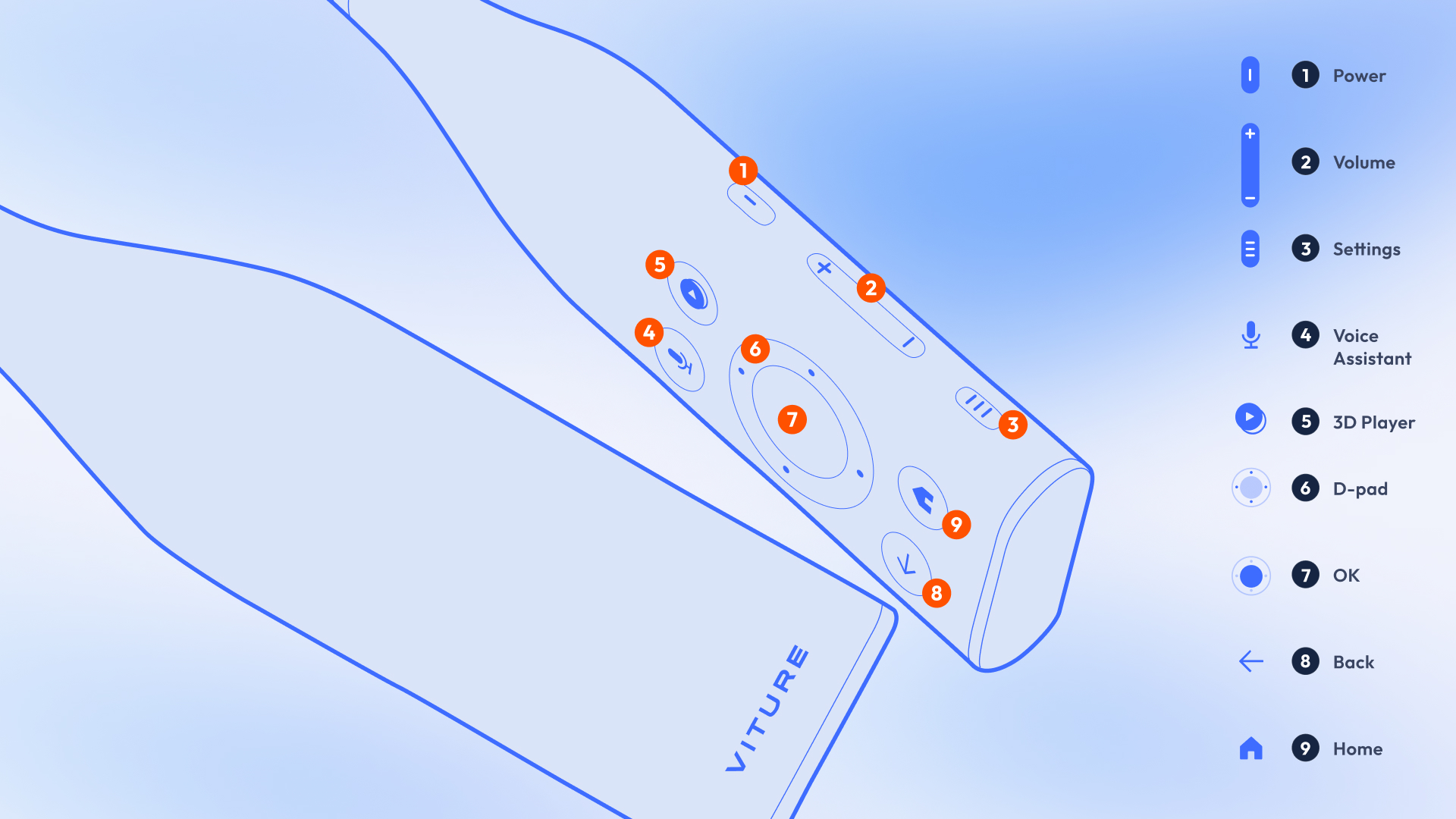
| # | Button | What it's for |
|---|---|---|
| 1 | Power | Press and hold to turn the Neckband on or off. Press to sleep or wake the Neckband. |
| 2 | Volume | Press the top or bottom of the Volume button to adjust the volume. |
| 3 | Settings | Open the Settings menu. Double-click to turn Ambient Mode on or off. Press and hold to re-center the cursor when Headgaze Navigation is enabled. |
| 4 | Voice Assistant | Press the Voice Assistant button to ask a question or give a command. (You may install any voice assistant app to use this button.) |
| 5 | 3D Player | Launch the 3D Player app. |
| 6 | D-pad | Use the D-pad ring to navigate up, down, left, or right. |
| 7 | OK | Make selections, or press and hold for more options (some of the items available). |
| 8 | Back | Go back to the previous screen. |
| 9 | Home | Return to the Home screen. Double-click to switch between Headgaze Navigation and D-pad navigation. |
Neckband Remote App
Neckband Remote is the companion app for the Neckband, allowing wireless control of the Neckband via your mobile device.
What's New
The latest version of the Neckband Remote app is v1.3.1, available on Android and iOS.
Download the Neckband Remote on the Google Play or the App Store
Neckband Remote v1.3 includes:
- Scan the QR code on the Neckband: If your Neckband has a QR code displayed on its screen. Tap the "QR code button" located in the top right corner of the app's interface. Your Neckband will automatically scan the on-screen QR code and send it to your phone.
To use this feature, your Neckband needs to be updated to 1.5.1.10326 or later versions. Please refer to the following: Updating Your Neckband
See also: View release history
Pair with Your Neckband
To pair with the Neckband, ensure that Bluetooth is enabled on your phone.
The Neckband Remote will automatically detect and connect to your nearby Neckband. If the connection does not succeed automatically, ensure your Neckband is nearby and tap the Bluetooth icon on the top right to access the nearby device list and select your Neckband.
Please note that the Neckband can only connect to one phone at a time. If you wish to use it with a different phone, exit the Neckband Remote on the current device first.
Trackpad
The Trackpad is the Neckband Remote's default mode and facilitates various gestures for controlling the Neckband. Here are the available actions and their corresponding gestures:
| Action | How to Perform |
|---|---|
| Move the cursor | Slide one finger on the Trackpad. |
| Select/OK | Tap the Trackpad |
| Scroll up/down | Slide one finger on the scroll bar or two fingers on the Trackpad. |
| Scroll left/right | Slide two fingers left or right on the Trackpad. |
| Back | Tap the Back button on the bottom left, or use a three-finger tap on the Trackpad. |
| Home | Tap the Home button on the bottom right. |
The Trackpad is ideal for tablet apps like Kindle, Firefox, and Netflix. It is compatible with all platform apps except Android TV apps (like Max and Google Play) which do not support touch gestures. In such cases, the D-pad is recommended.
D-pad
You can switch between Touch and D-pad layouts by using the toggle on the top right. The D-pad layout mirrors the buttons on the Neckband and supports long pressing and double-clicking actions.
Customizing the D-pad on the Neckband will not impact the D-pad of the Neckband Remote.
See also: Customize The D-pad
Air Mouse
The Air Mouse uses your phone's motion sensors for navigation.
| Action | How to Perform |
|---|---|
| Move the cursor | Move your phone. |
| Select/OK | Tap the Trackpad |
| Scroll up/down | Slide one finger on the Trackpad. |
| Scroll left/right | Slide one finger left or right. |
| Back | Tap the Back button on the bottom left, or use a three-finger tap on the Trackpad. |
| Home | Tap the Home button on the bottom middle. |
| Recenter | Tap the Recenter button on the bottom right. |
Customize the Neckband Remote
Access the Neckband Remote settings by tapping the menu button on the top left.
In Settings, you can customize cursor speed, scroll speed, and choose the scroll bar's position, accommodating both left and right-handed users.
Note that these adjustments only apply to the Trackpad, as the D-pad doesn't support customization.
Recommended Articles
Other Controls
The Neckband includes a User Guide to help you get started when you first turn on your Neckband. It will teach you how to control your Neckband with the buttons on the Neckband.
You can view the User Guide on the APP tab at any time. Navigate to User Guide, press the OK button to launch the User Guide app, then you can view the user guide again.
Control Pad
The Neckband's control pad is on your left side. We recommend using your right hand to interact with them.
Headgaze Navigation
You can navigate content with your head when Headgaze Navigation enabled. Some apps are designed to be used on a touch screen, so the D-pad may not work in these apps. This is where Headgaze Navigation comes in.
To enable Headgaze Navigation, do any of the following:
- Double-click the Home button on the Neckband.
- Go to Settings > Headgaze Navigation, then toggle it on.
To re-center the cursor, press and hold the Settings button.
Use D-pad on the Neckband to scroll.
Tip: When you watch a video in full screen, the cursor will stay in the screen because of slight movements of your head. We suggest that you turn off Headgaze Navigation when watching a video in full screen.
Personalize your Neckband
Customize the D-pad
To change the D-pad direction,
- NeckbandOS 1.3 or later: Go to Settings > Set D-pad Direction.
- NeckbandOS 1.2 or earlier: Go to Settings > Device Preferences > Set D-pad Direction.
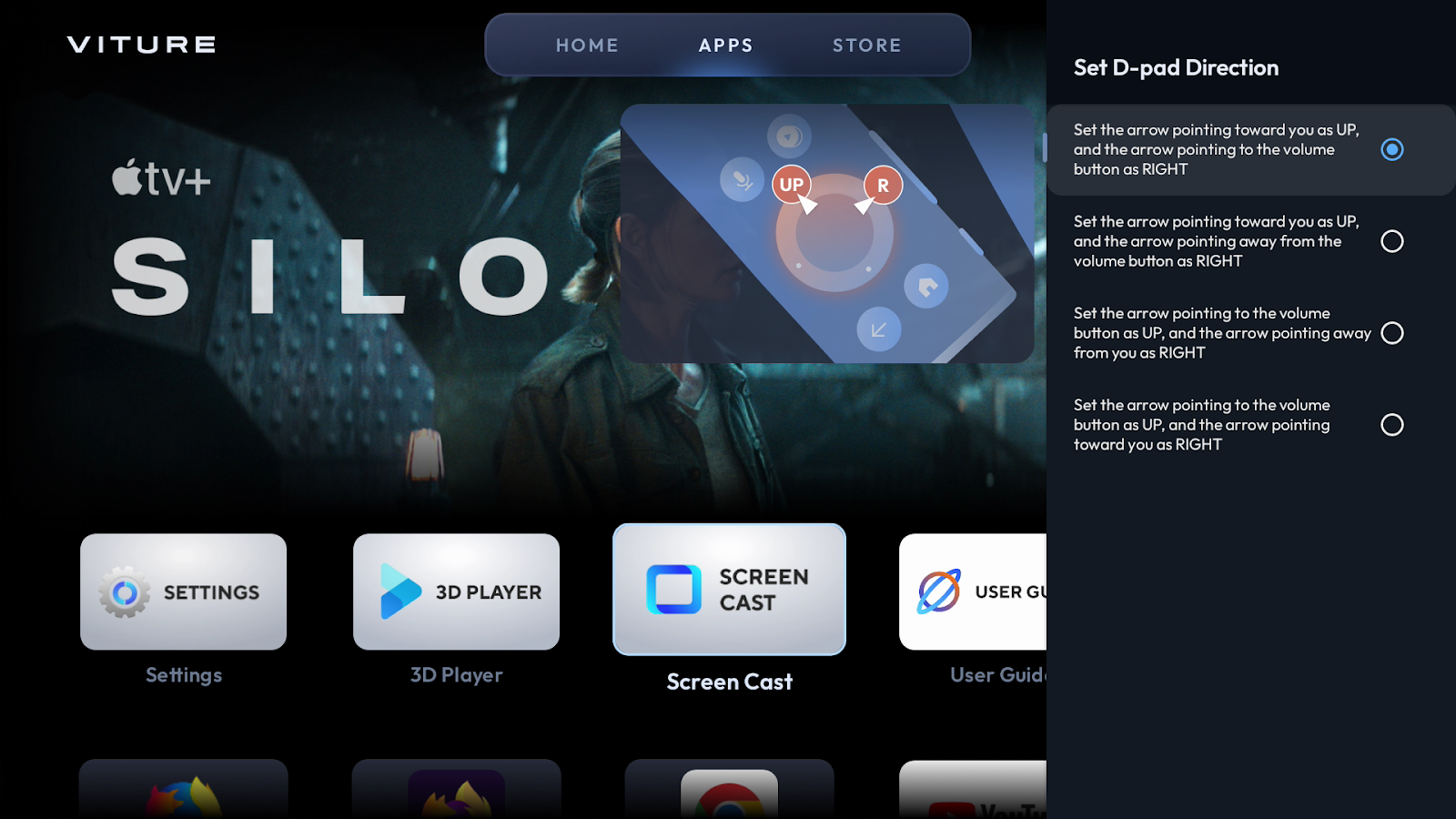
Customizing the D-pad doesn't make changes to the D-pad layout in the Neckband Remote app.
Add Your Favorite Apps
On the HOME tab, you can add your favorite apps by selecting the + icon. All apps installed on the Neckband will show on the overlay.
You can add up to 7 favorite apps.
To change the order or remove an app, press and hold on the app, then select MOVE or REMOVE.
Customize Channels on Home Screen
On the HOME tab, you can add or remove Home screen channels.
Scroll down, and select CUSTOMIZE CHANNELS, then select the channels that you want to add to the Home screen.
Channels are not available for all apps.
Ambient Mode Preferences
To change the position of the display in Ambient Mode, go to Settings > Ambient Preferences, and select your preferred screen size and placement.
Your preference will take effect immediately when you enable Ambient Mode.
Change Screen Scale and Position
The Neckband shows the largest screen by default. If you find it difficult to see all the borders of the screen clearly, you can choose to see a smaller screen and move the screen slightly.
Make the Screen Smaller
To "zoom out" and make the screen smaller,
- Neckband OS 1.3 or later: Go to Settings > Display & Sound > Zoom and Position,
- Neckband OS 1.2 or earlier: Go to Settings > Device Preferences > Display & Sound > Zoom and Position,
then select "Zoom out screen."
The smallest screen is 60% of the original scale. You can select "Zoom in" and go back to the default, or select Reset to return to the 100% scale immediately.
Move the Screen
After zooming out the screen, you can move the screen up, down, left, or right to your preferences. Select Reset to return to the 100% scale.
HARMAN AudioEFX
VITURE XR Glasses' stereo audio system was developed in partnership with HARMAN and is powered by HARMAN AudioEFX.
With the Neckband, you can select preset sound modes to change your audio experience.
- Neckband OS 1.3 or later: Go to Settings > Display & Sound > HARMAN AudioEFX.
- Neckband OS 1.2 or earlier: Go to Settings > Device Preferences > Display & Sound > HARMAN AudioEFX,
then choose a sound mode or turn HARMAN AudioEFX off.
| Mode | Description |
|---|---|
| Standard Mode | The most common sound mode, suitable for most listening scenarios. |
| Music Mode | Optimized for music playback, providing a balanced and immersive listening experience. |
| Game Mode | Enhances audio cues essential for remote play and cloud gaming, allowing you to pinpoint in-game sounds for a competitive edge. |
| Video Mode | Tailored for watching movies or YouTube, emphasizing dialogue clarity and cinematic sound effects. |
Quiet Mode
Quiet Mode limits the Neckband's fan speed to keep noise levels quiet — perfect for movies or casual gaming in a quiet room.
To turn Quiet Mode on or off,
- Neckband OS 1.3 or later: Go to Settings > Quiet Mode.
- Neckband OS 1.2 or earlier: Go to Settings > Device Preferences > Quiet Mode.
When Quiet Mode is turned on, the Neckband's temperature will rise.
Sleep, Wake, & Auto-shutdown
The Neckband goes to sleep when you do one of the following:
- Press the Power button on the Neckband.
- Disconnect from XR Glasses.
To wake the Neckband:
- If your XR Glasses are connected, press the Power button on the Neckband.
- If your XR Glasses are disconnected, just reconnect XR Glasses to the Neckband.
After sleeping for 5 minutes, the Neckband will turn off automatically to save power. You can change the timer or choose to never turn off automatically. Go to Settings > Device Preferences > Auto Shutdown, then select 3 minutes, 5 minutes, 10 minutes, or Never.
Other Settings
Change the Name of Your Neckband
You can name your Neckband during setup. To change the name of your Neckband, go to Settings > Device Preferences > About > Device name, press the OK button, then enter or choose a new name.
Change the Date and Time
The date and time is visible on the Home screen and set automatically based on your network.
If you want to change them, follow these steps:
- Go to Settings > Device Preferences > Date & Time.
- Turn off Automatic date & time.
- Change the date, time, and time zone.
Turn on 24-hour format for the Neckband to display hours from 0 to 23.
Change the Language
You can choose the Neckband's language during setup. If you want to change the language of the Neckband, go to Settings > Device Preferences > Language.
The Neckband now has:
- English
- Japanese
- German
- French
- Spanish
- Italian
- Simplified Chinese
Change the Region
You can choose your region during setup. If you want to change your region after setup, go to Settings > Device Preferences > Region.
By changing your region, you will see localized apps. (Not currently available in every region.)
Send Feedback
We value every customer and constantly try our best to make our products better.
If you encounter an issue, go to Settings > Send Feedback, choose a maximum of 3 issues you encountered, then select SUBMIT REPORT.
You can choose to upload log files or not. With log files, we can analyze the issues more efficiently. These files don't personally identify you and don't include location information.
You can also send detailed feedback here or contact us at any time via email at happycustomer@viture.us.
Restart Your Neckband
You can restart your Neckband by turning it off and turning it back on, or go to Settings > Device Preferences > About > Restart.
Factory Reset Your Neckband
If your Neckband isn't working as expected, or you want to sell or give away your Neckband, you can factory reset your Neckband. This will erase all data, files, apps, and settings on your Neckband.
To factory reset your Neckband, go to Settings > Device Preferences > About > Factory reset, then select Factory reset.
Connect to the Internet
Go to Settings > Network & Internet, then turn on Wi-Fi.
Tap an available network and enter the password if required. Or add a new network by entering the name, security type, and password of the network.
The Neckband is also able to connect to your phone's personal hotspot.
When Wi-Fi is on, the Neckband will try to connect the most recently used available Wi-Fi network. If you forget the current connected Wi-Fi, the Neckband will try to connect another most recently used available Wi-Fi network.
Connect Bluetooth Accessories
You can connect wireless keyboards, headphones, speakers, game controllers, and more to the Neckband via Bluetooth.
The Neckband must be no more than 33 feet (10 meters) from the Bluetooth accessories for a stable connection.
To pair a Bluetooth accessory:
- Ensure the Bluetooth accessory is in pairing mode.
- On the Neckband, go to Settings > Bluetooth, then select the name of the accessory.
The Neckband will connect to a paired Bluetooth accessory automatically if the accessory is turned on. If it doesn't, follow these steps and try again after each:
- Check if the accessory is connected to any other device.
- On the Neckband, go to Settings > Bluetooth, select the name of the accessory, then select Connect (NeckbandOS 1.2 or later required).
Transfer Files to Your Neckband
Before transferring files, ensure that USB Host of the Neckband is disabled.
To transfer files between the Neckband and a computer, please follow these steps:
- Connect your Neckband to a computer with a USB-C cable.
- For Windows, VITURE will be recognized as an external drive on This PC; For Mac, you need to download a file transfer app like MacDroid first.
- Now you can transfer files by copying them from one device to the other.
During transfer, please connect your Neckband to the XR Glasses and keep the Neckband active.
Transfer Files to the Neckband via Web
In addition to transferring files to the Neckband using a data cable, you can also transfer files via a web page within the same local area network.
Follow these steps to transfer files to the Neckband:
- Connect the Neckband and your computer to the same network.
- Check the Neckband's IP address: Go to Settings > Device Preferences > About > Status > IP address.
- Open 3D Player app on the Neckband.
- Open a web browser on your computer and enter the Neckband's IP address followed by :2021 in the address bar. For example, if the Neckband's current IP address is "192.168.88.123," you would need to visit 192.168.88.123:2021 in your browser.
- You will be directed to a web page. Click "Choose File" to select files from your computer's storage.
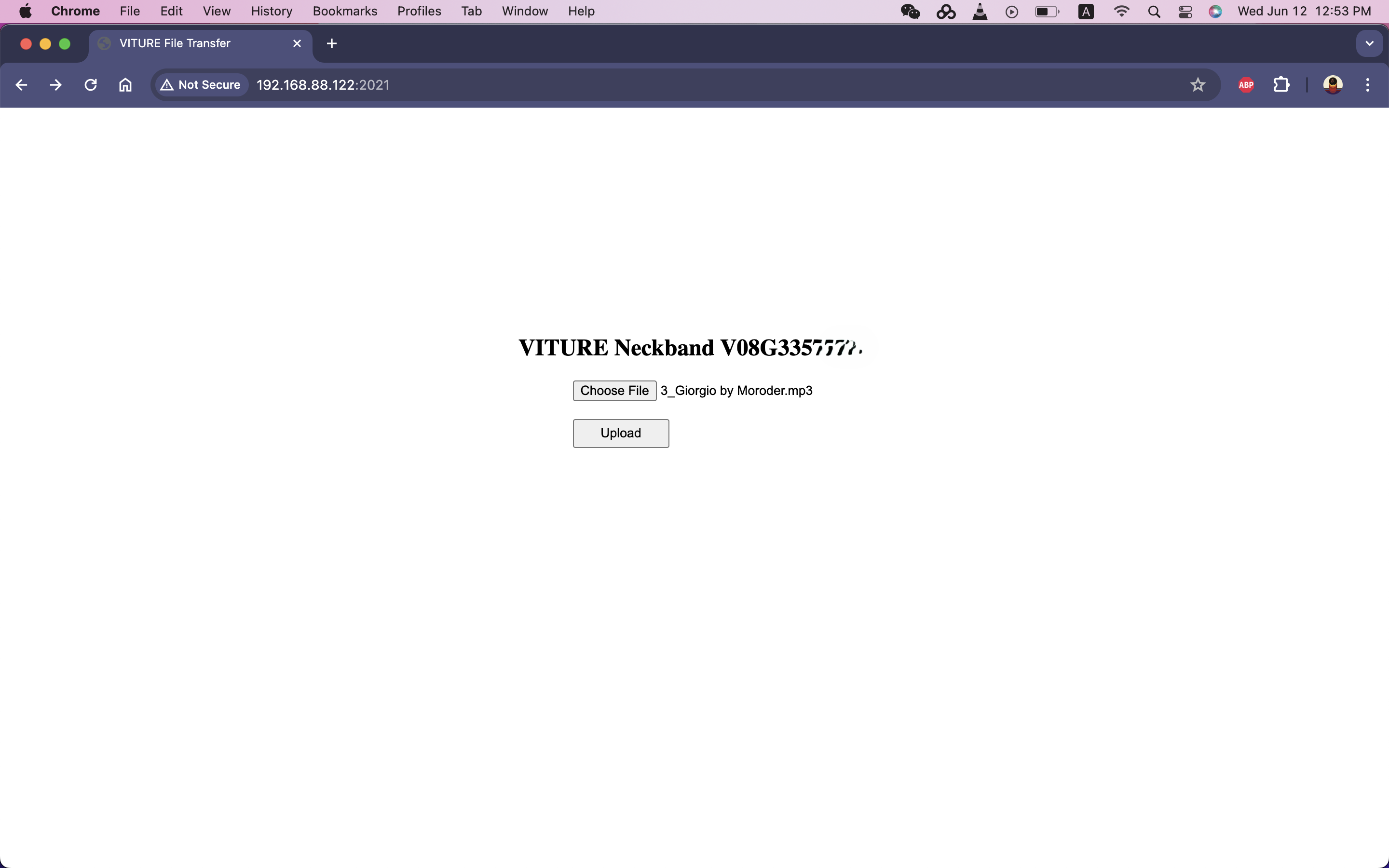
- Once you have completed your selection, click "Upload" to transfer the files to the Neckband's Downloads folder.
Additional Notes:
To use this feature, the Neckband software must be updated to version 1.6.1.10612 or above.
When transferring large files, ensure the Neckband has sufficient battery power and keep the XR glasses connected during the transfer to prevent the Neckband from entering sleep mode.
USB Host
The Neckband supports keyboards & mice with USB-C receivers, wired keyboards & mice, USB Hubs, external USB flash drives and Samsung Portable SSD T5. To use these devices, please follow these steps:
- On the Neckband, go to Settings > Device Preferences > USB Host, then enable USB Host.
- Insert the receiver or the flash drive into the USB-C port on the Neckband.
To view your files in your flash drive on the Neckband, launch the 3D Player app and navigate to the USB Disk tab.
Battery and Charging
Battery Capacity and Battery Life
"Battery capacity" is a measure of the charge stored by the battery.
The Neckband's battery capacity is 3,280mAh.
"Battery life" is the amount of time a device runs before it needs to be recharged.
- For remote play or cloud gaming, you can use the Neckband for about 2 hours.
- For video playback, the battery life is about 3 hours from 100% to 0%.
Charge Your Neckband
To charge your Neckband, do any of the following:
- Connect the Neckband to a power outlet using the USB-C cable (included) and a third-party USB power adapter.
- Connect the Neckband to your computer with a USB-C cable.
The LED indicator on the Neckband will emit light while charging. The Neckband is expected to be fully charged in 1.5 hours with a USB-C cable.
Please turn off USB Host to charge via the USB-C port.
You can also use the Neckband Charging Case to charge your Neckband.
To use the Neckband Charging Case to charge your Neckband, follow these steps:
- Fold the Neckband.
- Connect the magnetic connector of the Neckband to the middle of the Charging Case.
- The LED indicator on the Neckband will emit light while charging.
View the Neckband Battery Percentage
You can view the remaining charge in your Neckband battery on the top right of the Home screen.
When you go to Settings, the battery percentage is on the top of the menu.
The battery percentage is also shown in the 3D Player app.
You can even read a probable battery percentage by the LED indicator on the Neckband. The LED indicator is solid while the system is running, and pulsing while the Neckband is being charged.
| Color | Battery Percentage |
|---|---|
| White | 51–100% |
| Yellow | 21–50% |
| Red | 1–20% |
Neckband Charging Case
Hassle-free charging for hours of extra playtime — the Neckband Charging Case's 7,800mAh power bank keeps your Neckband charged while you're not using it, with enough juice for up to two full charges between plug-ins!
Just put your Neckband in, throw it in your bag, and it will be fully charged the next time you need it.
| Color | Black, Blue |
| Dimensions | 200.0 × 166.0 × 69.0 (mm) |
| Weight | 494g |
| Capacity | 7,660mAh |
| USB-C Input | 18W (5V~2.5A, 9V~2A, 12V~1.5A) |
| USB-C Output | 18W (5V~2.5A, 9V~2A, 12V~1.5A) |
| Magnetic Connector Output | 18W (5V~1.5A, 9V~1.5A) |
The Neckband will be fully charged in 2 hours using the Charging Case, and the Charging Case can fully charge the Neckband more than 2 times.
To use the Neckband Charging Case to charge your Neckband, follow these steps:
- Fold the Neckband.
- Connect the magnetic connector of the Neckband to the middle of the Charging Case.
- The LED indicator on the Neckband will emit light while charging.
You can read a probable battery percentage remaining by the LED indicator on the Neckband Charging Case.
| LED | Battery Percentage |
|---|---|
| 4 lights | 76–100% |
| 3 lights | 51–75% |
| 2 lights | 26–50% |
| 1 light | 1–25% |
To charge the Neckband Charging Case, do any of the following:
- Connect the Neckband Charging Case to a power outlet using the USB-C cable and a third-party USB power adapter.
- Connect the Neckband Charging Case to your computer with a USB-C cable.
It is safe to charge the Neckband and the Charging Case at the same time.
Free Up Memory
If you find that your Neckband is running slowly or experiencing lag, you can improve its performance by clearing the memory.
Steps to Free Up Memory:
- Go to Settings > Free Up Memory.
- Press the OK button.
The Neckband will notify you of how much memory has been freed once the cleanup is complete.
Please note: Clearing the memory will close any running apps. If you have any unsaved work, please save it before proceeding with memory cleanup.
To use this feature, the Neckband software must be updated to version 1.6.1.10612 or above.
Get Information about Your Neckband
Go to Settings > Device Preferences > About. The items you can view include:
- Device name
- Model
- Android OS version
- Android OS security patch level
- Kernel version
- Android OS build
- XR Glasses' firmware version
- IP address, device MAC address, Bluetooth address, serial number, uptime
- Open source licenses
- VITURE Terms of Service
- VITURE Privacy Policy
- VITURE User Experience Improvement Program
- System WebView lincenses
View or Turn Off User Experience Improvement Program
Go to Settings Device Preferences > About > User Experience Program.
To help VITURE improve products and services, the Neckband sends usage data when the User Experience Improvement Program is turned on. This data doesn't personally identify you, but may include location information.
Update Your Neckband
When you update to the latest version of NeckbandOS, your data and settings remain unchanged.
The latest software version is 1.6.3.10902.
OTA Update
The Neckband updates automatically with an internet connection when an update is available.
You can check for updates at any time. Go to Settings > Device Preferences > About > System update > Check for update.
Local Update
If you check for update but there is no update available, please try local update.
- Open TV Bro or another browser on the Neckband, and visit https://static.viture.dev/ota/1.6.3.10902/update.zip. Entering text on Neckband Remote would be easy.
- The browser will start to download a .zip file, wait until the download finishes.
- Open 3D Player app, navigate to the second tab, and open the Downloads folder.
- Select the update.zip file, the system will start local updating.
Apps
VITURE App Store
The Neckband offers the best streaming apps and remote play apps. To download them, navigate to the STORE tab and discover the pre-selected apps that we've optimized for the Neckband.
To download an app, please follow these steps:
- Navigate to the STORE tab, then highlight the app you wish to use.
- Press the OK button on the Neckband, then select OK.
- Wait for downloading and installing to complete.
3D Player
VITURE XR Glasses feature native full SBS 3D video support, and the Neckband offers enhanced 3D features with auto-detection and half SBS support. It's all in the 3D Player app.
Compatibility
Video & Picture Decoder
3D Player now supports:
- AV1 MP-10 @L5.1 up to 4K×2K@60fps
- VP9 Profile-2 up to 4Kx2K@60fps
- 265 HEVC MP-10 @L5.1 up to 4Kx2K@60fps
- AVS2-P2 Profile up to 4Kx2K@60fps
- 264 AVC HP @L5.1 up to 4Kx2K@30fps
- MPEG-4 ASP @L5 up to 1080P@60fps (ISO-14496)
- WMV/VC-1 SP/MP/AP up to 1080P@60fps
- AVS-P16(AVS+) /AVS-P2 up to 1080P@60fps
- MPEG-2 MP/HL up to 1080P@60fps (ISO-13818)
- MPEG-1 MP/HL up to 1080P@60fps (ISO-11172)
- RealVideo 8/9/10 up to 1080P@60fps
- MJPEG and JPEG unlimited pixel resolution decoding (ISO/IEC-10918)
- Supports JPEG thumbnail, scaling, rotation and transition effects.
- Supports .mkv, .wmv, .mpg, .mpeg, .dat, .avi, .mov, .iso, .mp4, .rm and .jpg file formats.
Audio Decoder
3D Player now supports MP3, AAC, WMA, RM, FLAC, and programmable with 7.1/5.1 down-mixing.
View & Play Videos
In the 3D Player app, the first tab includes videos stored locally on your Neckband. All videos are listed in a gallery scene.
Play Videos
Navigate to the video that you want to play, then press the OK button on the Neckband to start playing.
Control Playback
| Control | Description |
|---|---|
| Playback Mode | 2D: Normal. 3D Double Screen (Left/Right): For full or half 3D SBS videos. 3D Double Screen (Up/Down): For full or half 3D OU videos. VR 360°: For immersive 360° VR videos. |
| Screen Ratio | Full Screen: Play in 16:9 aspect ratio. Proportional Cutting: Play in the video's original aspect ratio. |
| Playlist | View the queue and choose to start playing another video. |
| Playback Order | Sequential Playback: Play the videos in the queue and go back to the video list. Play Random: Turn on shuffle. Loop Playback: Repeat a playlist. Single Circulation: Repeat a single video. Single Playback: Play a single video and go back to the video list. |
| Subtitle | Show and select subtitles in the video (not available for all videos). |
| Audio Track | Show and select all audio tracks in the video. |
| Play/Pause | Press the OK button to play or pause. |
| Playhead | To fast-forward or rewind, press and hold the left or right on the D-pad. |
| Restart | Watch from the beginning. |
VR 180°, VR SBS and ISO files will be supported in the future.
Use External Subtitle Files
3D Player supports many subtitle formats including SRT (.srt), ASS (.ass), SUP (.sup). Subtitle files need to be named the same as the media file, and put the subtitle files and media files in the same folder.
For example:
The name of the media is Avatar (2009).mkv.
Name your subtitle files as Avatar (2009).srt, or Avatar (2009).ass.
View and Modify Files & Folders
Browse the Media Catalog tab to view files and folders. You can open the audio and image files here.
If you turn on USB Host and connect an external USB flash drive, you can browse files and folders on the USB Disk tab.
Copy, move, or delete files and folders by pressing and holding on any item (you can select one multiple items). This feature requires NeckbandOS 1.3 or later.
Local SMB Shared
The Local Network tab allows you to access the storage of devices on your local network. This feature enables you to view videos and movies from your home NAS or computer without having to copy large files to the Neckband.
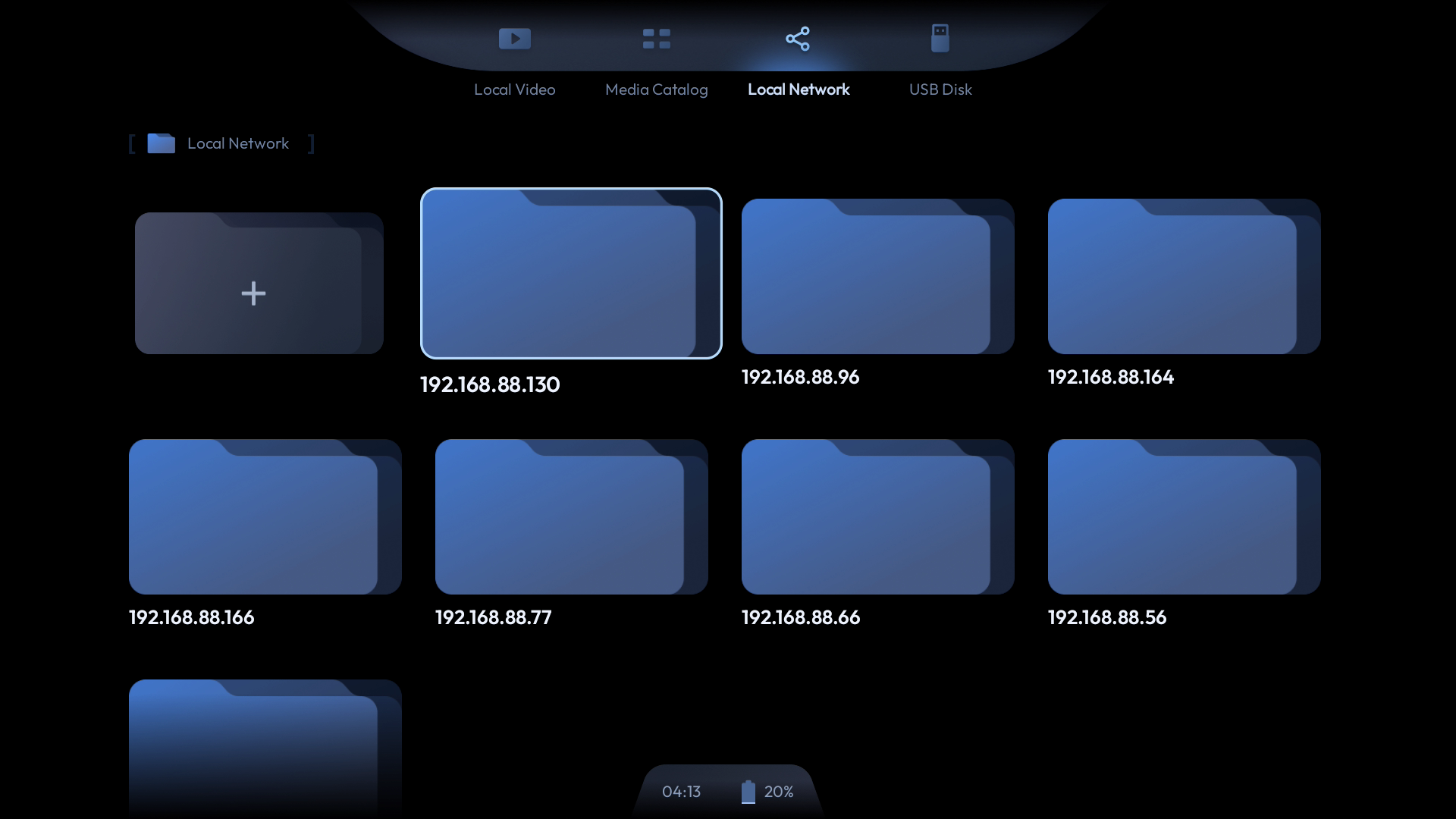
Steps to Access Local Device Storage:
- Ensure the device you want to access is shared. For instance, if you want to access a file or folder on a Windows PC, right-click it, select "Give access to," and share **it with specific users.
- Connect the shared storage (NAS, computer, etc.) and the Neckband to the same network. You can note down the IP address of the device you want to access for easier direct access later.
- Open the 3D Player app on the Neckband and go to the Local Network tab.
- 3D Player will automatically scan the local network devices. Select the device you want to access. Your shared storage usually has a password. If you're accessing your NAS, enter your NAS username and password.
- If your device is not scanned, you can manually access it by clicking on "+".
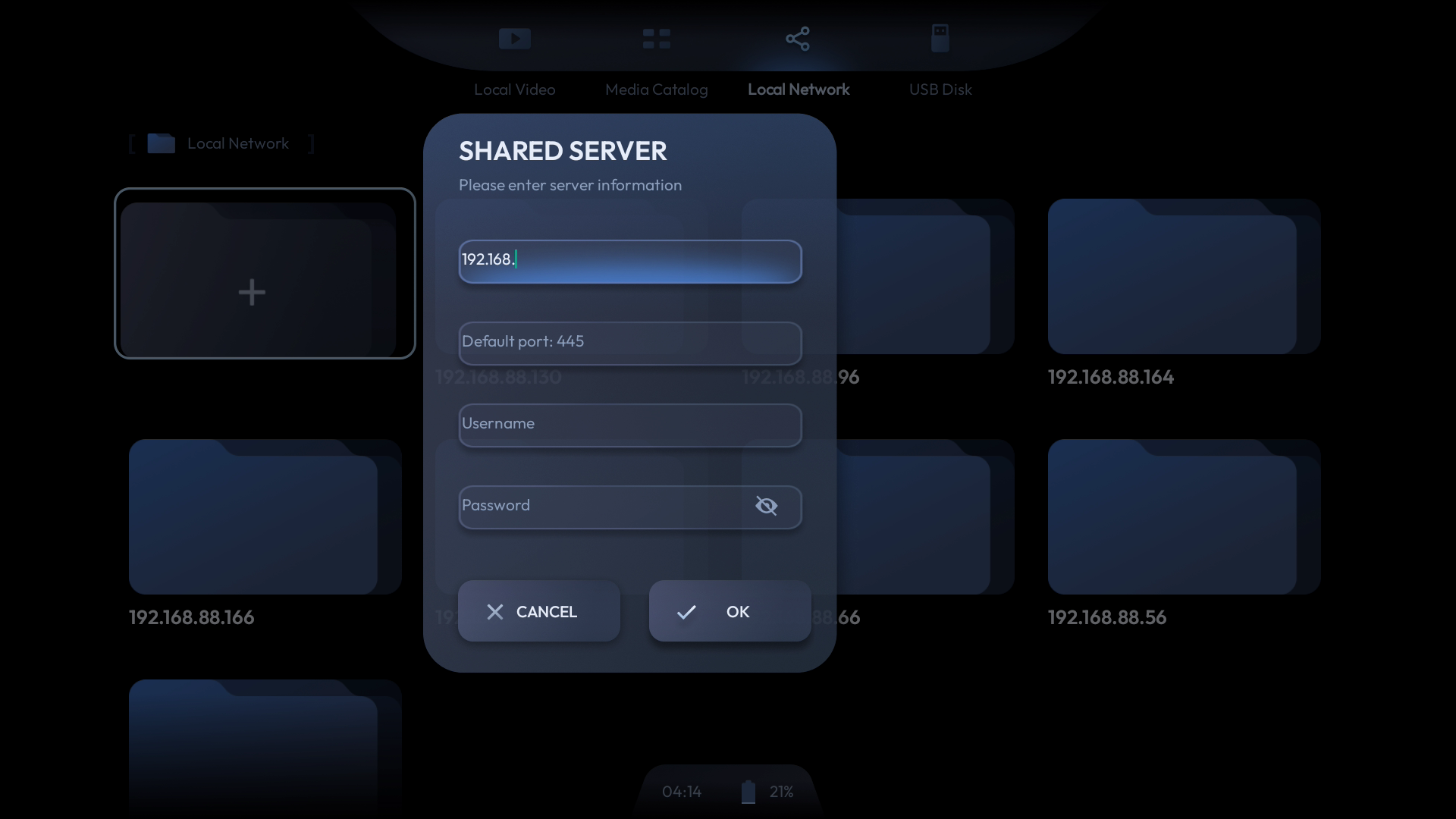
To use this feature, the Neckband software needs to be updated to version 1.6.1.10612 or above.
Vizard
Introducing Vizard
Vizard is an AI-powered game assistant that provides game guides and instructions while you're playing remotely or cloud gaming using the Neckband.
To activate Vizard, simply press the Voice Assistant button on the Neckband (next to the 3D Player button) and speak your question.
Vizard supports multi-turn conversations and will not display the entire conversation history to avoid disrupting your gaming experience. You can continue the conversation to engage in multi-turn dialogue.
In addition, Vizard has the ability to analyze the current screen. When you say keywords like "this," "screenshot," or "capture," Vizard will capture and analyze the current screen to help us provide more accurate game guides.
Of course, Vizard also has the basic capabilities of a large language model, so you can also chat with Vizard like you would with ChatGPT.
To use Vizard, the Neckband software needs to be updated to version 1.6.1.10612 or above.
Please note that Vizard cannot currently provide local and time-sensitive information such as weather, time, or nearby restaurants.
Where to Use Vizard
When using Vizard to assist with gaming, we recommend that you choose single-player games on console and PC platforms rather than online real-time battle games. In addition, we recommend that you choose games that can be played with a gamepad rather than a keyboard and mouse or games that require high precision (such as Dota 2 and first-person shooters), which we also do not recommend playing remotely with a neckband.
We strongly recommend using Vizard in the following scenarios:
- When you are having trouble with a specific enemy
- When you want to achieve a certain achievement
- When you cannot progress through the main storyline or side quests
- When you are lost in an area or cannot find an exit
How to Use Vizard
Wake Vizard Up
Press the Voice Assistant button (number 4 in the image below) to launch Vizard.
Voice commands are introduced from Neckband OS 1.6.2.10709. Simply say "Hey Vizard" to easily launch the Vizard app.
Talk to Vizard
After launching Vizard, simply speak your question. Vizard will recognize what you just said, think for a moment, then give you an answer.
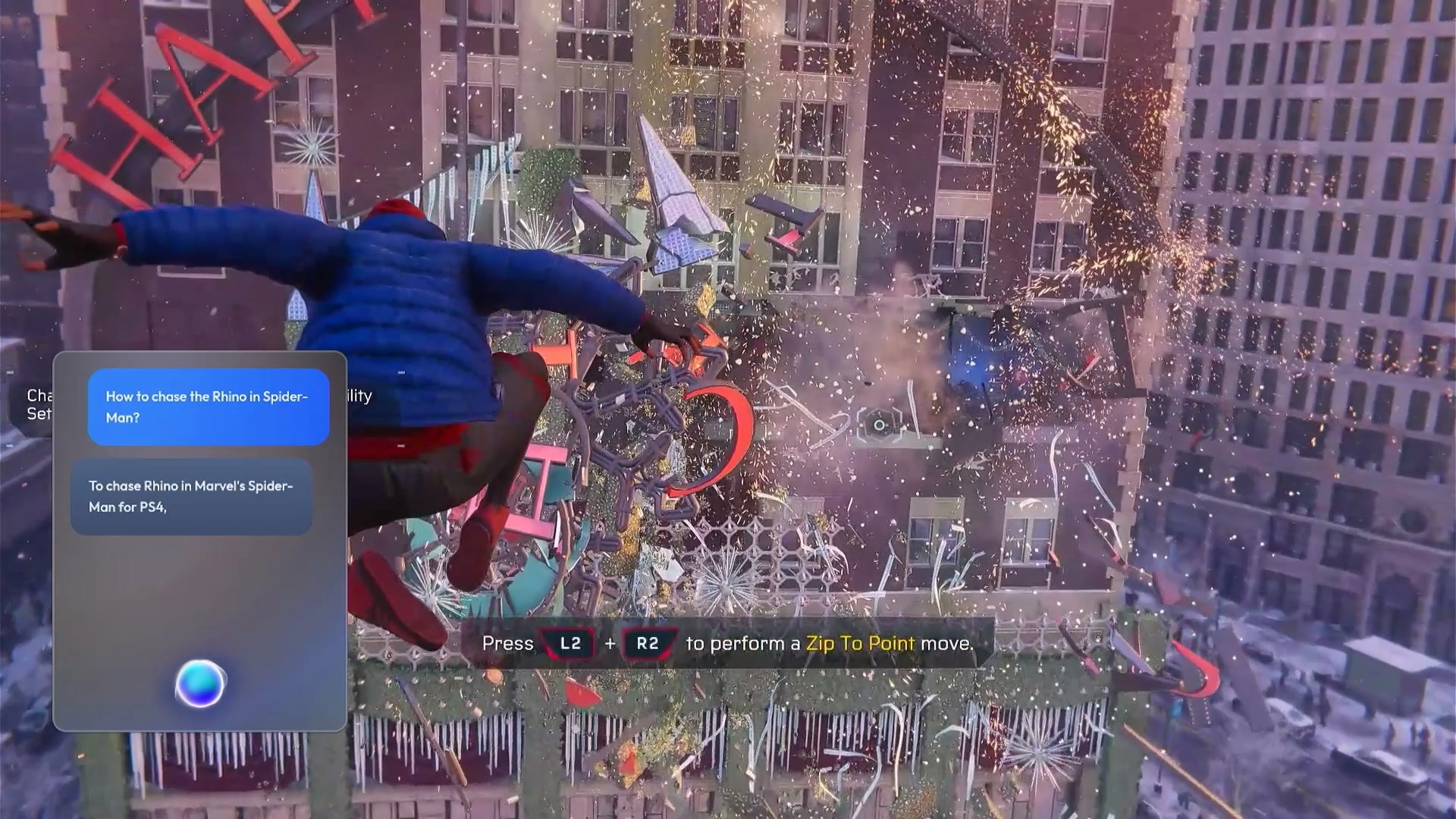
Continue the Conversation
Vizard supports multi-turn conversations. While only the current conversation is displayed on the interface, Vizard can combine context to engage in multi-turn conversations with you as long as you do not close Vizard.
Analyze Current Screen Content
Vizard can analyze the content of the current screen to provide more accurate answers. However, due to privacy and performance considerations, Vizard will not capture the screen frequently.
Vizard will only capture the current screen when you say keywords such as "current screen," "current display," "gameplay scene," "screenshot," "snapshot," "screen content," "capture," "this," "what," and so on.
Quit Vizard
- Press the Back button: This is the familiar way to close the Vizard app.
- Speak a Voice Command: For a hands-free experience, say "Quit," "Exit," or any word that clearly indicates you want to close Vizard.
Screen Cast
With the Screen Cast app, you can wirelessly stream videos to the Neckband.
Stream From Android Devices
- Navigate to screen cast on your Android device, then enable the feature.
- Tap the casting icon and select your Neckband on the device list.
- Your Neckband will pop up a dialog, select “Accept” on the Neckband to start casting.
Stream From Your PC
- On your PC, press Win+K.
- Select your Neckband on the device list.
- Your Neckband will pop up a dialog, select “Accept” on the Neckband to start casting.
Troubleshooting
Screen Mirroring Connection Failed
Miracast uses wireless communication similar to Bluetooth. Environmental factors can cause interruptions in video and audio, leading to mutual interference, resulting in image distortion or audio interruptions.
To resolve this, try disabling the Wi-Fi network connection. If encountering issues while streaming videos to the Neckband, disconnect from the current Wi-Fi network on the Neckband and attempt again.
Content Cannot Be Played on the Neckband
Copyright protection may prevent certain content from displaying on the Neckband through screen casting.
User Guide
User Guide helps you get started when you first turn on your Neckband. If you forget how to control your Neckband, you can launch the User Guide app on the APPS tab at any time.
Sideload Apps
You can sideload apps to your Neckband. VITURE does not guarantee that all apps are compatible with the Neckband.
To sideload an app, follow these steps:
- Get an APK file and transfer it to the Neckband.
- Open the 3D Player app on the Neckband, and locate the file.
- Select the file to start the installation.
- Click INSTALL, and the app will be installed unless there are compatibility issues.
Uninstall Apps
To uninstall an app, follow these steps:
- Navigate to the APPS tab and select the app that you want to uninstall.
- Press and hold the OK button on the item.
- Select UNINSTALL, then press OK to uninstall the app.
Remote Play & GApps
PXPlay & XBXPlay
We are honored to announce that VITURE is the official partner of PXPlay and XBXPlay!
PXPlay (previously known as PSPlay) and XBXPlay are top-tier streaming apps that allow you to remote play your favorite games from PlayStation 5/4, Xbox Series X|S, and Xbox One.
Each app normally costs (plus tax) on the Google Play Store — but both PXPlay and XBXPlay are now FREE for Neckband owners!
(NeckbandOS 1.2 or later required.)
PXPlay 6.5.0 (Released Aug 12, 2024):
- Improved haptic feedback rumble emulation for Bluetooth controllers.
- Added option to register with your console using only your PSN nickname.
- Introduced a "Bitrate start value" setting.
- Various other bug fixes and improvements.
XBXPlay 1.8.0 (Released Aug 12, 2024):
- Various bug fixes and performance enhancements.
Now available on the Neckband.
For easy navigation, download our Neckband Remote app — the perfect companion for your Neckband.
Setup PXPlay & XBXPlay
To ensure smooth setup, have the following ready:
- Neckband and PS5 (or PS4, Xbox Series X|S, Xbox One) connected to the same 5GHz Wi-Fi network.
- Neckband software version 1.2.230705 or later
(Go to Settings > Device Preferences > About > System update > Check for Update) - PSN or Microsoft account credentials.
Recommended Settings:
- Resolution: 1080p
- Refresh rate: 60FPS
- HEVC: Enabled
- Automatic Remote Connection: On
Important: When playing your PS5 on a local network, use the gamepad connected to your Neckband.
Avoid using the controller directly connected to your PS5 — it can interrupt your remote play session.


For more details, visit PXPlay | Help or XBXPlay | Help.
Enable Haptic Feedback for DualSense Controller
While using a DualSense controller connected via USB-C for remote play from your PS5, you can enable haptic feedback.
- On the Neckband, go to Settings > Device Preferences > USB Host, then enable USB Host.
- Connect the controller via USB-C and press the PS button to turn it on.
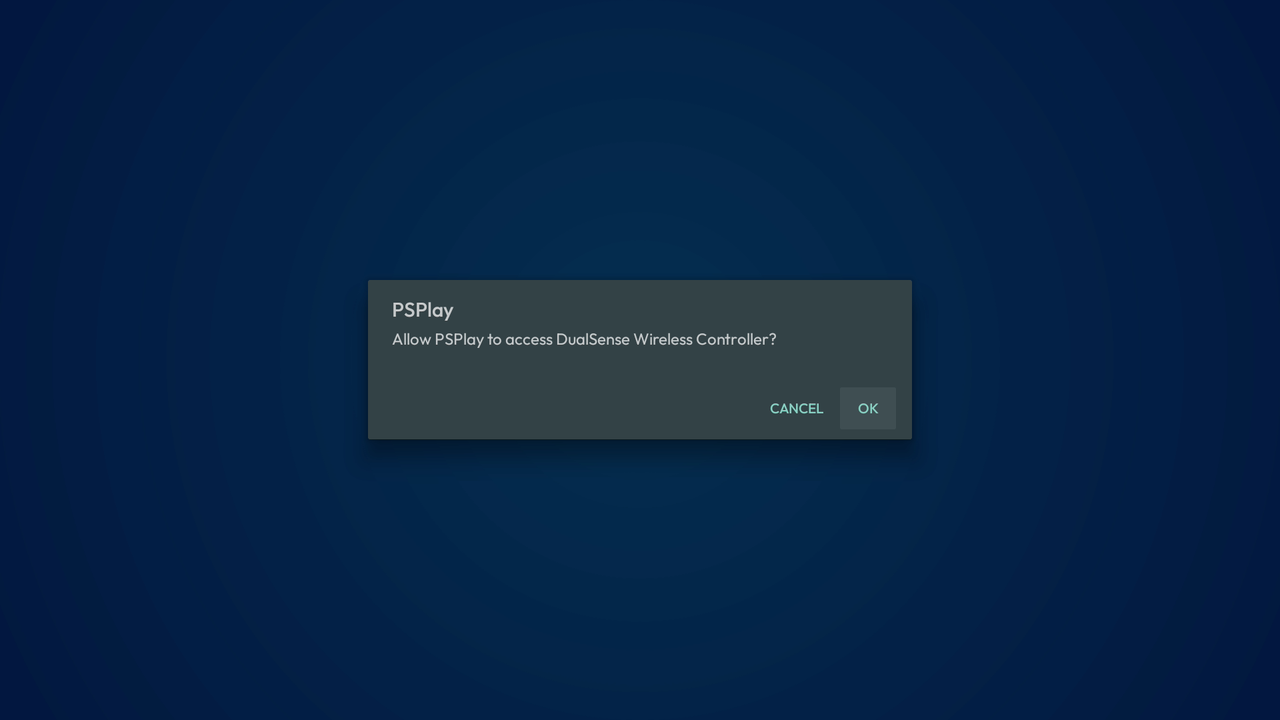
- Allow PXPlay to access the DualSense Wireless Controller.
- In PXPlay, open the menu (top left) → Settings → enable "Enable native USB gamepad mode".
- Choose Haptic Feedback Mode (PS5 only):
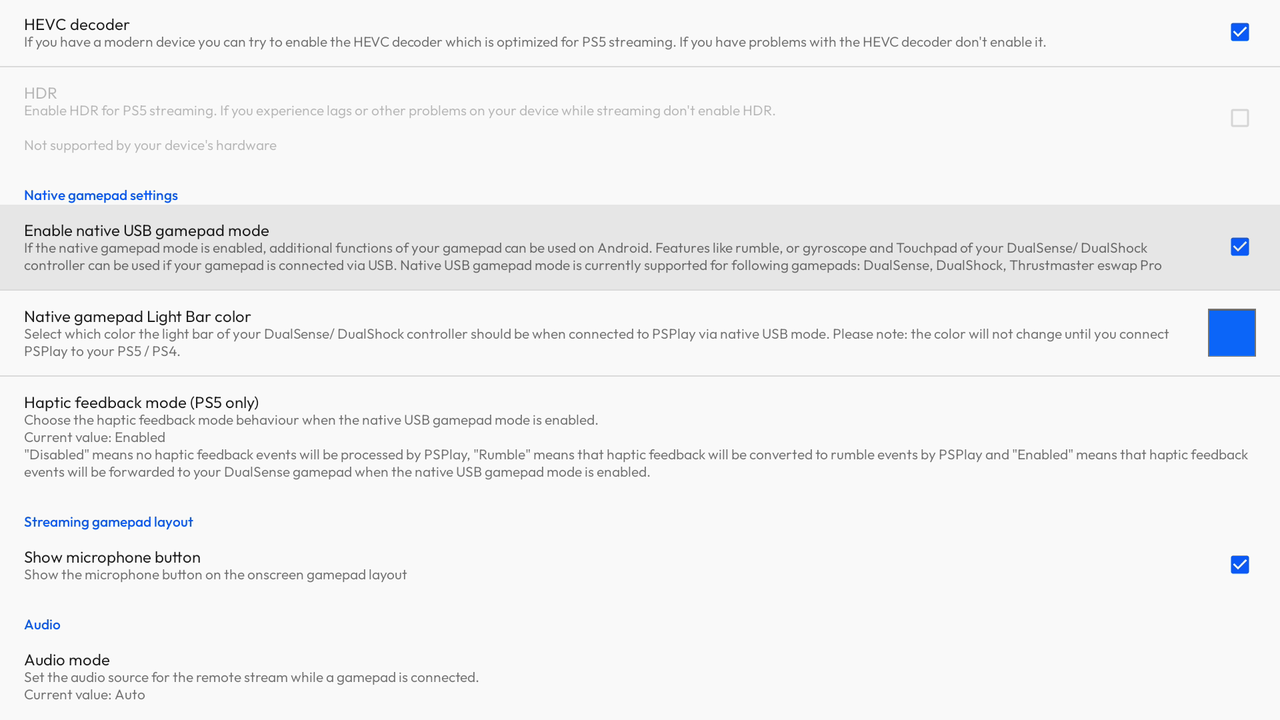
- Rumble: Converts feedback into vibration effects.
- Enabled: Directly forwards haptic feedback to the DualSense controller.
If feedback still doesn’t work, ensure the DualSense controller isn’t connected to any other devices via Bluetooth (including PS5 or Neckband).
Use Microphone During Remote Play
Press the OK button on your Neckband to toggle the microphone on or off. PXPlay will ask for microphone access the first time.
The microphone status icon appears at the bottom right of the screen, and your PS5 will display a notification when it changes.
If the icon doesn’t appear:
- Open PXPlay → Menu (top left).
- Settings > Show microphone button → enable the toggle.
- Reconnect to your console.
GApps Download and Installation
If you’ve purchased PXPlay or XBXPlay and want to install them via Google Play Store, or if you need Google account access for subscriptions (e.g., YouTube), follow this tutorial.
PXPlay and XBXPlay downloaded through the Neckband do not require Google Services.
Note: Apps installed via Google Play cannot be updated through the Neckband.
Installation Steps:
- Connect your Neckband to a 5GHz Wi-Fi network.
- Launch the TV Bro app.
- Open the GApps TV bookmark.
- Click DOWNLOAD → open the download icon from the toolbar.
- Run gapps.apk.
- Click Install (allow permissions if prompted).
- Click Open → check all boxes → click INSTALL.
- Go to Settings > Accounts & Sign-in → Add account → log in with your Google account.
Moonlight + Sunshine
Moonlight lets you stream PC games to your Neckband with low latency.
Sunshine is the self-hosted server component that supports AMD, Intel, and NVIDIA GPUs (hardware or software encoding).
Setup Moonlight & Sunshine
- Download Moonlight on the Neckband and install Sunshine on your PC.
- Connect both to the same 5GHz Wi-Fi network.
- Run Sunshine → access its web UI → create and log in to your account.
- In Moonlight on the Neckband → select your PC → note the 4-digit PIN.
- In Sunshine web UI → go to PIN tab → enter the 4-digit number.
For gamepad support, install ViGEmBus.
You can also watch this setup tutorial or read the official Sunshine documentation.