


XR Glasses Calibration.
Please ensure you are using Chrome (version 98 or later).
Note:
- VITURE Pro 2 and Luma Ultra XR Glasses don't require IMU calibration. This page is not supported for these glasses.
- VITURE Beast XR Glasses use automatic calibration. Simply keep the glasses still for 10 seconds before wearing—no web operation is required. This page does not support Beast XR Glasses.
Connect Your XR Glasses to the Computer.
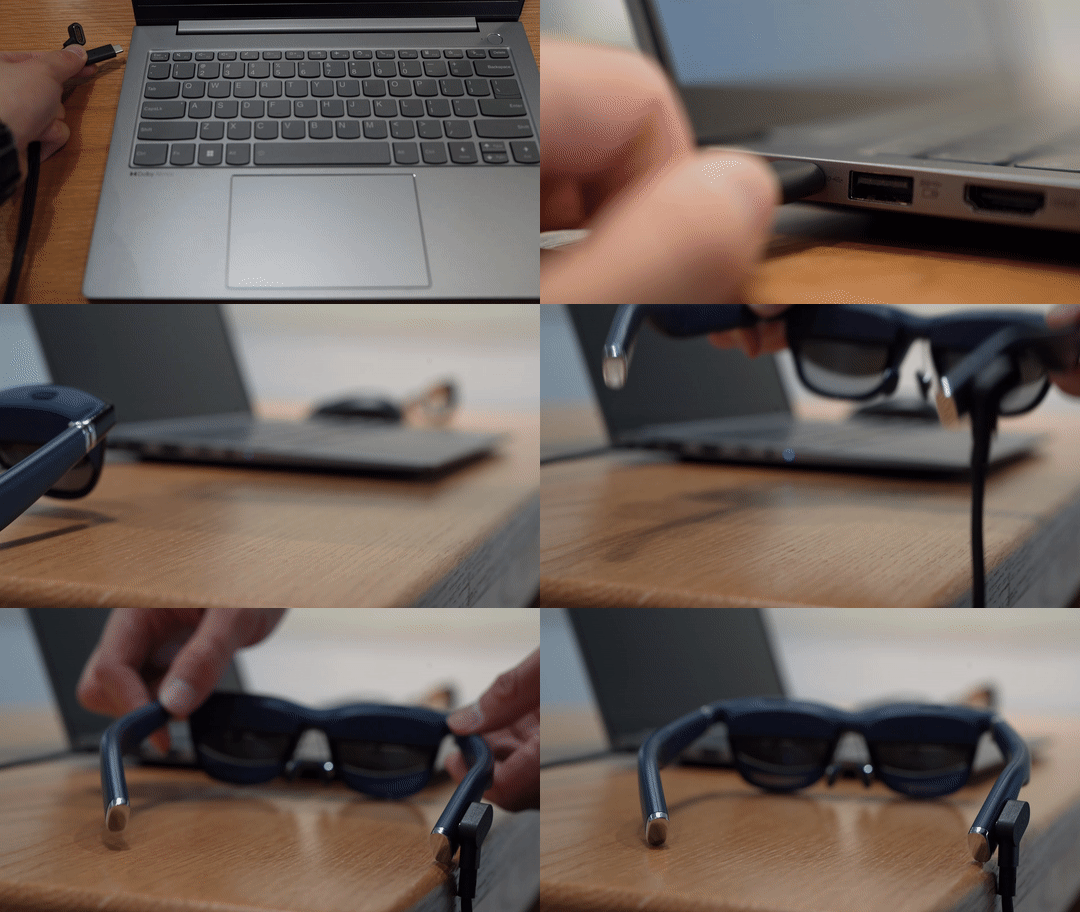
Use the included USB-C to magnetic connector cable to connect your XR Glasses.
Place the glasses on a dry, level surface with both temple tips resting flat, then click Connect
Calibration.
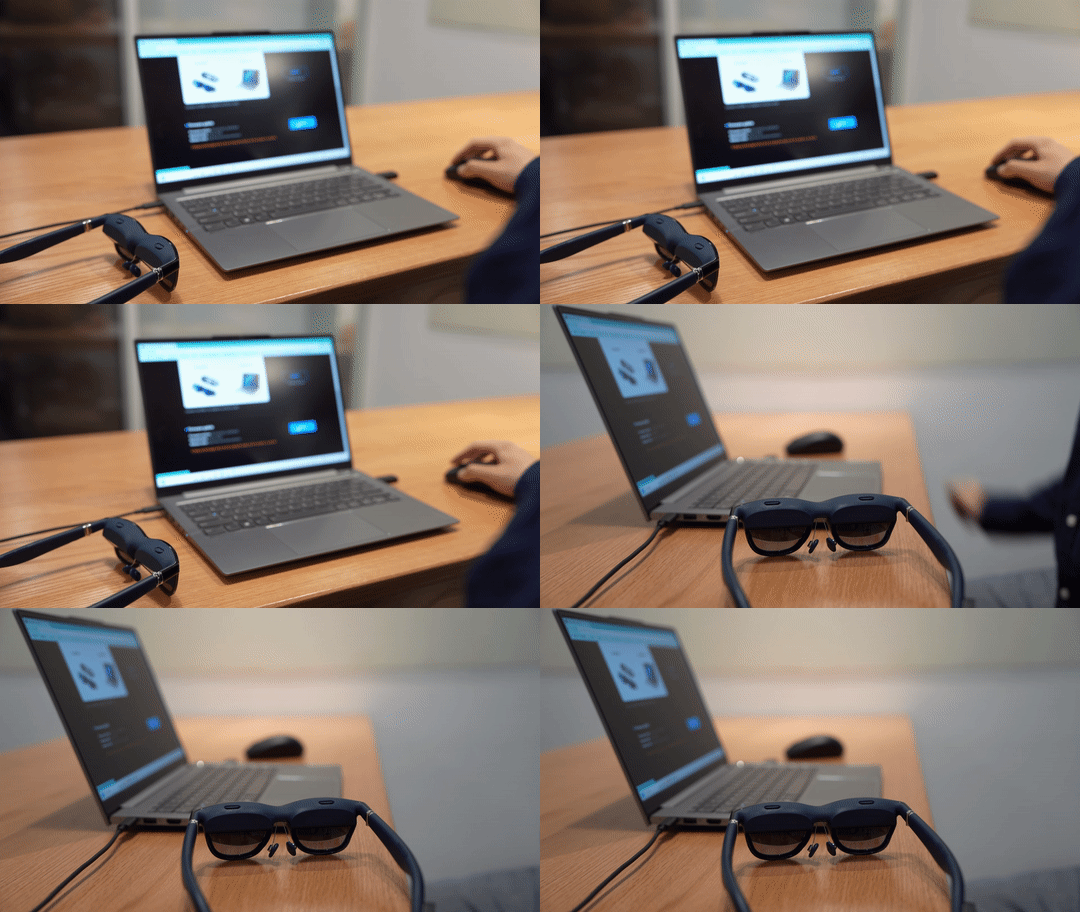
Click Calibrate to start calibrating your XR Glasses’ IMU.
Keep the XR Glasses completely still — do not move or shake them during calibration.
Wearer Detection.
Wearer Detection
When Wearer Detection is turned on, the display will automatically turn off one minute after the XR Glasses are removed. Putting them back on or reconnecting will reactivate the display.