


VITURE Mobile Dock Firmware Update.
Update Instructions
- We recommend using Chrome (version 98 or later) for the best experience.
- If you're updating the Mobile Dock Mini, please remove the Adapter module first, then connect the Console port on your Mobile Dock Mini to your computer and click CONNECT to begin the update.
- To ensure a successful update, please use the original USB-C cable that was included with your Mobile Dock. If this cable is unavailable, a reliable Thunderbolt 3 USB-C cable can be used as a suitable replacement. Using an incompatible cable may lead to unexpected issues or damage to the device.
- If your Mobile Dock isn't detected, please ensure that you're connecting it to a USB-C port on your computer that supports DisplayPort over USB-C (DP Alt Mode). If you continue to experience issues, consult your computer's user manual or manufacturer's website for specific compatibility information.
- Please find firmware release notes here.
Connect Your Mobile Dock.
Connect the included USB-C cable to the Console port on your Mobile Dock and to a USB-C port on your Windows PC or Mac that supports DisplayPort over USB-C (DP Alt Mode).
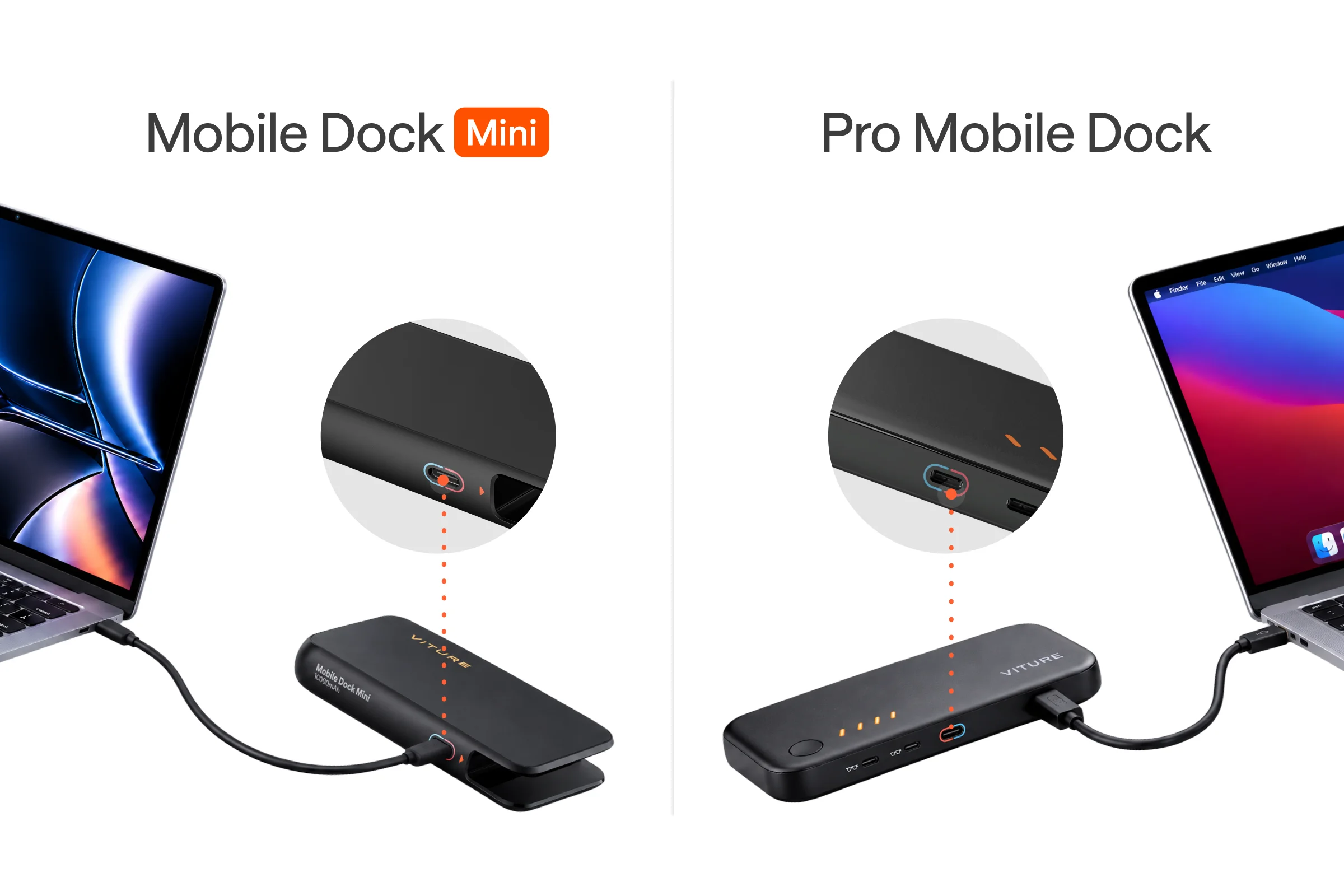
Connect everything exactly as shown above, then click Connect. Your Mobile Dock will be detected automatically.
Firmware Update.
Please keep this page open.
Don't disconnect the cable until the update completes.
Firmware Version
Release Date:
Release Notes: